
What this is for
Your sender reputation is the single biggest factor in whether your campaigns land in the inbox or in spam. Mailbox providers (Gmail, Yahoo, Outlook) judge every email against a rolling score of your bounces, complaints, and engagement — a dirty list quietly drags that score down for months before you notice the open-rate drop.
AcelleMail gives you three concrete tools to keep a list healthy without leaving the app: per-list email verification, the Subscribers tab's Status + Verification filters, and a customer-managed Blacklist. This guide shows where each one is, what it does, and the order to use them in.
Step 1 — Verify every list at least once
The fastest payoff is a one-time verification pass on every list. AcelleMail runs each email through a verification server that checks DNS, mailbox existence, and known-bad patterns, then tags each subscriber with the result.
Open your list, switch to the Email verification tab in the top navigation. URL: /rui/lists/<list-uid>/verification.
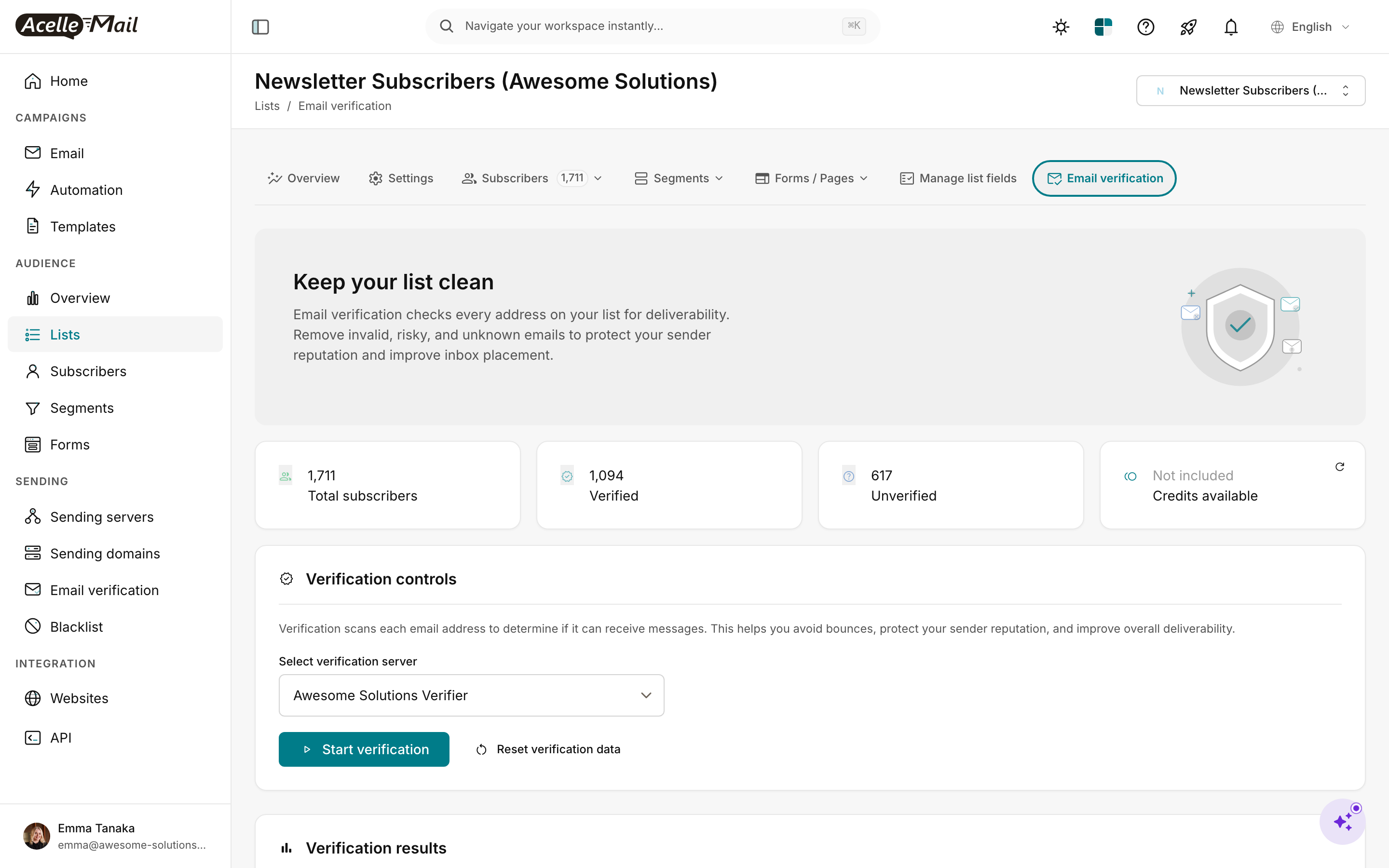
What you see:
- Stat cards at the top — Total / Verified / Unverified / Credits available. The gap between Total and Verified is your work-in-progress. Credits are paid per address checked (your admin configures the verification server's pricing).
- Select verification server dropdown — your admin connects one or more verifiers (Athena EV is AcelleMail's first-party option; external services plug in here too). If the dropdown is empty, the verification server isn't configured yet — ask your admin to set one up under Sending → Email verification.
- Start verification — kicks off a background job that walks every unverified subscriber in this list. Closes the UI; the job continues. You can come back later and see progress.
- Reset verification data — clears all prior verification results. Use sparingly; you'll pay credits again to re-verify.
Click Start verification. The job runs in the background — close the tab and come back in 10–30 minutes depending on list size.
What does verification actually catch? Four bucket-states are returned per address: Deliverable (safe to send), Risky (catch-all servers, role addresses), Undeliverable (rejected by the destination), and Unknown (couldn't determine). Treat Risky and Undeliverable as "do not send" until you've manually reviewed them.
Step 2 — Filter Subscribers by Status + Verification
Once verification finishes, the Subscribers tab gets a lot more powerful. Switch to Subscribers in the list nav.
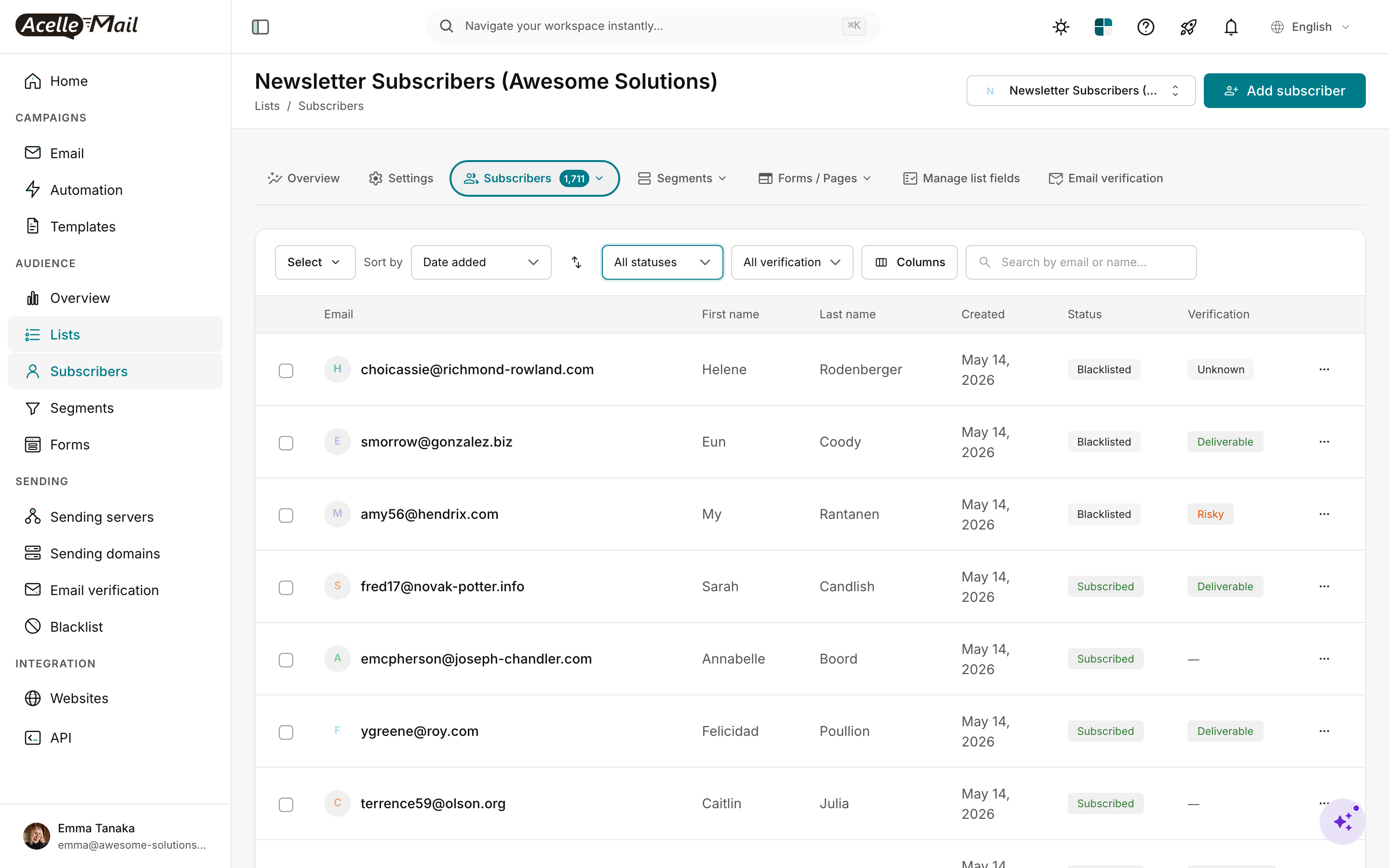
Two filter dropdowns at the top do the heavy lifting:
| Filter | Values it offers | What it means |
|---|---|---|
| All statuses | Subscribed · Unconfirmed · Unsubscribed · Bounced · Blacklisted | The subscription state — only Subscribed receives campaigns |
| All verification | Deliverable · Risky · Undeliverable · Unknown · Not verified | Verification verdict from Step 1 |
The row-level badges in the table reflect the same two columns. Verification "—" means the subscriber hasn't been run through verification yet — they'll be included in the next Start verification run.
Combos worth bookmarking:
| Filter combo | Use case |
|---|---|
| Status = Bounced | Subscribers AcelleMail has already auto-marked from bounce events — review and remove |
| Status = Subscribed + Verification = Undeliverable | Highest-priority cleanup — they're getting your campaigns but will bounce |
| Status = Subscribed + Verification = Risky | Borderline — keep for now, but exclude from high-volume sends |
| Status = Unconfirmed (older than 7 days) | Double opt-in dropouts who never confirmed |
| Status = Subscribed + Verification = Unknown | Run Start verification again |
Use the row checkboxes + bulk actions to move filtered subscribers in batches: Move to blacklist, Delete, or copy to another list.
Step 3 — Maintain the customer Blacklist
When you blacklist a subscriber, they get permanently blocked from receiving any campaign you send — even if they're added back to a list later (e.g. via re-import). Open Blacklist in the left sidebar (under Sending). URL: /rui/sending/blacklist.
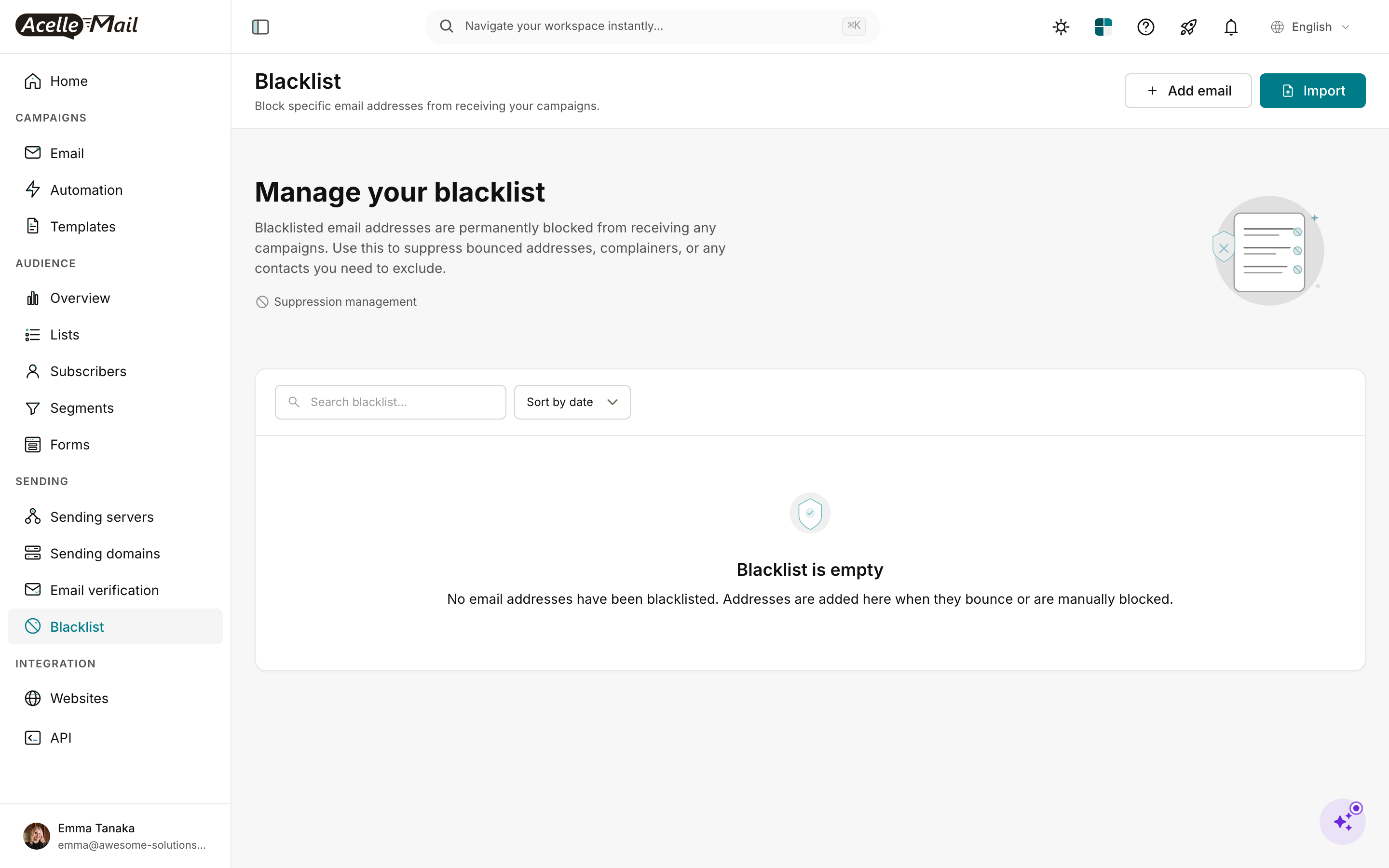
Three ways addresses land on the blacklist:
- Automatic from bounces. When AcelleMail's bounce handler classifies a hard bounce, the address auto-blacklists. You don't need to do anything.
- Bulk add via Import. Click Import top-right and paste a CSV of addresses you want to suppress (e.g. a contractor list, prior unsubscribes from another tool).
- Manual add. Click + Add email for one-off blocks — useful when a complainer reaches out directly.
The blacklist is account-wide — once an address is on it, no list owned by your customer can send to it. That's the right default; you don't want a complainer accidentally re-added through a separate signup form.
Don't blacklist live engaged subscribers. If someone just unsubscribed, they're already in the Unsubscribed status — campaigns skip them automatically. Only blacklist when you want a hard, permanent block (complaints, spam-trap suspects, legal requests).
A practical hygiene schedule
| Task | Frequency | Where in AcelleMail |
|---|---|---|
| Auto-remove hard bounces | Continuous (AcelleMail does this) | Visible under Subscribers / Status = Bounced |
| Full verification sweep on imported lists | Before the first campaign | Email verification tab → Start verification |
| Verification sweep on growing lists | Quarterly | Same |
| Audit Unconfirmed older than 7 days | Weekly during DOI rollout, monthly steady-state | Subscribers / Status = Unconfirmed |
| Audit "Subscribed + Undeliverable" | After every verification sweep | Subscribers / Status=Subscribed & Verification=Undeliverable |
| Re-engagement campaign on inactives | Every 6 months | Build a segment (Last opened email > 180 days) + run a re-engagement campaign |
| Manual blacklist additions | As complaints arrive | Sending → Blacklist → + Add email |
Three signs your hygiene is paying off:
- Bounce rate per campaign trends down below 2% hard bounce (visible on each campaign's report).
- Verified percentage on the verification page climbs over time as you remove undeliverables.
- Inbox placement (visible via Google Postmaster / Microsoft SNDS once you connect those) improves over the same period.
Common issues
| What you see | What to do |
|---|---|
| Verification dropdown is empty | Your admin hasn't connected a verification server. Ask them to set one up under Sending → Email verification (admin view). |
| "Credits available" shows 0 | Verification servers charge per address. Buy credits or rotate to a server with remaining balance via the dropdown. |
| Verification job is stuck for hours | Open the Verification results card lower on the page — there's a Stop verification button to cancel. Then re-start. |
| Status column shows lots of "Bounced" but you've never sent | These were imported from a CSV that pre-flagged statuses, or AcelleMail processed bounces from a previous customer. Delete or blacklist as appropriate. |
| You verified the list but Subscribed campaigns still bounce | Verification is a snapshot. Addresses go stale — re-run quarterly. Also check that your Sending domain has DKIM/SPF set up; verification doesn't fix authentication problems. |
| Customer blacklist shows addresses you didn't add | They were auto-added by the bounce handler. That's the system working correctly; do not remove unless you can confirm the bounce was a one-off. |
What NOT to do
- Don't bulk-delete Bounced or Undeliverable subscribers from the list — blacklist them instead. Deletion lets them re-enter on the next signup form submission. Blacklist makes the block permanent.
- Don't run verification on every import day-one. Verification servers cost per check. Plan your runs around campaign sends — verify a week before a big send, not on the day a single subscriber joins.
- Don't ignore the Risky bucket. Catch-all servers (
*@company.comaccepts everything) accept the email but never deliver it to a real human. Risky = unengaged = drag on your reputation. - Don't manually maintain a CSV of bounces outside AcelleMail. Use the built-in Bounced status filter and the blacklist. Anything that lives in a spreadsheet is one rename away from being lost.
Related articles
- Import Contacts from CSV: A 3-Step Walkthrough
- Segments: Slice Your List Into Audiences That Convert
- Double Opt-In in AcelleMail
- Re-engagement Campaigns: Win Back Inactive Subscribers
5 bình luận