What this is for#
A segment is a saved filter over a mail list. When you create a campaign and pick a segment as the audience, AcelleMail re-evaluates the conditions at send time — so a segment defined as "opened a campaign in the last 30 days" automatically expands and contracts as subscribers engage.
This walkthrough shows you exactly which buttons to click in the AcelleMail segment builder, what each condition row actually looks like, and a handful of segment recipes you can build right away.
Before you start#
- You need at least one mail list with subscribers. Segments are scoped to a list — there's no "global" segment across lists.
- Tags and custom fields are the main raw material. If your subscribers don't have tags or custom fields yet, your segments can only use Email + activities (which are still useful, but limited).
- Segments are dynamic by default. Every condition re-runs each time a campaign or automation reads the segment. There's no "static snapshot" mode — if you need that, copy the matched subscribers into a separate list.
Step 1 — Open the Segments tab inside your list#
From the sidebar click Lists, open the list you want to segment, and switch to the Segments tab in the list's top navigation. The URL is /rui/lists/<list-uid>/segments.
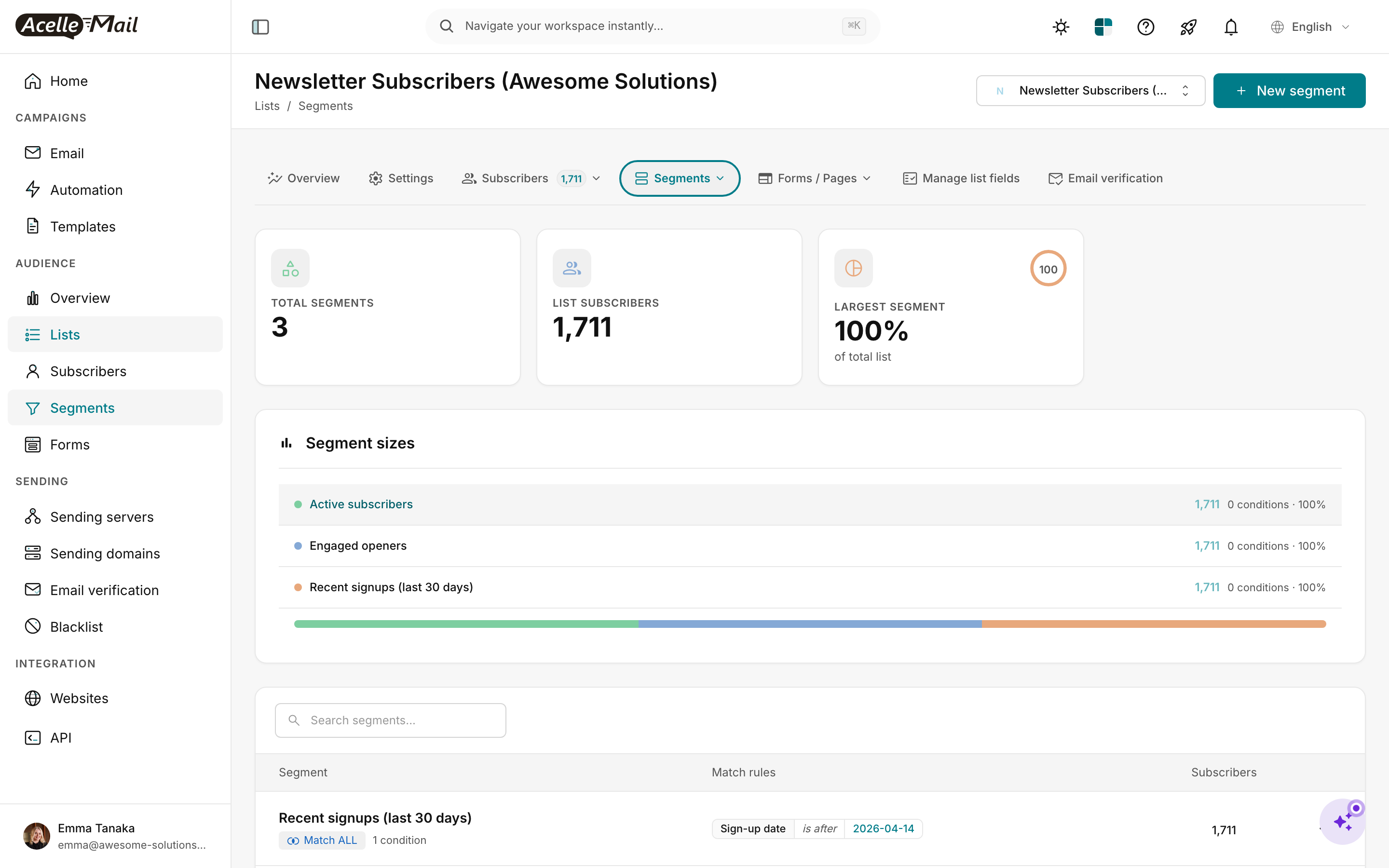
You get a dashboard with three things in it:
- Three stat cards — Total segments, total list subscribers, and what % of the list the largest segment covers.
- Segment sizes chart — a horizontal bar comparing every segment's reach. Useful for spotting segments that have drifted to near-empty (probably stale conditions) or near-100% (probably too broad to be useful).
- Segment table — name, match rules, and matching subscriber count. Each row's Match rules column previews the conditions inline (e.g. "Sign-up date · is after · 2026-04-14").
Click the green + New segment button in the top right.
Step 2 — Create the segment skeleton#
You land on a clean Create a new segment form.
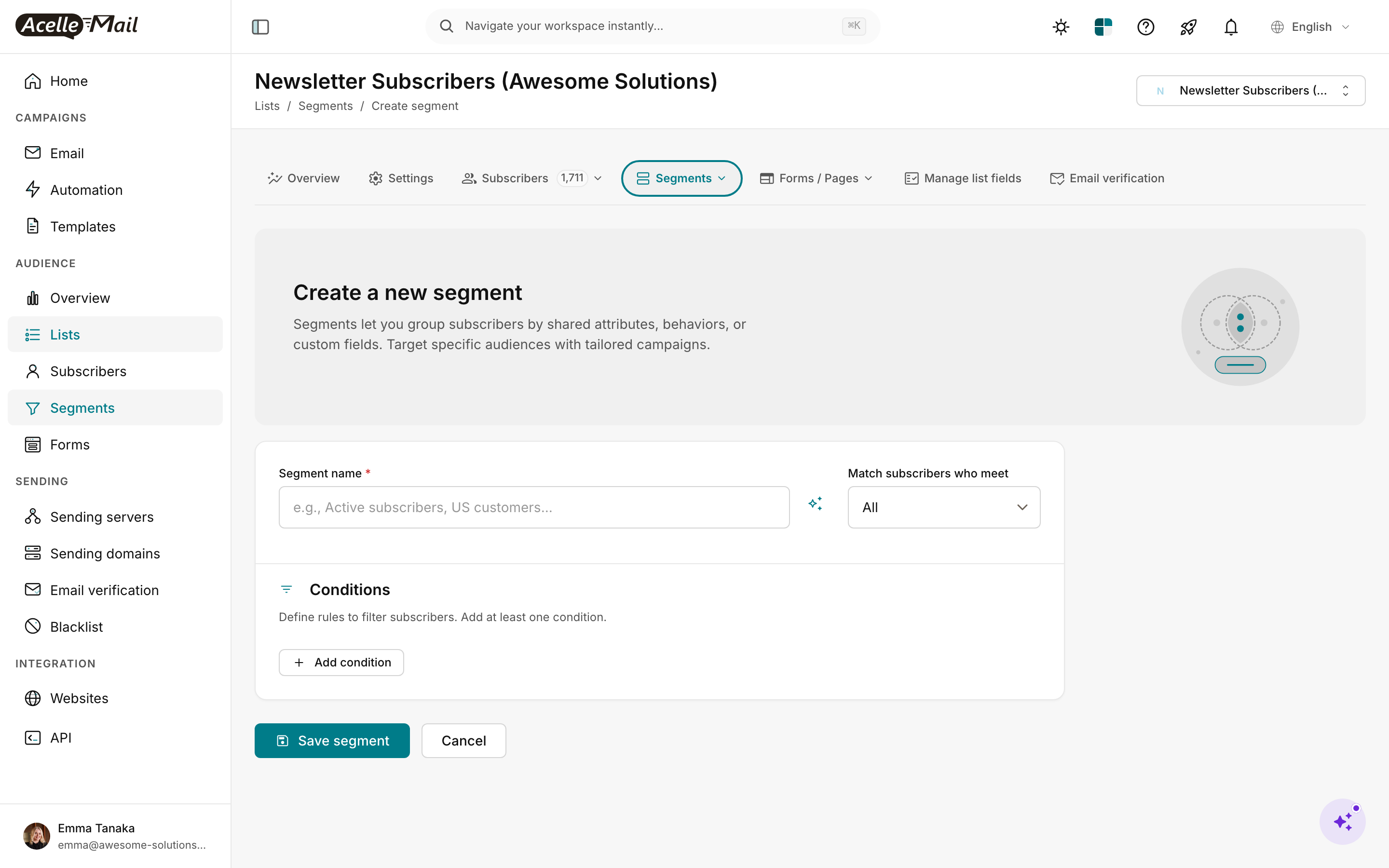
Two decisions to make before you add any rules:
- Segment name. Use a name a campaign creator will recognise three months from now ("Last 30-day openers — US") rather than "Segment 4". The placeholder hints at the right shape: e.g., Active subscribers, US customers…
- Match subscribers who meet →
All or Any. All means a subscriber has to satisfy every condition (AND logic). Any means at least one condition is enough (OR logic). Most useful segments are AND.
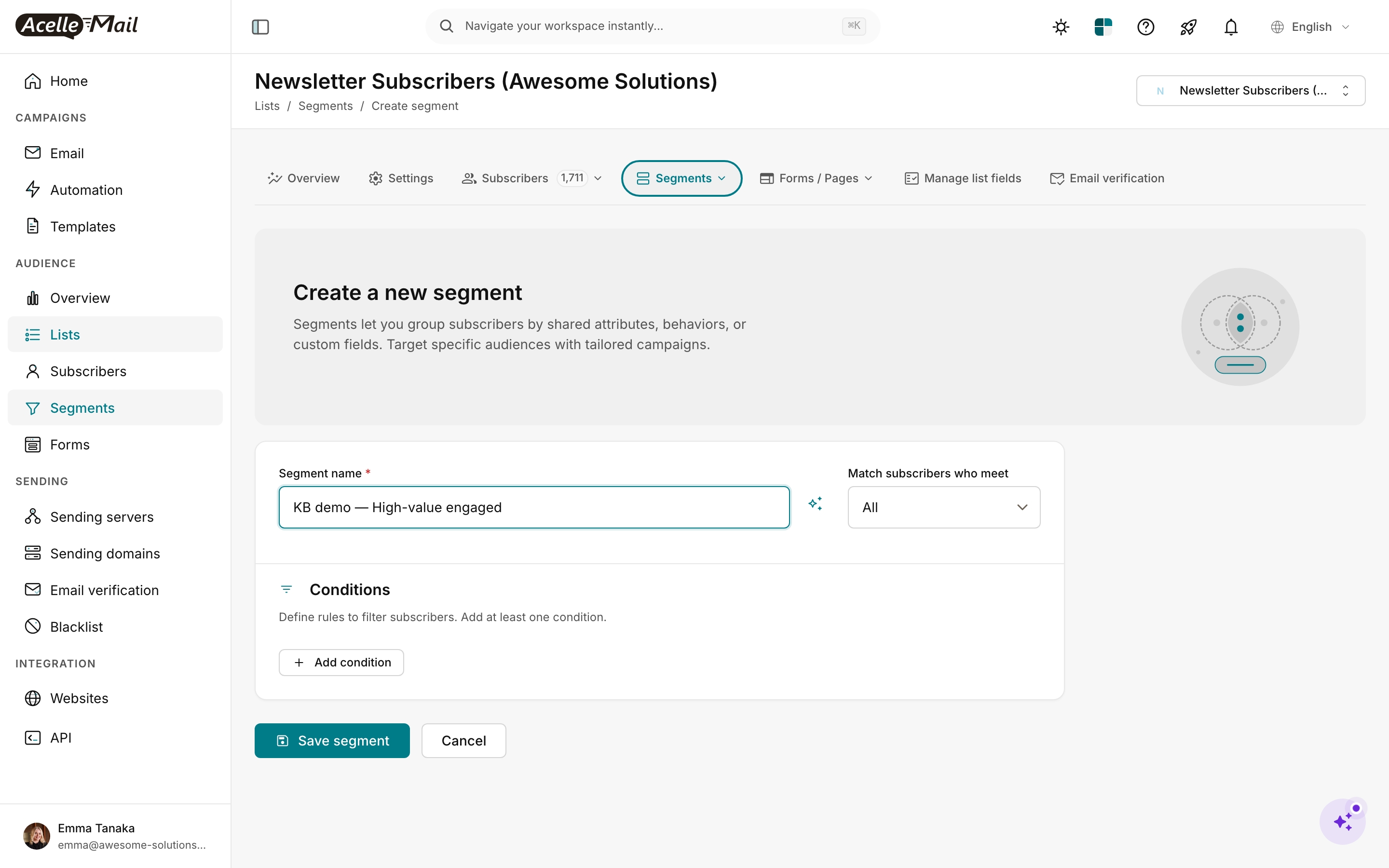
Step 3 — Add your first condition#
Click + Add condition and a row appears with three controls side-by-side: Field · Operator · Value.
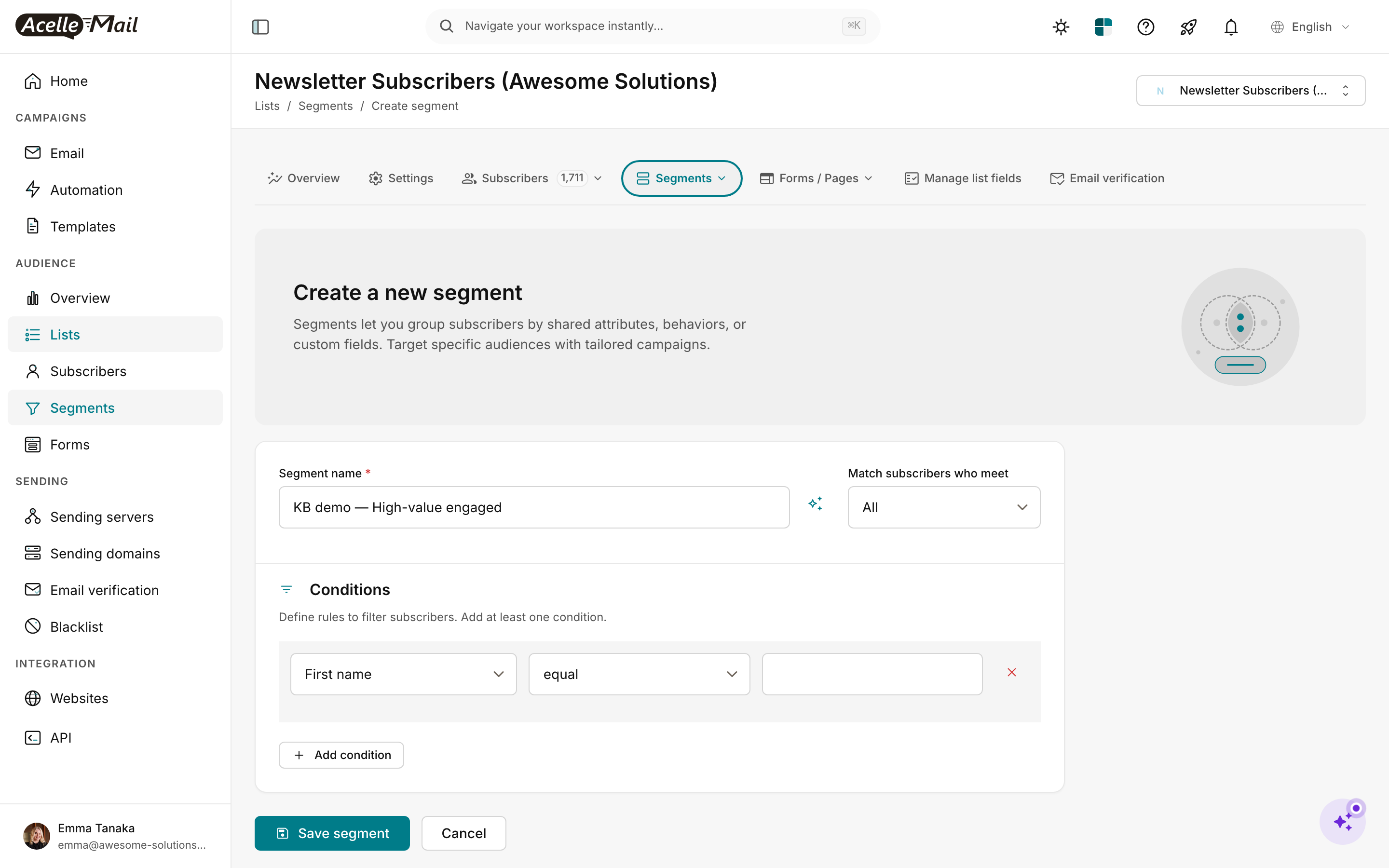
The Field dropdown is where AcelleMail's segmentation shines. It's grouped into four categories you can mix freely:
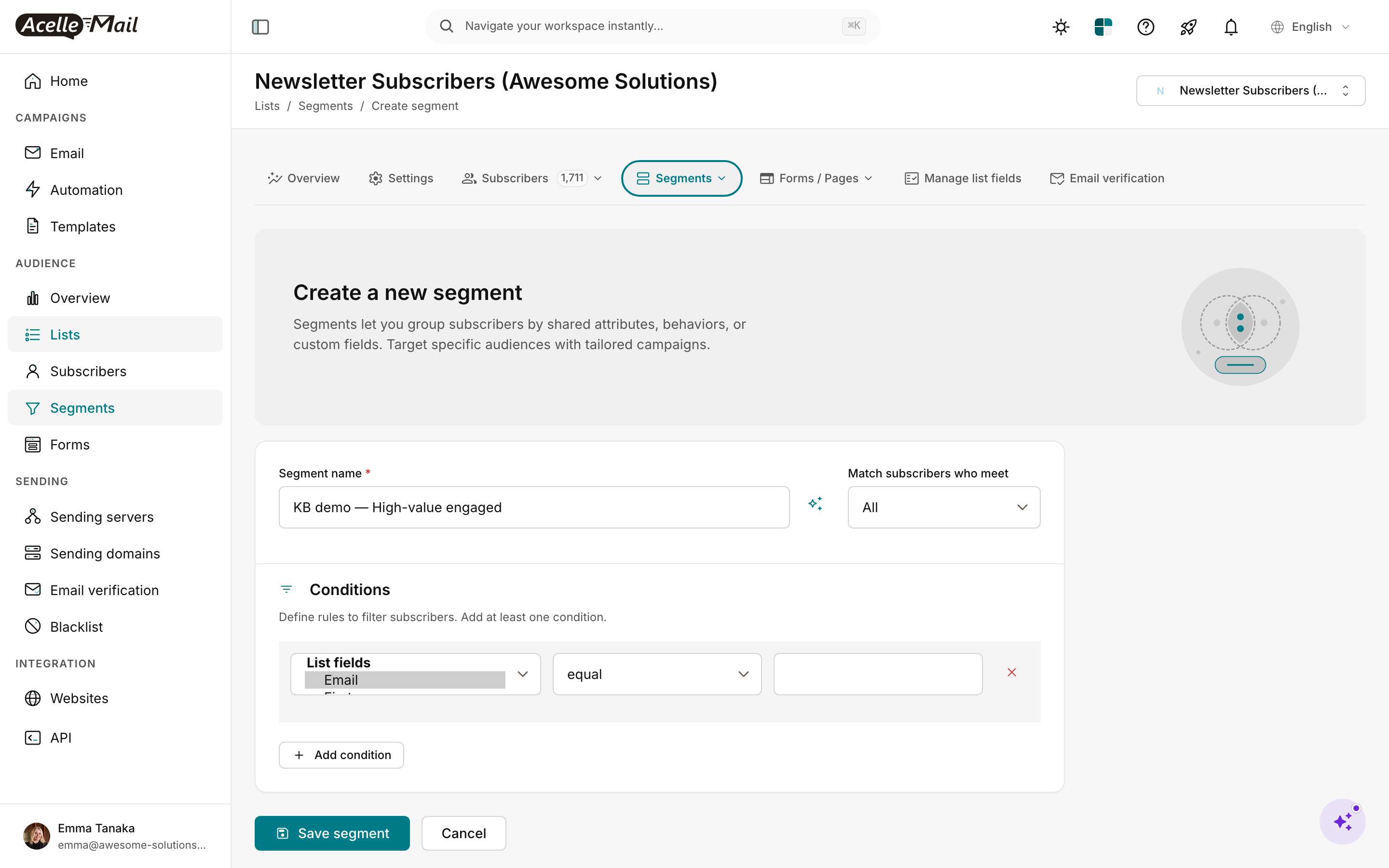
- List fields — every custom field defined on this list (Email, First name, Last name, plus whatever you've added in Manage list fields). Operators include equal / not equal / contains / starts with / is empty / greater than / less than.
- Email verification — Verification result. Lets you target only subscribers Athena marked as Deliverable / Risky / Undeliverable.
- Other — Tag. Use this for VIP / customer / trial / churn-risk groupings you've tagged manually or via automation.
- Activities — Last opened email and Last link click. These are date-based — operators are greater than (days) and less than (days). "Last opened email · less than · 7" = subscribers who opened in the last week.
Step 4 — Save and verify the size#
Hit Save segment when you've added the conditions you want. You can stack as many condition rows as you need — AcelleMail combines them with the AND/OR logic from Step 2.
After saving you're returned to the Segments tab, but the real proof is the matching subscribers view — click the segment's name (or its Subscribers link) to see exactly who AcelleMail thinks belongs in the segment right now.
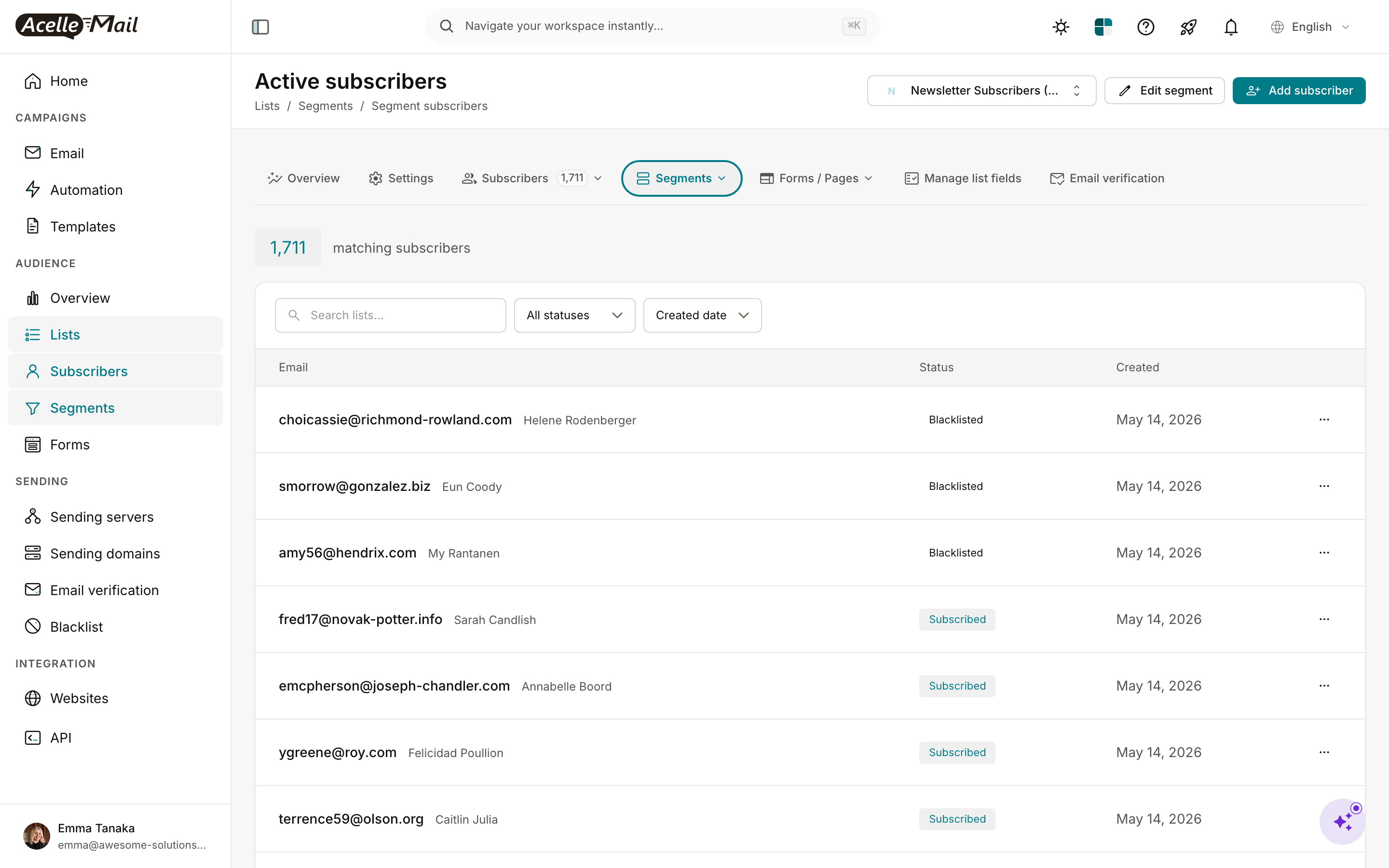
What to check on this page:
- The count at the top matches your expectations within an order of magnitude. If you built a segment that should be "last 30-day openers" and you see 0 matches, your operator value is probably wrong (days, not a date).
- Status column — segments include subscribers regardless of subscription state by default. If you don't want unsubscribed / blacklisted contacts, add a Status · equal · Subscribed condition.
- Click into a few rows to sanity-check that the included subscribers actually match what you intended.
Step 5 — Use the segment in a campaign or automation#
A segment on its own does nothing. Hook it up:
- Campaigns: in the campaign wizard's Recipients step, pick the list, then under Segment pick the segment you just built. AcelleMail will only send to matching subscribers.
- Automations: when you build a workflow in Automation, you can use a segment as both an entry condition (subscriber enters this segment) and a goal (subscriber leaves this segment).
Segment recipes worth stealing#
Here are 5 segments most lists benefit from. Build them once, reuse them across campaigns.
| Segment |
Conditions (Match All) |
| Engaged in last 30 days |
Last opened email · less than (days) · 30 |
| At-risk (lapsing) |
Last opened email · greater than (days) · 60 AND Last opened email · less than (days) · 120 |
| Cold contacts to verify before next send |
Last opened email · greater than (days) · 120 AND Verification result · not equal · Deliverable |
| High-value customers |
Tag · equal · customer AND Tag · equal · vip (set Match: Any if you want either tag) |
| New + un-onboarded |
Sign-up date · greater than · today-14d AND Tag · not equal · welcomed |
Build these in your highest-traffic list first; the same naming convention copies easily across lists.
Common issues#
| What you see |
What to do |
| Segment shows 0 matching subscribers but you expected hundreds |
Most common cause: a date operator using an absolute date instead of a day-offset. Last opened email · less than · 2026-01-01 won't work — switch operator to less than (days) and use a number. |
| Saved segment isn't appearing in the campaign builder |
The campaign wizard's Recipients step only lists segments from the list you picked. Confirm you're inside the right list. |
| The matching count differs every time you load the page |
That's correct — segments are dynamic and re-evaluated on every read. New signups, new tags, new opens all change the size. |
| You want to "preview" the segment without saving |
Save it with a name like "Draft — testing X" and inspect the Subscribers tab. Delete the segment if it doesn't pan out. AcelleMail has no separate dry-run mode. |
| Field dropdown is missing a custom field you know exists |
Open Manage list fields in the list's top nav and confirm the field is on this list — list fields aren't shared between lists. |
After your segment is live#
- Track the size over time. The Segments overview chart is the fastest way to spot a segment that's drifting empty (probably stale conditions) or ballooning (probably too broad).
- Re-use through tags. If a segment's conditions are complicated, build an automation that tags matching subscribers with a stable tag ("high-value") — then use
Tag · equal · high-value in your campaign segments instead. Faster + composable.
- Don't overfit. 3–5 well-named segments you actually send to beat 50 clever ones you forget exist.
Related articles#
