What this is for#
A welcome series is the highest-ROI automation you can build. Every new subscriber gets the right introduction at the right pace, automatically — and your future-self stops doing it manually.
AcelleMail has a visual flow builder with 5 node types (Trigger / Send Email / Wait / Condition / Operation) and branching paths. You build the welcome series once, activate it, and every new subscriber to the connected list enters the flow at exactly the right moment.
This walkthrough shows the whole build: from clicking + New Automation to a live 5-email welcome series with engaged-vs-not-engaged branching.
Before you start#
- A mail list with at least one Subscribed contact. The automation triggers off list signups.
- A verified sender — the welcome series sends real campaign emails. Confirm your sending domain has SPF + DKIM green.
- 5 email designs ready (or willing to design them inline). Each step is a real email; you'll spend most of the time on the copy, not the flow.
Step 1 — Open the Automation section#
Click Automation in the left sidebar. URL: /automations.
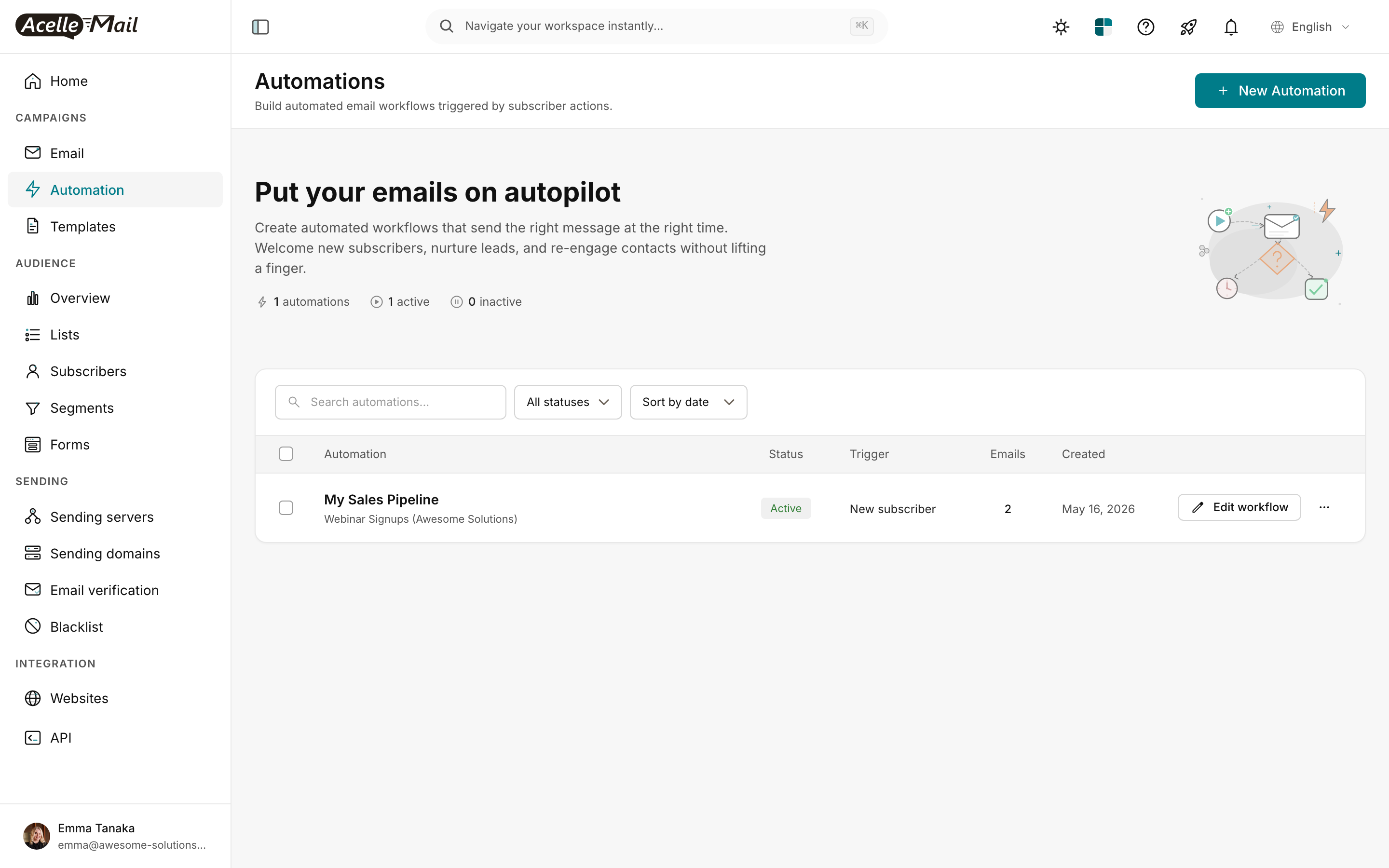
The dashboard lists every automation, the trigger that starts it, and how many subscribers are currently in the flow. From here, + New Automation kicks off the build.
Step 2 — Pick the "Welcome new subscribers" trigger#
AcelleMail ships with 12 built-in triggers. You pick the trigger first — it determines what event starts the workflow for each subscriber.
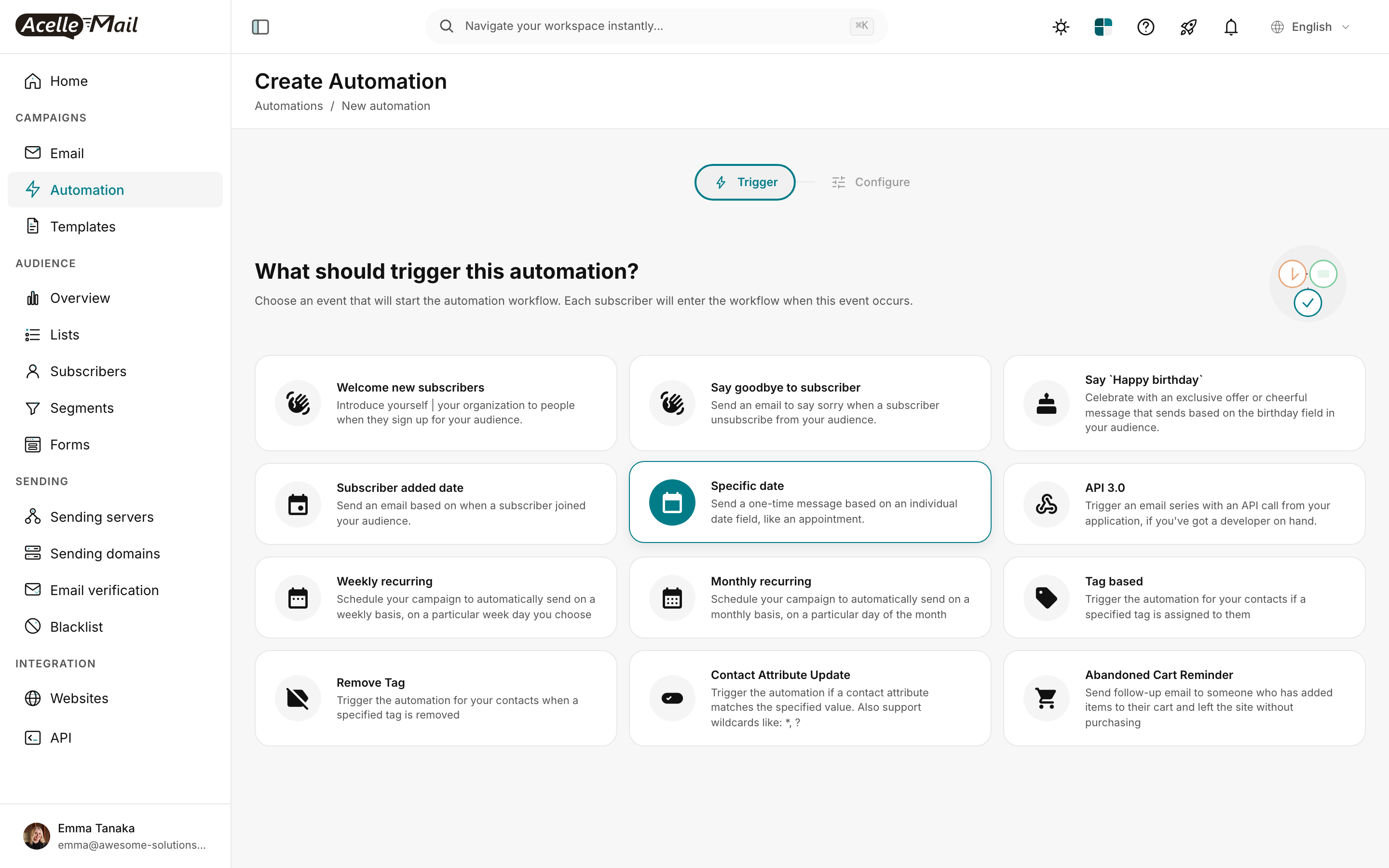
The 12 trigger types AcelleMail ships with — useful to know all of them since other articles cover the others:
| Trigger |
When it fires |
Article |
| Welcome new subscribers |
New signup to the connected list |
This article |
| Say goodbye to subscriber |
Subscriber unsubscribes |
— |
| Say 'Happy birthday' |
Birthday field matches today |
Birthday automations |
| Subscriber added date |
Anniversary of signup date |
Birthday automations |
| Specific date |
One-time send on a fixed date (e.g. appointment) |
— |
| API 3.0 |
External trigger via REST API call |
API triggers |
| Weekly recurring |
Same day every week |
— |
| Monthly recurring |
Same day every month |
— |
| Tag based |
Subscriber gets a specified tag |
Re-engagement, Lead scoring |
| Remove Tag |
Subscriber loses a specified tag |
— |
| Contact Attribute Update |
A custom field changes to a specified value |
Advanced triggers |
| Abandoned Cart Reminder |
WooCommerce-style cart abandonment |
Abandoned cart |
Click Welcome new subscribers, then click the Configure tab (top of the page) to set the audience list — pick the list whose new signups should enter the flow.
Step 3 — Land in the visual flow builder#
After confirming the trigger + list, AcelleMail opens the flow builder — a drag-and-drop canvas where each node represents a step in the journey.
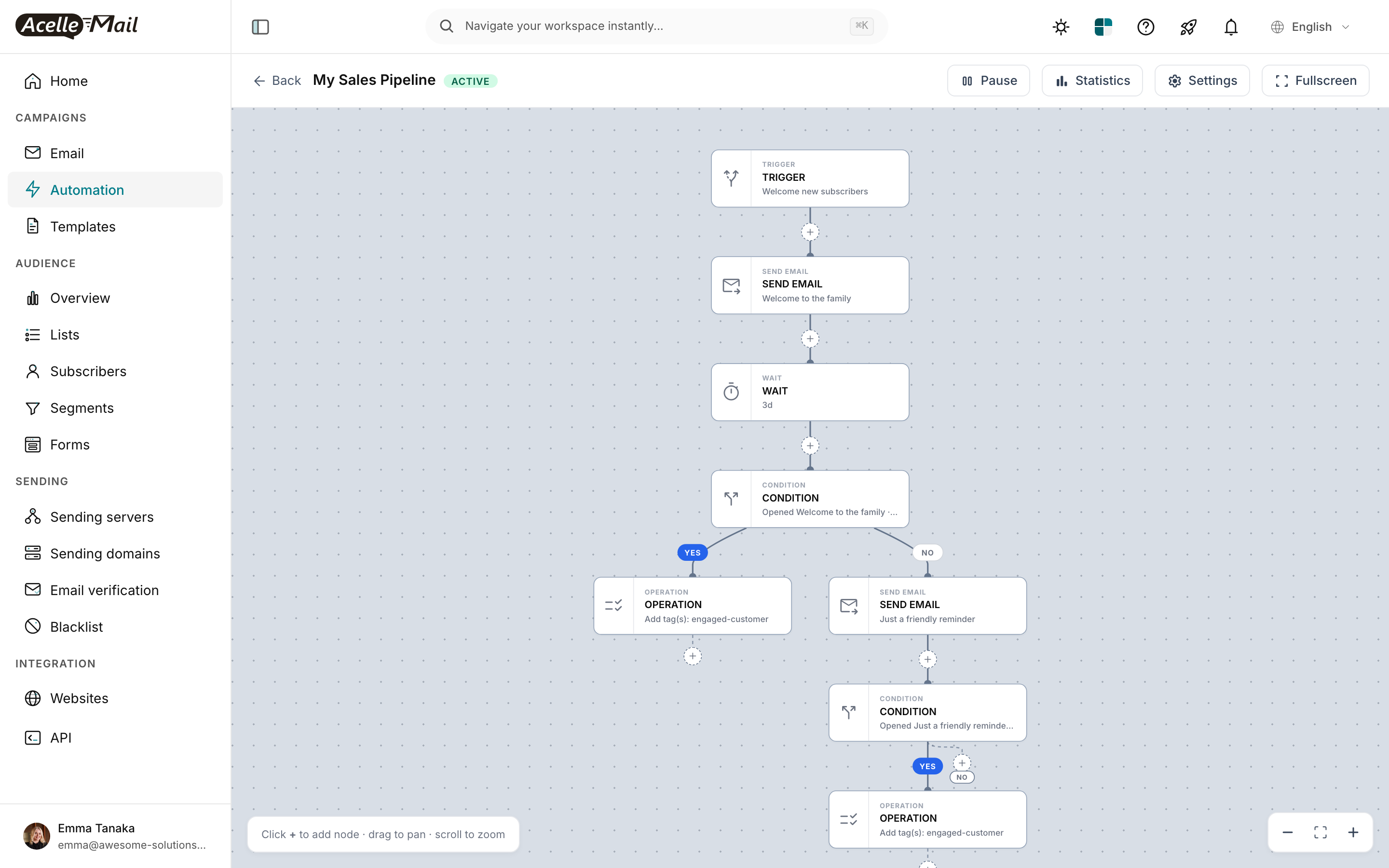
The 5 node types you'll use in any welcome series:
| Node |
What it does |
When to use |
| TRIGGER |
Entry point — every flow has exactly one, set in Step 2 |
Always first, fixed |
| SEND EMAIL |
Sends one campaign email to the subscriber |
One per email in your series |
| WAIT |
Pauses for N hours/days before the next node |
Between emails (Day 0 → Day 2 → Day 4 etc.) |
| CONDITION |
YES/NO split based on a fact about the subscriber (opened the previous email, has a tag, has a field value) |
Engagement-based branching |
| OPERATION |
Mutates the subscriber: add/remove tag, update a field, copy to another list |
Tagging "engaged" / "unengaged" for future segments |
To add a node, click the + on any existing node's downstream arrow. The picker offers all 5 node types. To edit a node's content, click the node — a side panel opens with the email template / wait duration / condition rules.
Step 4 — Build the 5-email backbone#
The "right" cadence varies by audience, but this is a battle-tested skeleton for a SaaS / B2B welcome series:
TRIGGER  → Welcome new subscribers (list: Main List)
SEND EMAIL → "Welcome to [Brand]!"              (sent immediately)
WAIT     → 2 days
SEND EMAIL → "Our story (and how we got here)"  (Day 2)
WAIT     → 2 days
SEND EMAIL → "Our best resource (the one customers always thank us for)"  (Day 4)
WAIT     → 3 days
SEND EMAIL → "What our customers say"            (Day 7) — social proof
WAIT     → 3 days
SEND EMAIL → "Ready to try [Product]?"           (Day 10) — soft offer
5 sends across 10 days. Most welcome series under-send rather than over-send; an empty inbox after Day 1 is the failure mode.
Per-email content focus — what to write in each SEND EMAIL node:
| # |
When |
Job |
Don't |
| 1 |
Day 0, instant |
Confirm subscription, deliver lead magnet if any, set frequency expectations |
Pitch product |
| 2 |
Day 2 |
Brand story — what you stand for, why you exist |
Be self-congratulatory |
| 3 |
Day 4 |
Hand them your best free content (highest-engagement post or guide) |
Force a signup |
| 4 |
Day 7 |
Customer outcomes — quote, testimonial, case study |
Generic "we have great customers" |
| 5 |
Day 10 |
First soft offer — trial / consult / discount |
High-pressure tactics |
Step 5 — Add engagement-based branching#
The single biggest welcome-series improvement is branching on opens — different content for engaged vs unengaged subscribers.
After Email 1 (Welcome), add:
WAIT      → 2 days
CONDITION → Opened "Welcome to [Brand]!" ?
            ├─ YES → continue to Email 2 (story)
            └─ NO  → SEND EMAIL "Did you get our welcome?" (re-send variant)
                     WAIT → 1 day
                     CONDITION → Opened the re-send ?
                                  ├─ YES → join the main flow at Email 2
                                  └─ NO  → OPERATION: Add tag "welcome-unengaged"
The example "My Sales Pipeline" flow above (screenshot) shows exactly this pattern: a CONDITION after each email checks if the previous one was opened. YES branch continues to the next email + tags them. NO branch sends a softer re-engagement variant.
Why this matters:
- Engaged subscribers get the full 5-email path
- Unengaged subscribers get a second chance, then get tagged out — preventing the silent treatment from compounding
- The
welcome-unengaged tag becomes a useful segment for a separate re-engagement campaign
Step 6 — Activate the automation#
When your flow is ready:
- Save — automatic on every node edit, but a manual save via Cmd/Ctrl+S confirms.
- Open Settings (top right of the builder).
- Confirm the List field shows your target list.
- Toggle status from Paused / Draft to Active.
- The status badge at the top of the builder flips to ACTIVE (green).
From this moment forward, every new subscriber added to the connected list enters the flow at the TRIGGER node and walks through every step.
Test with a fresh subscriber. Before sharing, sign up to your own list with a never-before-used email. Walk through the flow live — every WAIT shortens to a few minutes in a test mode, or just be patient and check your inbox at Day 2, 4, etc.
Monitor — who's in the flow right now?#
From the automation row in the index, click Statistics (or open the automation → top bar Statistics). The contacts view shows:
- Every subscriber currently in the flow
- Which node they're on
- When they were triggered
If a subscriber should have entered but didn't, the contacts.trigger_failed_segment message means they don't match the list's segment filter; contacts.trigger_failed_paused means the automation isn't activated yet.
Common issues#
| What you see |
What to do |
| Automation is ACTIVE but no one's entering |
Confirm the trigger event matches your audience action. Welcome new subscribers fires on actual list signups — not imports. To enter imported subscribers, change trigger to Tag based + tag the imports. |
| Subscriber went through Email 1 then stopped |
Check the WAIT node between emails — it might be set to days when you meant hours, OR the CONDITION's YES/NO routing isn't wired. Click into each node to confirm. |
| Emails sent but engagement is low |
Audit the SEND EMAIL nodes — each one's subject + preheader. The Welcome series IS your campaign equivalent; same craft applies. See Email Copy. |
| Wrong list connected — subscribers from a different list are entering |
Open Settings, change the List field. Subscribers already in the flow continue; new entries come from the new list. |
| You added new nodes but they don't fire |
Click the parent node — make sure the new node is wired to its downstream arrow. Orphan nodes don't execute. |
| Statistics shows "Not triggered" for everyone |
The automation was never activated. Open the builder, top-right toggle from Paused to Active. |
What NOT to do#
- Don't send 5 emails in 5 days. The "Day 0 / 2 / 4 / 7 / 10" cadence is calibrated — too tight = unsubscribes, too loose = forget you exist.
- Don't pitch in Email 1. The first welcome is a relationship moment. Save sales for Email 5+.
- Don't skip the WAIT nodes. "Email immediately, then 2 hours later, then 4 hours later" feels like spam.
- Don't branch unless you're going to use the tag. Branching adds complexity. Only do it if the resulting
welcome-engaged / welcome-unengaged tags drive a downstream segment.
After your welcome series is live#
- Watch the contacts view weekly for the first month — confirm new signups are flowing through.
- Check per-email reports — open Statistics → per-node click-through rates. The drop-off between two emails is where most series lose subscribers; tighten that copy.
- A/B test Email 1's subject line. The welcome email gets opened 4-5x your average campaign — small subject improvements compound across thousands of subscribers.
- Iterate quarterly. Industry norms (and your audience) shift. Rebuild a fresh version every 90 days.
Related articles#
