What this is for#
DigitalOcean is one of the friendliest hosts for AcelleMail in production — cheap droplets, simple console, easy snapshots, and a managed Cloud Firewall that keeps SMTP exposure honest. This guide covers the DigitalOcean-specific bits end-to-end:
- Droplet sizing
- Image choice
- Reserved IP for stable SMTP identity
- Cloud Firewall rules for SMTP ports
- The PTR / reverse-DNS gotcha that bites every new sender
- Networking quirks (private vs public IPv4)
Once the droplet is provisioned, the OS-level install (PHP, MySQL, nginx, certbot, supervisor, the AcelleMail web installer) is identical to a bare-metal Ubuntu 24.04 install — so we defer those steps to the canonical guide rather than duplicate them here.
👉 Canonical OS-level install: Install AcelleMail on Ubuntu 24.04 LTS — follow it from Step 1 once the droplet is up.
Step 1 — Pick a droplet size#
AcelleMail's resource needs scale with the queue (concurrent sends), the contact-list size (CSV import memory), and the campaign throughput. Match the Server Requirements tiers to DigitalOcean's catalog:
| AcelleMail tier |
Sends / month |
Droplet shape (Premium AMD) |
Monthly |
Notes |
| Hobby |
< 50k |
1 vCPU, 2 GB, 60 GB SSD |
~$14 |
Workable for testing; tight on real campaigns |
| Small (baseline) |
50k – 500k |
2 vCPU, 4 GB, 80 GB SSD |
~$28 |
The recommended starting point |
| Medium |
500k – 2M |
4 vCPU, 8 GB, 160 GB SSD |
~$56 |
Bump queue workers to 4 |
| Large |
> 2M |
8 vCPU, 16 GB, 320 GB SSD |
~$112 |
Split MySQL to a managed DB instance |
The Premium AMD line (not Regular) gives newer EPYC silicon, NVMe-backed storage, and noticeably faster MySQL writes — for a workload that's queue-heavy plus database-heavy, the ~$4/month delta over Regular pays for itself in throughput.
Why not the $4 Basic droplet? It's 1 vCPU + 512 MB RAM. PHP-FPM + MySQL + Redis + Supervisor + nginx don't fit in 512 MB once a real campaign runs — you'll thrash swap and time out. Skip it for production.
Step 2 — Pick the image#
In the DigitalOcean Create Droplet flow:
- Image: Ubuntu → 24.04 (LTS) x64
- Region: the one closest to your subscribers (latency matters less than reputation, but pick the right country for GDPR / data-residency reasons)
- VPC / Networking: default VPC is fine; keep public IPv4 enabled (you'll need it to receive SMTP)
- SSH Keys: add your laptop key — do not enable password authentication
- Hostname: set this to the exact mail subdomain you'll send from, e.g.
mail.example.com. This is critical — see Step 5 (Reverse DNS).
If you prefer the CLI:
doctl compute droplet create mail.example.com \
  --image ubuntu-24-04-x64 \
  --size s-2vcpu-4gb-amd \
  --region sgp1 \
  --ssh-keys "$(doctl compute ssh-key list --format ID --no-header | tr '\n' ',' | sed 's/,$//')" \
  --enable-monitoring \
  --wait
The --enable-monitoring flag installs the DigitalOcean monitoring agent — useful for the Disk / Memory alerts you'll set up in Step 7.
Step 3 — Lock down SSH access (do this before anything else)#
The droplet boots with the root account exposed to the world on port 22. First SSH in and create a non-root sudo user:
ssh root@<droplet-ip>
adduser acelle                        # set a strong password
usermod -aG sudo acelle
rsync --archive --chown=acelle:acelle ~/.ssh /home/acelle/
# from your laptop, verify:
ssh acelle@<droplet-ip>
Then disable root + password SSH:
sudo sed -i 's/^#\?PermitRootLogin .*/PermitRootLogin no/' /etc/ssh/sshd_config
sudo sed -i 's/^#\?PasswordAuthentication .*/PasswordAuthentication no/' /etc/ssh/sshd_config
sudo systemctl reload ssh
Test from a second terminal before closing the root session — if the new user can't SSH, you'll need the original session to roll back.
Step 4 — Cloud Firewall#
DigitalOcean's Cloud Firewall is a free, stateful, edge-level filter. Use it instead of (or in addition to) UFW — Cloud Firewall blocks traffic before it reaches the droplet, so it survives any kernel-level mistake.
Create a firewall via Console → Networking → Firewalls → Create Firewall, with these inbound rules:
| Type |
Protocol |
Port |
Source |
Purpose |
| SSH |
TCP |
22 |
Your laptop IP / VPN CIDR |
Admin access — never 0.0.0.0/0 long-term |
| HTTP |
TCP |
80 |
All IPv4, All IPv6 |
Web admin + certbot HTTP-01 challenge |
| HTTPS |
TCP |
443 |
All IPv4, All IPv6 |
Web admin (TLS) + AcelleMail tracking endpoints |
| Custom |
TCP |
587 |
All IPv4, All IPv6 |
Inbound SMTP submission (only if customers send via SMTP API) |
| Custom |
TCP |
465 |
All IPv4, All IPv6 |
Inbound SMTPS submission (same, TLS-wrapped) |
Outbound rules — leave at "All TCP, All UDP, All ICMP to All IPv4/IPv6". AcelleMail makes outbound connections to SES/SendGrid/Mailgun/SparkPost/Gmail Postmaster + DNS + package mirrors; restricting these is more pain than payoff for a sender.
Note on port 25: DigitalOcean blocks outbound port 25 on every new account by default. If you plan to send via your own server's SMTP (instead of SES / SendGrid / Mailgun / SparkPost relays), you must open a support ticket asking them to enable outbound port 25 — they'll usually approve after asking for your sending plan and verifying your account is in good standing. For most installs, route through a relay (Configuring Amazon SES with AcelleMail) — it's a better deliverability story anyway.
Step 5 — Reverse DNS (PTR) — the gotcha#
This is the #1 deliverability mistake on DigitalOcean for AcelleMail users. Receivers (Gmail, Outlook, Yahoo) check that your sender IP's PTR record resolves back to the same hostname you HELO with. If it doesn't, expect bulk-folder placement at best, outright rejection at worst.
How DigitalOcean sets PTR: the droplet's PTR record is automatically generated from the droplet's name (not its hostname inside the OS). So if you named your droplet mail.example.com in Step 2, the PTR is already correct:
dig +short -x <droplet-ip>
# Expect: mail.example.com.
If you got the droplet name wrong (e.g. you named it acellemail-prod-1), fix it via Console → Droplet → ... → Rename:
- Set the droplet's name field to
mail.example.com (the FQDN, including the subdomain)
- Wait 5 minutes
- Re-run
dig +short -x <droplet-ip> until it returns mail.example.com.
- Also set the in-OS hostname so they match:
sudo hostnamectl set-hostname mail.example.com
You must also have a forward A record (mail.example.com → <droplet-ip>) at your DNS provider — the PTR ↔ A pair must match in both directions, or receivers will treat the IP as untrusted.
For why this matters, see the deliverability primer: Reverse DNS and PTR Records (in the DNS Setup guide).
Step 6 — Reserved IP (recommended)#
A Reserved IP (DigitalOcean's name for a Floating IP / Elastic IP) is a static public IPv4 that you can detach from one droplet and reattach to another. For AcelleMail, the value is:
- Reputation continuity during disaster recovery — if your droplet fails and you restore from a snapshot, the new droplet inherits the same sending IP, so the warmed reputation is preserved.
- Easier upgrades — same trick during a OS-version migration (provision new droplet, snapshot-restore data, detach Reserved IP from old, attach to new).
Cost: free while attached to a running droplet, $4/month if held against a stopped droplet (or unassigned). Activate via Console → Networking → Reserved IPs → Assign.
Update your PTR to point at the Reserved IP once attached — Reserved IPs have their own PTR record, separate from the droplet's primary public IP. Use Console → Networking → Reserved IPs → click the IP → Edit reverse DNS → set mail.example.com.
If you skip the Reserved IP, that's fine for a first install — you can always assign one later. Just know that snapshot-restore will give you a new IP, and you'll have to redo PTR + warmup.
Step 7 — Monitoring + alerts (free with DigitalOcean Monitoring)#
Console → Monitoring → Create Alert Policy. The four alerts every AcelleMail droplet should have:
| Metric |
Threshold |
Why |
| Memory utilisation |
> 85% for 10 min |
PHP-FPM + MySQL + Redis combined — crossing 85% means you're swapping |
| Disk utilisation |
> 80% |
Logs + queue spool + database — silent runaway is the #1 cause of "sends just stopped" tickets |
| CPU utilisation |
> 90% for 30 min |
Sustained means underprovisioned; bump to the next tier |
| Outbound traffic |
> 5 GB / hour |
Detects spam-incident runaway (compromised account, misconfigured campaign) |
These cost nothing and the email notifications go to your DO account email by default.
Step 8 — Now follow the canonical Ubuntu 24.04 install#
The droplet is provisioned, networked, firewalled, and your sudo user is set up. Everything from here is the same as bare-metal:
👉 Continue at: Install AcelleMail on Ubuntu 24.04 LTS, Step 1
You'll do:
- Step 1 — System packages (
apt update, apt upgrade, basics)
- Step 2 — PHP 8.3 + extensions (Ondrej PPA; must include
php8.3-imap and php8.3-sqlite3, both wizard-blocking)
- Step 3 — MySQL 8.0 + database + user (
utf8mb4 charset — non-negotiable)
- Step 4 — Redis 7 (recommended for the queue + cache)
- Step 5 — Nginx 1.24 + vhost (use
mail.example.com as server_name)
- Step 6 — Drop in the AcelleMail bundle (
acellemail-latest.zip to /var/www/acellemail/)
- Step 7 — TLS with certbot (
--nginx -d mail.example.com --redirect)
- Step 8 — Supervisor for the queue worker (start with
numprocs=2)
- Step 9 — Cron (
* * * * * php artisan schedule:run)
- Step 10 — Web installer wizard
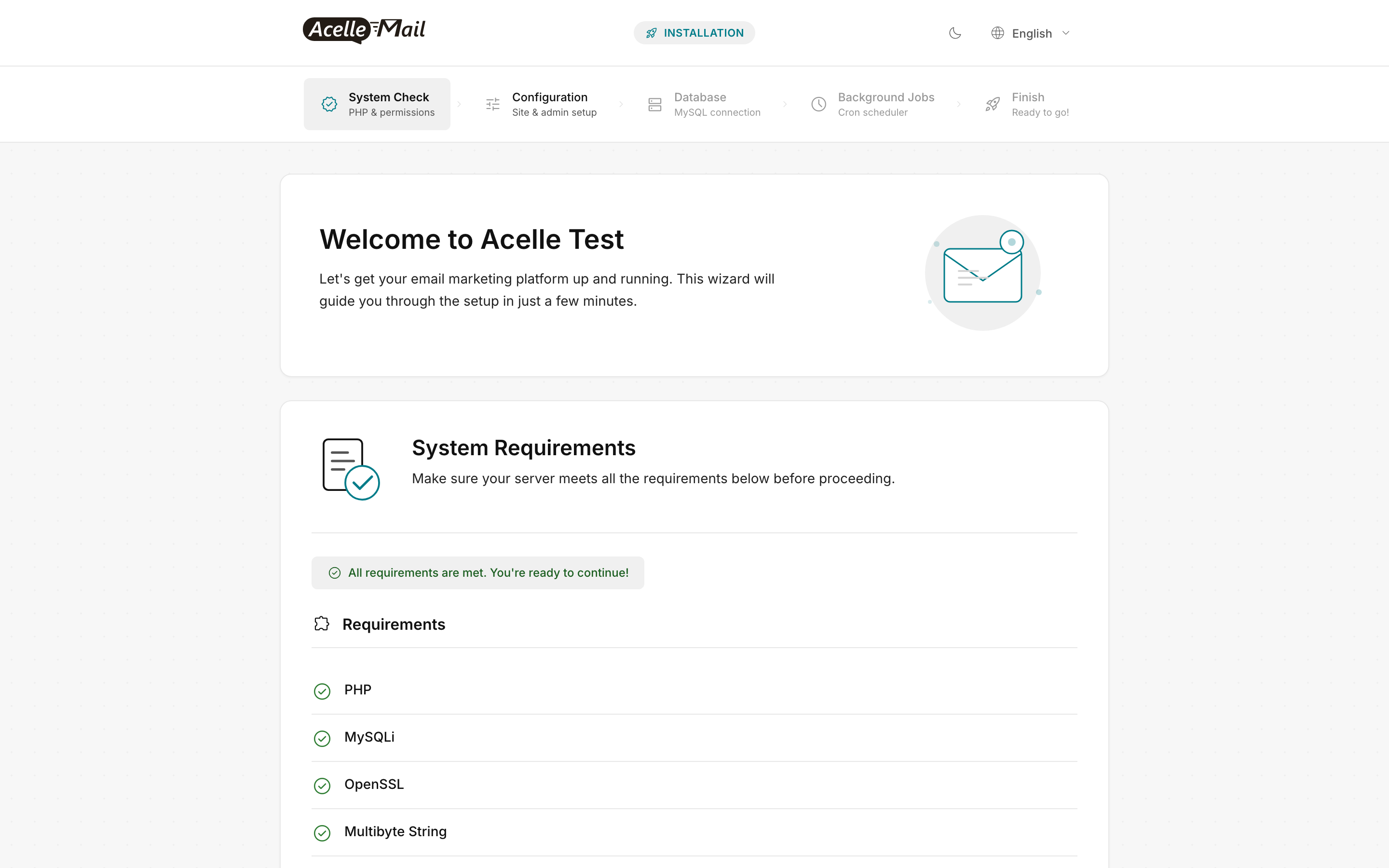
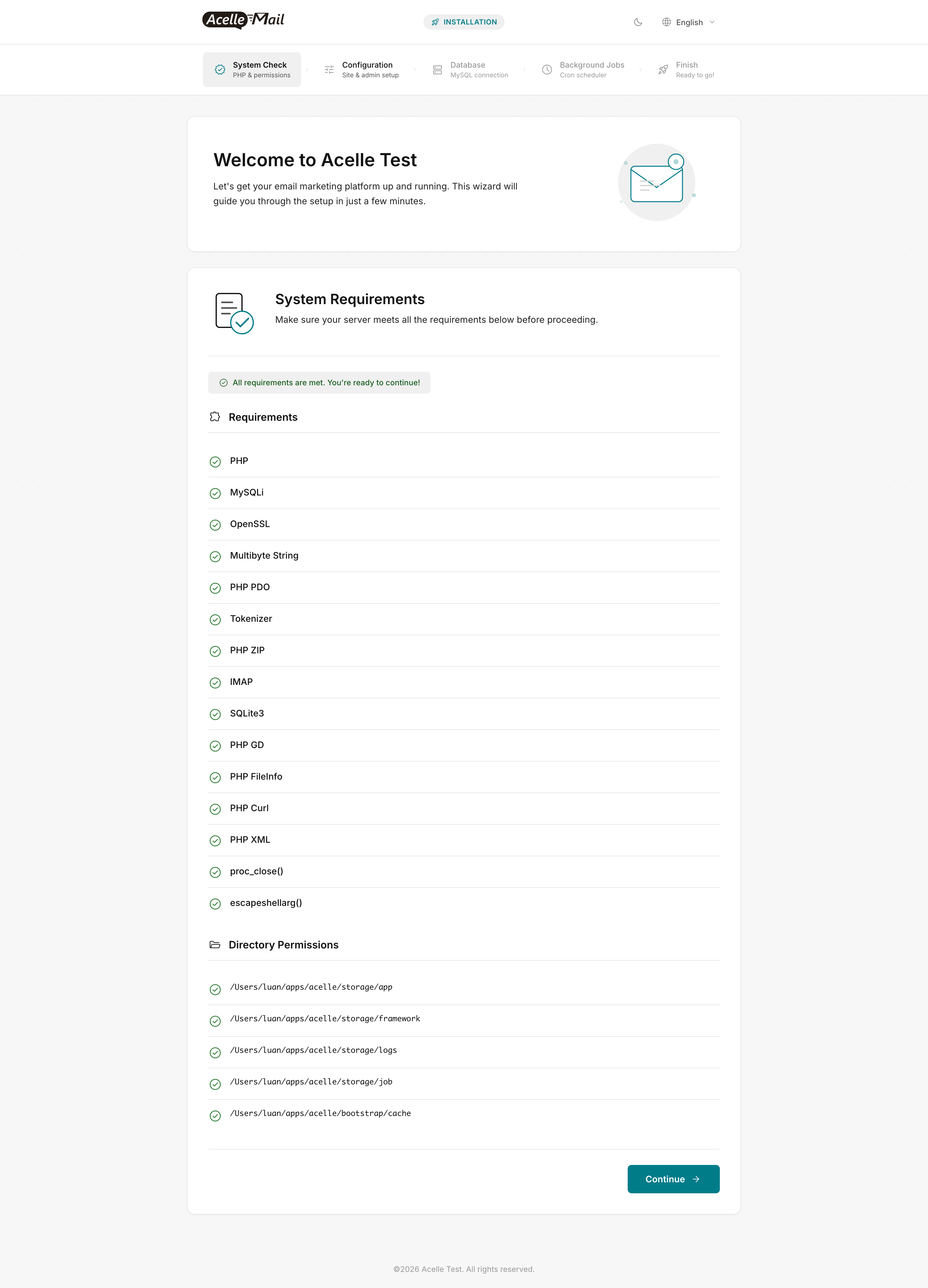
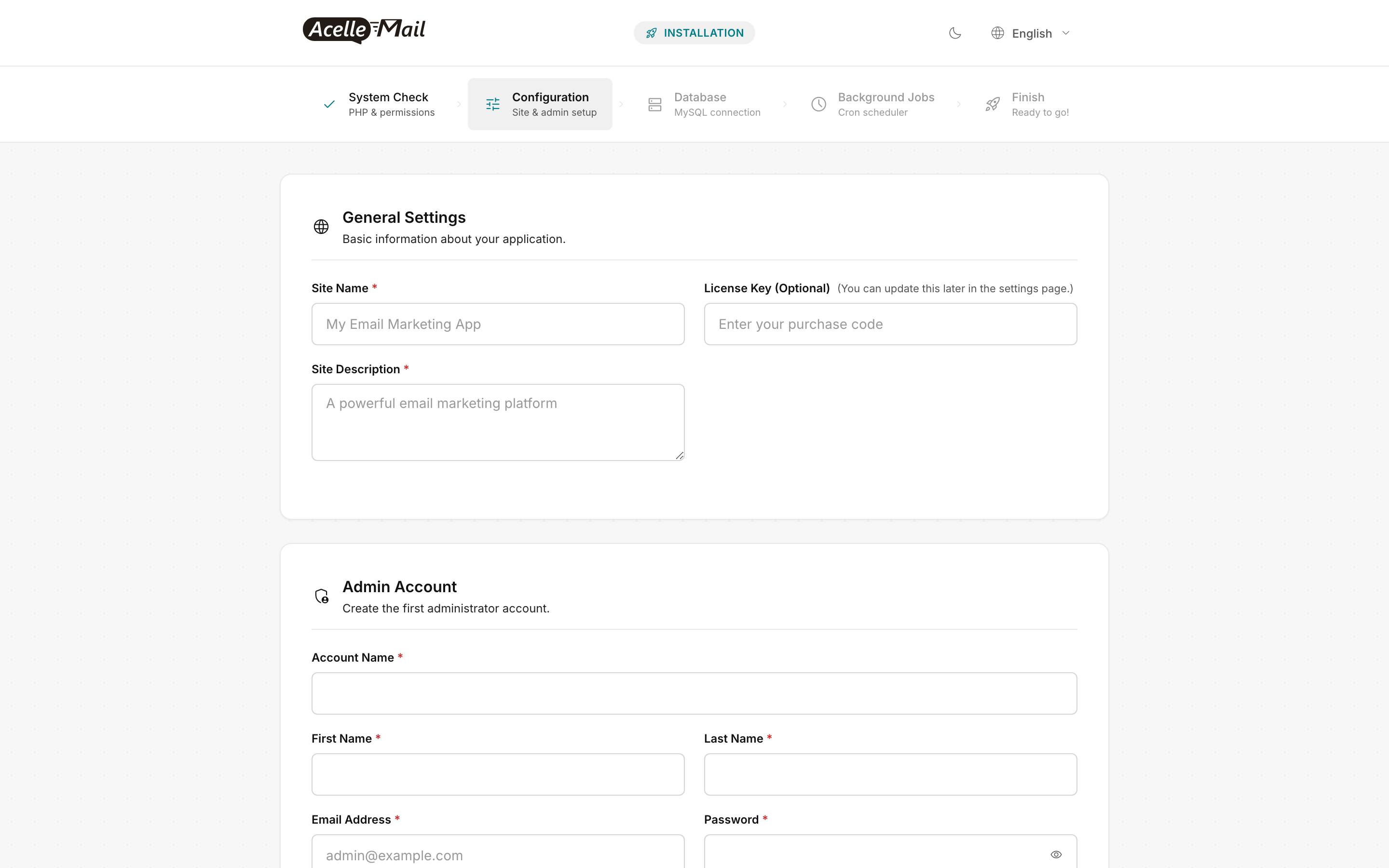
The web-installer wizard screens look like this on DigitalOcean (the wizard is identical regardless of host):
Post-droplet verification (specific to DigitalOcean)#
After completing the canonical install, run these checks for DigitalOcean-specific health:
# 1. PTR matches HELO hostname
dig +short -x $(curl -s https://api.ipify.org)
# Expect: mail.example.com.

# 2. Outbound port 25 (only if you opened a ticket to enable it)
nc -zvw 5 smtp.gmail.com 25
# Expect: succeeded — if "timed out", DO is still blocking port 25 for your account

# 3. DigitalOcean Monitoring agent is running
systemctl status do-agent
# Expect: active (running)

# 4. Reserved IP is attached (if you assigned one)
ip -4 addr show eth0 | grep inet
# Expect: BOTH the primary droplet IP AND the Reserved IP listed
If port 25 is blocked and you need outbound SMTP for direct sending, open a DigitalOcean support ticket: "Please remove outbound port 25 restriction for droplet <id>. We're running AcelleMail (a transactional email platform) and need direct SMTP for FBL processing." Approval is usually within 24 hours for accounts in good standing.
Common issues#
| What you see |
Likely cause |
Fix |
dig +short -x <ip> returns nothing |
Droplet wasn't named with the FQDN |
Console → Droplet → ... → Rename to mail.example.com, wait 5 min |
dig +short -x <reserved-ip> returns the droplet's name (not mail.) |
Reserved IP has its own separate PTR |
Console → Networking → Reserved IPs → Edit reverse DNS |
| Cloud Firewall created but droplet still wide-open |
Firewall not yet assigned to the droplet |
Edit firewall → Droplets tab → add the droplet |
Outbound mail.log shows port 25 timeout to every relay |
DO outbound port 25 block (default on new accounts) |
Open support ticket; meanwhile use SES/SendGrid via 587 or 465 |
Web installer wizard shows red on IMAP or SQLite3 |
Missing PHP extension |
sudo apt-get install -y php8.3-imap php8.3-sqlite3 && sudo systemctl restart php8.3-fpm |
| Random "Connection refused" from worker to MySQL |
MySQL bound to 127.0.0.1 only but worker user is in a different namespace |
Verify bind-address in /etc/mysql/mysql.conf.d/mysqld.cnf is 127.0.0.1 and connection string in .env uses 127.0.0.1 (not localhost, which prefers Unix socket) |
| Sends suddenly stop after working for weeks |
Disk full (probably /var/log or storage/logs/laravel.log) |
df -h; sudo find /var/www/acellemail/storage/logs -name "*.log" -mtime +14 -delete |
certbot --nginx -d mail.example.com fails with "Connection refused" |
nginx not running or port 80 blocked at Cloud Firewall |
Verify nginx is up; verify Cloud Firewall has port 80 inbound from 0.0.0.0/0 |
FAQ#
Can I use DigitalOcean's App Platform instead of a Droplet? No — AcelleMail requires a real Linux server (long-running queue workers via supervisor, system cron, writable filesystem). App Platform is for stateless web apps; AcelleMail isn't one.
Should I use a Managed Database for MySQL? For Small / Medium tiers, no — bundled MySQL on the droplet is faster (no network round-trip) and cheaper. For Large tier (> 2M sends/month) or multi-droplet setups, yes — pick the smallest plan, set utf8mb4 at the cluster level, and point AcelleMail's .env at the private connection string. See Scaling for 100K+ Emails Per Day.
What about DigitalOcean Spaces for asset storage? Not needed — AcelleMail stores tracking pixels and assets locally under storage/. Don't try to offload them to Spaces; the click/open tracking writes are too hot for object storage round-trips.
My droplet got a different IP after a power cycle — why? Droplets keep their public IPv4 across reboots. They only get a new one if you (a) recreate from snapshot into a new droplet, or (b) detach + reattach to a different region. Use a Reserved IP if you can't tolerate any IP churn (Step 6).
Is DigitalOcean's Cloud Firewall enough — do I still need UFW? Cloud Firewall alone is enough for most installs (it filters at the hypervisor, before traffic reaches the OS). UFW adds a second layer of defence and is useful when you're running multiple services with overlapping ports. For an AcelleMail-only droplet, Cloud Firewall alone is fine.
Can I run AcelleMail on a DigitalOcean GPU droplet? Yes but pointless — AcelleMail is CPU + I/O bound, not GPU-accelerated. Use a standard Premium AMD droplet.
Related articles#
