What this is for#
About 70% of e-commerce carts get abandoned. A 3-email sequence — gentle reminder → objection handling → urgency/incentive — typically recovers 3-8% of those carts. That's revenue you'd otherwise lose, automatically.
AcelleMail has a built-in Abandoned Cart Reminder trigger for WooCommerce-backed stores. This walkthrough builds the 3-email sequence in the visual flow builder, end to end.
Before you start#
This automation is WooCommerce-specific. AcelleMail's abandoned-cart trigger fires when WC reports a cart abandonment via the AcelleMail sync plugin. Required:
- A WooCommerce site running on WordPress
- The AcelleMail sync plugin installed on that WP site (handles the cart → AcelleMail bridge)
- A connected mail list receiving WC subscribers' contact info
If you're on Shopify / BigCommerce / a custom-built cart, this trigger doesn't fire. The alternative there is a Contact Attribute Update or API 3.0 trigger driven by your own webhook — see Advanced triggers.
Step 1 — Pick the Abandoned Cart Reminder trigger#
Open Automation → + New Automation. The 12-trigger picker appears.
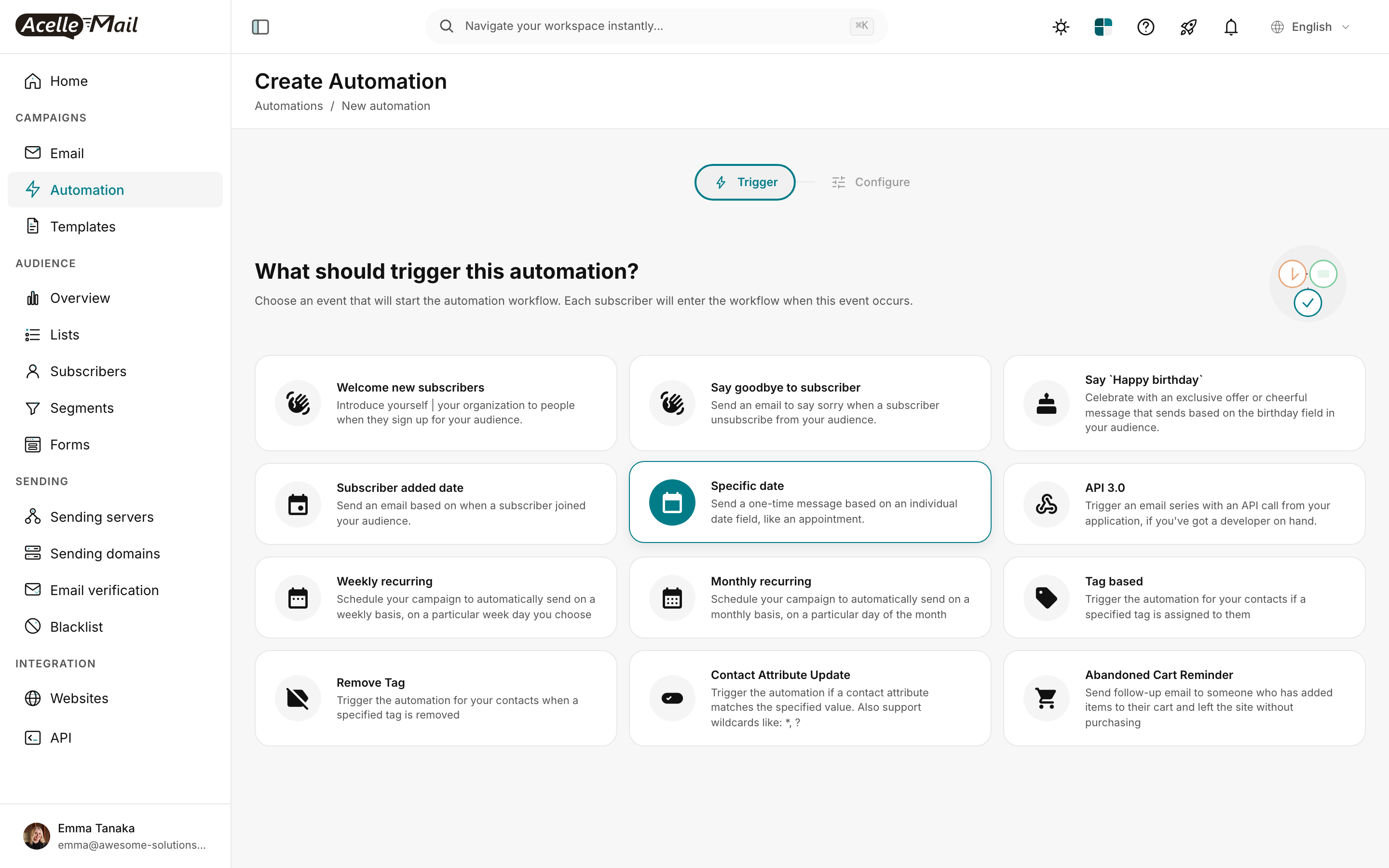
(Screenshot from Build a Welcome Email Series — same trigger picker.)
Click Abandoned Cart Reminder (bottom right). Then click the Configure tab and pick the mail list that mirrors your WC customer/subscriber list.
Step 2 — Lay out the 3-email backbone#
The standard 3-email cadence:
| Email |
Timing |
Job |
Tone |
| Reminder |
1 hour after abandonment |
Gentle nudge, assume positive intent |
Helpful |
| Objection handler |
24 hours after |
Address shipping / returns / security concerns |
Informative |
| Urgency + incentive |
72 hours after |
Discount code or urgency hook |
Persuasive |
In the visual flow builder, that's:
TRIGGER  → Abandoned Cart Reminder
WAIT     → 1h
SEND EMAIL → "You left something behind" (Reminder)
WAIT     → 23h    (total 24h since trigger)
SEND EMAIL → "Questions about your order?" (Objection handler)
WAIT     → 48h    (total 72h since trigger)
SEND EMAIL → "{{first_name}}, your cart expires soon" (Urgency)
You build this by clicking the + on each node's downstream arrow and picking Wait or Send Email. See the worked example in Welcome Series article §3 for what the canvas looks like with these node types wired up.
Step 3 — Stop the sequence when they convert#
The single most important rule of abandoned-cart sequences: stop sending the moment the customer buys. Nothing is worse than a discount email landing 2 hours after they paid full price.
The pattern in AcelleMail:
- In WooCommerce / your sync plugin, configure a webhook to add the tag
purchased-recent to a subscriber the moment their order completes.
- In the automation flow, after each WAIT and before each SEND EMAIL, add a CONDITION node:
CONDITION → Has tag "purchased-recent"?
            ├─ YES → END (exit the flow)
            └─ NO  → continue to next SEND EMAIL
This conditional check costs you 3 extra nodes (one per email), but it pays for itself the first time it catches a purchaser mid-flow.
Step 4 — Compose each email#
Each SEND EMAIL node opens a side panel where you pick the email's template (or design it inline). Here's what each one should actually say.
Email 1 — Reminder (sent 1h after abandonment)#
Subject:    You left something behind
Preheader:  Your cart is saved — pick up where you left off.
Body:       Hi {{first_name}},

            It looks like you left something in your cart. Life gets
            busy — we get it.

            [Product image from WC]
            [Product name + price]

            [Return to your cart] — button

            Your cart is saved and waiting for you.
Do NOT discount in Email 1. You don't know why they left — maybe they were just distracted. Offering a discount immediately trains future shoppers to abandon for a discount.
Email 2 — Objection handler (sent 24h after)#
Subject:    Questions about your order?
Preheader:  Free returns, secure checkout, and we're here to help.
Body:       Hi {{first_name}},

            Still thinking it over? Here's what people ask us most:

              • Shipping: Free on orders over $50
              • Returns: 30-day, no questions asked
              • Payment: Stripe, PayPal, all major cards

            [Product image]
            ⭐⭐⭐⭐⭐ "Best purchase I made this year." — Sarah M.

            [Complete my purchase] — button
Use real social proof — pull testimonials specific to the abandoned product if your data allows.
Email 3 — Urgency + incentive (sent 72h after)#
Subject:    {{first_name}}, your cart expires soon
Preheader:  Here's 10% off — because we want you to love this product.
Body:       Hi {{first_name}},

            Your saved cart expires in 24 hours. So we're sending one
            last nudge — with a small thank-you for sticking around.

            Use code WELCOME10 at checkout for 10% off.

            [Product image with sale price highlighted]

            [Claim my discount] — button

            (Only 3 left in stock at this price.)
Reserve the discount for Email 3 only. Customers who would have paid full price already converted from Email 1 or 2; the discount is for the long-tail holdouts.
Step 5 — Activate and monitor#
After wiring nodes:
- Click Settings (top right of the builder)
- Confirm the connected list
- Toggle to Active
- The status badge flips to ACTIVE at the top of the canvas
From the Automations index, click Statistics on this automation's row to see:
- How many subscribers entered the flow this week
- Per-email open / click rates
- Conversion rate (subscribers who bought during or after the sequence)
Test before activating. Add an item to your own cart in WC, walk away for 1+ hour, and confirm Email 1 arrives. If it doesn't, the WC↔AcelleMail sync isn't wired up correctly. Check the sync plugin's logs.
Cadence — why these specific intervals?#
The 1h / 24h / 72h cadence isn't arbitrary:
| Interval |
Why |
| 1 hour |
Catches the "I'll come back to this" abandoners. Long enough they've moved on; short enough they still remember. |
| 24 hours |
Next-day check-in feels like a real human touchpoint, not a sales push. |
| 72 hours |
Three days is the practical window before they've fully forgotten or bought elsewhere. Beyond 96h, recovery rate drops to near-zero. |
Push the second send to 36h or 48h if your audience is B2B / weekday-only. Pull the first send to 30 minutes if you have a flash-sale product where urgency is the value prop.
Common issues#
| What you see |
What to do |
| Trigger never fires |
The WC sync plugin isn't reporting cart events. Check the plugin's settings page → "Cart abandonment tracking" toggle + the connected AcelleMail mail list. |
| Customer received Email 3 after buying |
The purchased-recent tag isn't getting added on order completion, OR the CONDITION nodes aren't checking it. Audit the WC webhook + each SEND EMAIL's upstream CONDITION. |
| Subscribers from non-WC lists are entering |
The trigger is global to the connected list. If a non-WC subscriber lands in that list via signup form, they're eligible too. Filter via list, OR add an upstream CONDITION checking for a WC-specific custom field. |
| Email 1 shows generic placeholder instead of the abandoned product |
The WC sync plugin's product-meta passing isn't configured. Open the sync plugin → custom fields mapping → confirm cart_product_name / cart_product_url / cart_product_price are mapped to AcelleMail subscriber fields. |
| Discount code in Email 3 doesn't work |
The code in the email body is hard-coded; you need to generate a unique-per-customer code via the WC discount-codes plugin and pass via a {{subscriber.discount_code}} merge tag. |
| Recovery rate is below 1% |
Either the sync isn't tracking real abandonments (likely most "abandons" are bots/scrapers), OR your Email 3 discount is too small to motivate. Bump to 15% for one test cycle and compare. |
What NOT to do#
- Don't send more than 3 emails. 4-5 emails over a week tips into harassment. If they didn't buy by Email 3, accept the loss and move on.
- Don't make the urgency fake. "Cart expires in 1 hour!" — when the cart actually persists for weeks — destroys trust. Either implement real cart expiry in WC, or use "This price won't last forever" phrasing.
- Don't include the cart contents in plain text only. Subscribers expect to see the product image. Confirm your sync plugin passes the product image URL.
- Don't pause the automation during sales. Pausing pulls every in-flight subscriber out of the flow. They lose any pending discount. Edit the discount instead.
Related articles#
