What this is for#
Ubuntu 24.04 LTS ("Noble Numbat") is the recommended host for a 2026 AcelleMail install. It ships PHP 8.3 in the universe repo, MySQL 8.0 from the official repo, and is supported until April 2029 — long enough to outlive a typical AcelleMail major-version cycle. This guide walks the install end-to-end, from a freshly-provisioned droplet to a working https://mail.example.com admin login.
Tested against a $9 Hetzner CPX21 (3 vCPU AMD, 4 GB RAM, 80 GB SSD) and a DigitalOcean $24 Premium AMD 2 vCPU / 4 GB droplet — both pass the Server Requirements "Small tier" bar comfortably. If you're targeting > 500k sends/month, scale RAM to 8 GB and split the database to a managed instance (see Scaling for 100K+ Emails Per Day).
Step 0 — Pre-flight checklist#
Before the SSH session, line up:
- A 2 vCPU / 4 GB / 50 GB Ubuntu 24.04 droplet with a public IPv4. Cheaper hosts like Hetzner CX22 work for hobby tier; production should use 4 GB or more.
- A domain name (e.g.
mail.example.com) with the A record pointing at the droplet IP. Wait for DNS propagation (dig +short mail.example.com should return your IP) before requesting an SSL certificate.
- A non-root sudo user — every command below assumes you've already done
adduser acelle, usermod -aG sudo acelle, and ssh-copy-id acelle@host. Never run AcelleMail as root.
- An AcelleMail purchase code from CodeCanyon. You'll paste it during the web installer at the end.
The acellemail-latest.zip (full install bundle, ~270 MB) is what you'll use for a fresh install — not a patch .bin file. Patches only apply to existing installs.
Step 1 — System packages#
sudo apt-get update -y && sudo apt-get upgrade -y
sudo apt-get install -y software-properties-common ca-certificates lsb-release \
    curl wget unzip gnupg2 dirmngr
software-properties-common is needed for the add-apt-repository command in Step 2. The rest are belt-and-suspenders — unzip for the install bundle, curl/wget for fetching it, gnupg + dirmngr for the PPA signing key.
Step 2 — PHP 8.3 (the engine)#
AcelleMail's installer requires PHP 8.3.0 or newer (per the bundled InstallController compat check). Ubuntu 24.04 ships PHP 8.3 in universe, but the Ondrej PPA gives faster security updates and matches the package layout the Acelle support team tests against:
sudo add-apt-repository -y ppa:ondrej/php
sudo apt-get update -y
sudo apt-get install -y php8.3 php8.3-fpm php8.3-mysql php8.3-mbstring \
    php8.3-xml php8.3-curl php8.3-zip php8.3-gd php8.3-intl \
    php8.3-imap php8.3-gmp php8.3-sqlite3 php8.3-mailparse php8.3-bcmath \
    php8.3-redis
Every extension on that list is required — the install wizard's System Check step will name any missing one. Two extensions are commonly forgotten because they're rare elsewhere:
php8.3-imap — required for FBL bounce-handling (the wizard hard-fails without it)php8.3-sqlite3 — required for an internal Acelle data store (also hard-fails)
Bump the php.ini knobs that AcelleMail will hit on real campaigns:
sudo sed -i 's/^memory_limit = .*/memory_limit = 512M/'              /etc/php/8.3/fpm/php.ini
sudo sed -i 's/^upload_max_filesize = .*/upload_max_filesize = 300M/' /etc/php/8.3/fpm/php.ini
sudo sed -i 's/^post_max_size = .*/post_max_size = 300M/'             /etc/php/8.3/fpm/php.ini
sudo sed -i 's/^max_execution_time = .*/max_execution_time = 300/'    /etc/php/8.3/fpm/php.ini
# Apply the same to CLI ini for artisan / queue workers
sudo sed -i 's/^memory_limit = .*/memory_limit = 512M/'  /etc/php/8.3/cli/php.ini
Why those numbers? upload_max_filesize and post_max_size of 300 MB give headroom for the patch-upgrade flow (the .bin file is 100–150 MB and the full zip is 270 MB) — picking the larger value avoids a mid-upgrade failure where nginx accepts the body but php-fpm rejects it. memory_limit of 512 MB covers list imports of 250k+ subscribers in a single CSV.
sudo systemctl enable --now php8.3-fpm
Step 3 — MySQL 8.0#
Ubuntu 24.04's universe ships MySQL 8.0:
sudo apt-get install -y mysql-server
sudo mysql_secure_installation
# Answer: VALIDATE PASSWORD = no (you control AcelleMail's password yourself);
#         remove anonymous users = yes; disallow root remotely = yes;
#         remove test database = yes; reload privileges = yes.
Create the AcelleMail database and a dedicated DB user:
DB_PASSWORD="$(openssl rand -base64 24)"
sudo mysql <<SQL
CREATE DATABASE acellemail
  CHARACTER SET utf8mb4 COLLATE utf8mb4_unicode_ci;
CREATE USER 'acellemail'@'localhost' IDENTIFIED BY '${DB_PASSWORD}';
GRANT ALL PRIVILEGES ON acellemail.* TO 'acellemail'@'localhost';
FLUSH PRIVILEGES;
SQL
echo "Save this password — you'll paste it in the install wizard:"
echo "${DB_PASSWORD}"
utf8mb4 is non-negotiable. Old AcelleMail installs (pre-2022) shipped utf8_unicode_ci — that's a 3-byte charset that chokes on emoji subject lines and certain Asian characters. The Acelle support handbook records repeated incidents where the template seeder fails because of this — always use utf8mb4 on a fresh install.
Step 4 — Redis 7 (recommended)#
Optional but strongly recommended — Redis backs the queue + cache and yields meaningful throughput gains over the default file-driver queue:
sudo apt-get install -y redis-server
sudo sed -i 's/^supervised .*/supervised systemd/' /etc/redis/redis.conf
sudo systemctl restart redis-server
sudo systemctl enable redis-server
The supervised systemd line is what lets systemctl correctly track Redis health for restart-on-failure semantics. See Redis for Queue Processing for tuning.
Step 5 — Nginx 1.24#
sudo apt-get install -y nginx
sudo systemctl enable --now nginx
sudo ufw allow 'Nginx Full'   # opens 80 + 443 if ufw is active
Drop the AcelleMail vhost at /etc/nginx/sites-available/acellemail:
server {
    listen 80;
    server_name mail.example.com;
    root /var/www/acellemail/public;
    index index.php index.html;

    client_max_body_size 300M;

    location / {
        try_files $uri $uri/ /index.php?$query_string;
    }

    location ~ \.php$ {
        include snippets/fastcgi-php.conf;
        fastcgi_pass unix:/run/php/php8.3-fpm.sock;
        fastcgi_param SCRIPT_FILENAME $document_root$fastcgi_script_name;
        fastcgi_read_timeout 300;
    }

    location ~ /\.(?!well-known).* {
        deny all;
    }

    access_log /var/log/nginx/acellemail.access.log;
    error_log  /var/log/nginx/acellemail.error.log warn;
}
sudo ln -sf /etc/nginx/sites-available/acellemail /etc/nginx/sites-enabled/
sudo rm -f /etc/nginx/sites-enabled/default
sudo nginx -t && sudo systemctl reload nginx
client_max_body_size 300M matches the PHP post_max_size from Step 2 — they must be equal or larger, or the patch-upgrade flow will return a 413 Request Entity Too Large from nginx before php-fpm even sees the request.
Step 6 — Drop in the AcelleMail bundle#
sudo mkdir -p /var/www/acellemail
sudo chown -R $USER:$USER /var/www/acellemail
cd /var/www/acellemail
# Place acellemail-latest.zip in /var/www/acellemail (scp from your laptop, or
# wget from your CodeCanyon download URL)
unzip -q acellemail-latest.zip -d .
sudo chown -R www-data:www-data /var/www/acellemail
sudo chmod -R 0755 /var/www/acellemail
sudo chmod -R 0775 /var/www/acellemail/storage /var/www/acellemail/bootstrap/cache
The 0775 on storage/ and bootstrap/cache/ lets both the web user (php-fpm) and your sudo user write logs, cached views, and the failover storage path during admin tasks.
Step 7 — TLS with certbot#
sudo apt-get install -y certbot python3-certbot-nginx
sudo certbot --nginx -d mail.example.com \
  --non-interactive --agree-tos --email you@example.com --redirect
The --redirect flag rewrites the nginx HTTP block to redirect to HTTPS — important because the AcelleMail installer hard-fails with "mixed content" if it loads over HTTP after admin URLs have been generated as HTTPS.
Certbot's auto-renewal cron is installed by default at /etc/cron.d/certbot. Verify:
cat /etc/cron.d/certbot
# Expect: 0 */12 * * * root test -x /usr/bin/certbot && perl -e 'sleep int(rand(43200))' && certbot -q renew
Step 8 — Supervisor for the queue worker#
sudo apt-get install -y supervisor
sudo tee /etc/supervisor/conf.d/acellemail-worker.conf <<'CONF'
[program:acellemail-worker]
process_name=%(program_name)s_%(process_num)02d
command=/usr/bin/php /var/www/acellemail/artisan queue:work --sleep=3 --tries=3 --max-time=3600
autostart=true
autorestart=true
user=www-data
numprocs=2
redirect_stderr=true
stdout_logfile=/var/log/acellemail-worker.log
CONF

sudo supervisorctl reread
sudo supervisorctl update
sudo supervisorctl start acellemail-worker:*
Two workers is the right starting point at the Small tier (50k – 500k sends/month). Add numprocs=4 at Medium tier; see Setting Up Queue Workers and Cron Jobs for full tuning.
Step 9 — Cron#
sudo crontab -u www-data -e
# Add:
* * * * * cd /var/www/acellemail && php artisan schedule:run >> /dev/null 2>&1
The Laravel scheduler runs once per minute and fans out into AcelleMail's recurring jobs — bounce-handler poll, FBL fetch, retention cleanup, scheduled-campaign dispatch.
Step 10 — Run the web installer#
Browse to https://mail.example.com/install. The wizard has 5 steps.
Step 10.1 — Welcome + System Requirements summary#
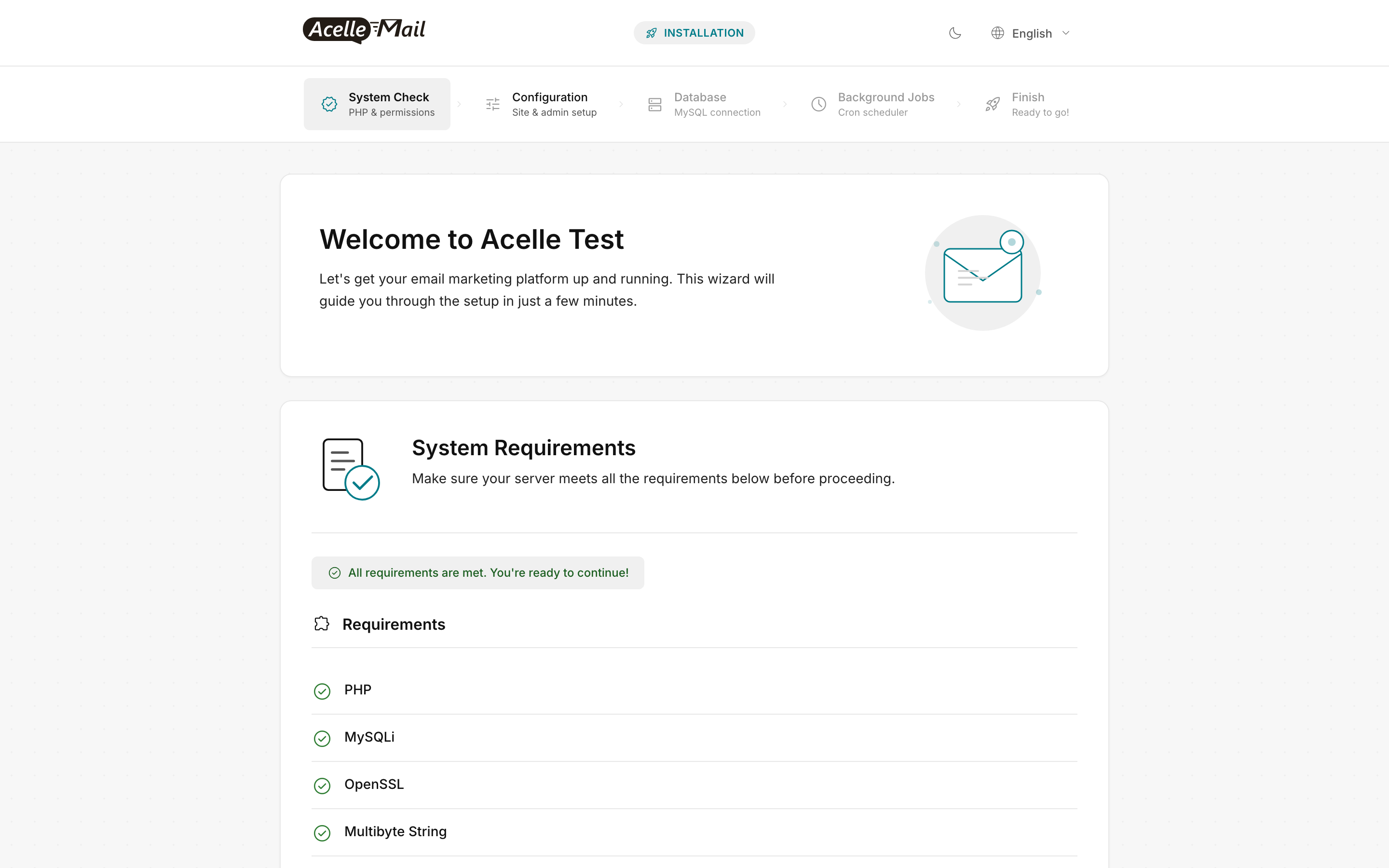
The welcome page summarises the first few requirement checks inline. If everything is green, click Continue at the bottom.
Step 10.2 — System Check (full)#
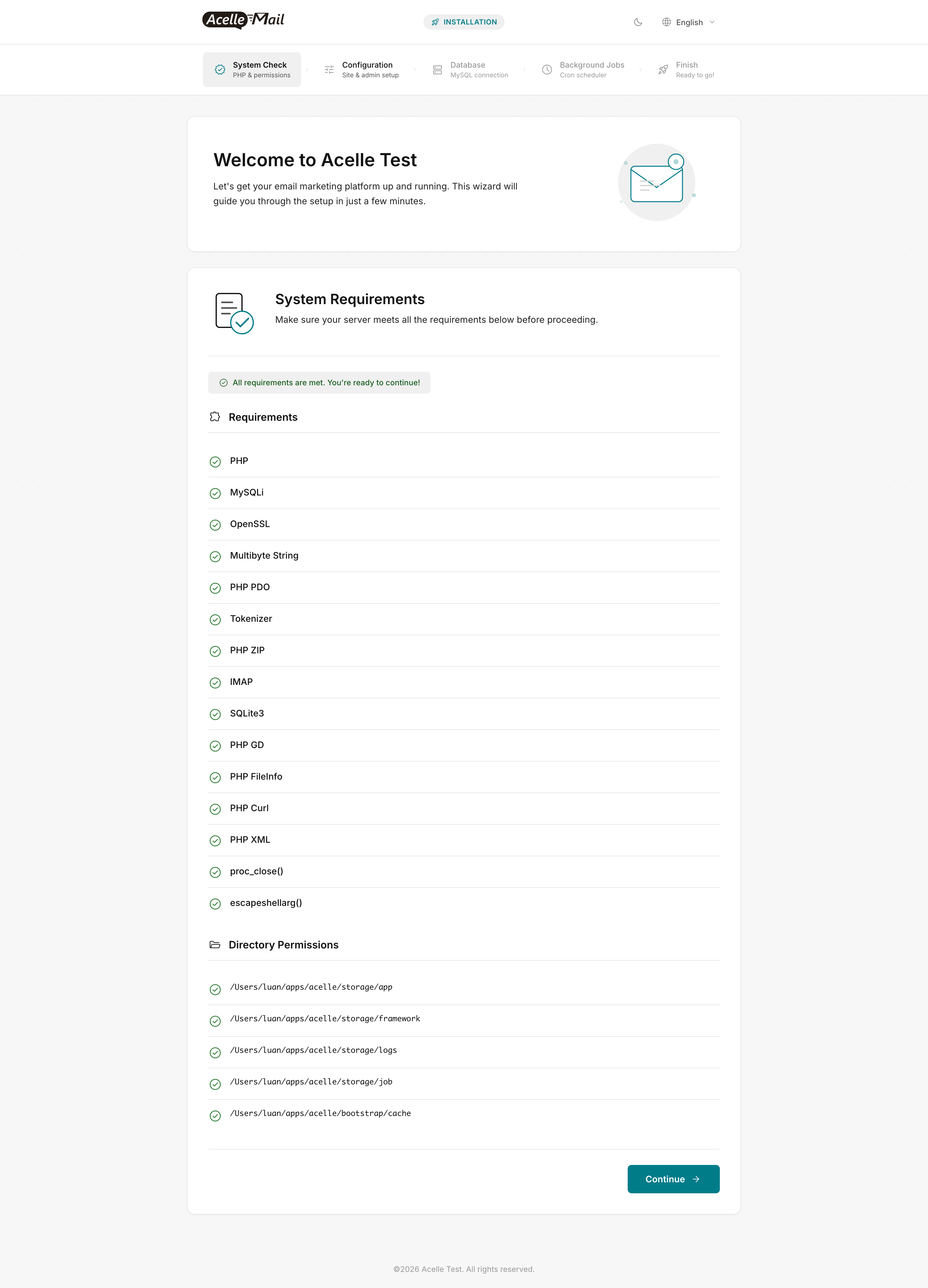
The full system-check page lists every PHP extension AcelleMail needs plus the 5 writable directory paths. If a row is red, the message names exactly what's missing — re-install with sudo apt-get install -y php8.3-<ext> and refresh.
The most common red rows on a fresh Ubuntu install:
IMAP → sudo apt-get install -y php8.3-imap && sudo systemctl restart php8.3-fpmSQLite3 → sudo apt-get install -y php8.3-sqlite3 && sudo systemctl restart php8.3-fpm- A
storage/... permission row red → sudo chown -R www-data:www-data /var/www/acellemail/storage
Step 10.3 — Configuration (Site + Admin + Mail)#
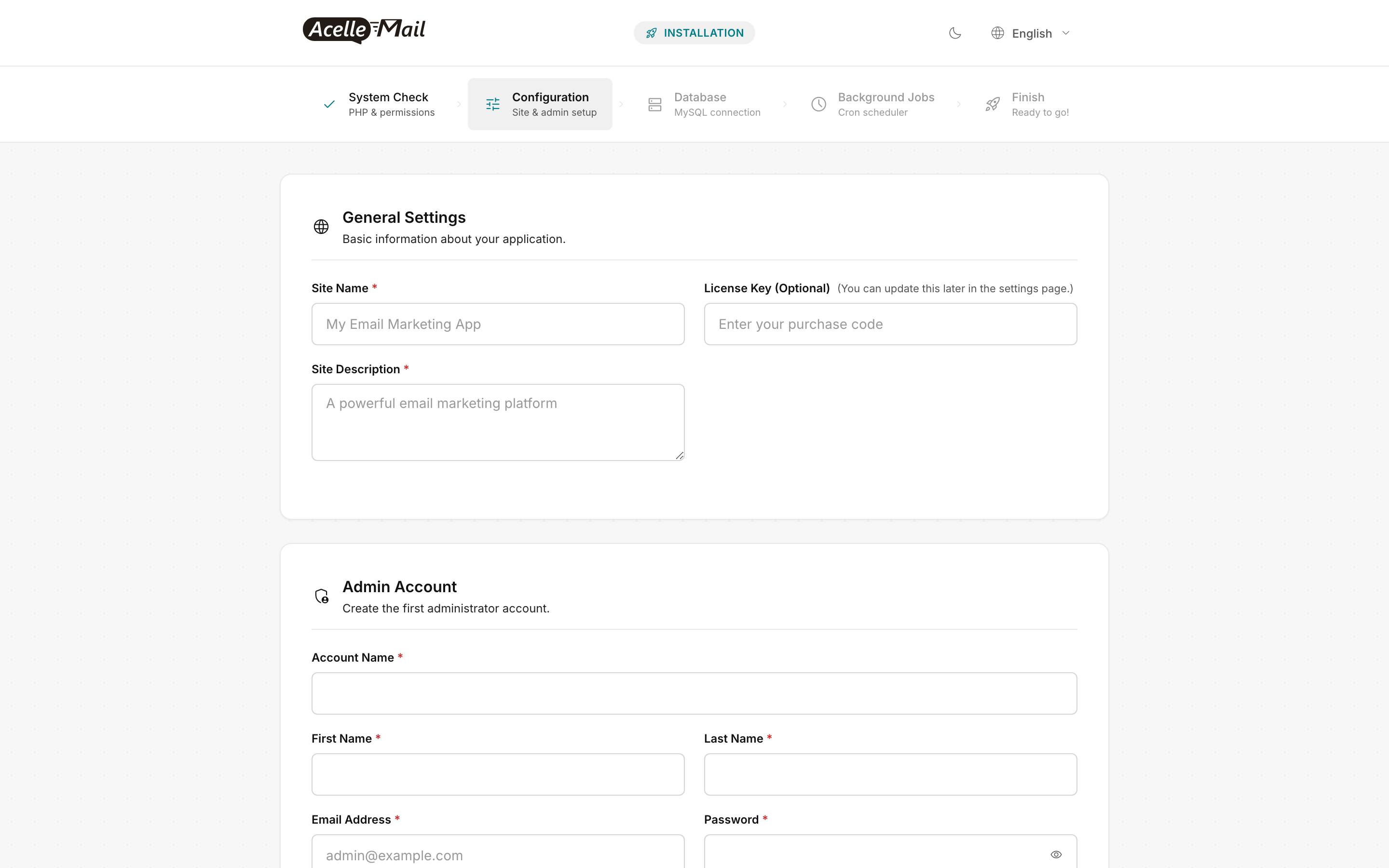
One step combines three sub-forms:
- General Settings — Site Name (e.g. "My Email Marketing App"), Site Description, optional CodeCanyon License Key (you can leave this blank and add later in Settings)
- Admin Account — your first admin credentials (Account Name + First + Last Name + Email + Password). This account has root admin privileges in AcelleMail.
- Mail Configuration (further down the page, not shown) — SMTP or Sendmail config for the system's own outbound mail (account confirmations, password resets). This is separate from the per-customer sending servers you'll configure later.
Step 10.4 — Database#
The Database step asks for hostname / port / username / password / database name. Fill in the values from Step 3 — for a standard local install, localhost / 3306 / acellemail / <the password you generated> / acellemail. The installer tests the connection before letting you continue.
Step 10.5 — Background Jobs (cron check)#
Confirms the system cron is running (the cron you added in Step 9). If it shows red, double-check sudo -u www-data crontab -l | grep schedule:run.
Step 10.6 — Finish#
Click Finish to import the schema + create the admin account. Login at https://mail.example.com/admin.
After login, the first thing to configure is a sending server — see Configuring Amazon SES with AcelleMail. Without a sending server, AcelleMail can collect subscribers but can't send campaigns.
Post-install verification#
Run these from the server:
# 1. PHP 8.3 active
php -v | head -1                   # → PHP 8.3.x

# 2. Worker is running
sudo supervisorctl status acellemail-worker:*

# 3. Cron will fire
sudo -u www-data crontab -l | grep schedule:run

# 4. Database is reachable from the app
cd /var/www/acellemail && sudo -u www-data php artisan migrate:status | head -5

# 5. Storage is writable
sudo -u www-data touch /var/www/acellemail/storage/test && rm /var/www/acellemail/storage/test
If any of these fail, do not proceed to sending — every one is a hard prerequisite. Then run the Post-Install Hardening Checklist before opening the install to real customers.
Common issues#
| What you see |
Likely cause |
Fix |
Wizard System Check red on IMAP |
php8.3-imap not installed |
sudo apt-get install -y php8.3-imap && sudo systemctl restart php8.3-fpm, refresh |
Wizard System Check red on SQLite3 |
php8.3-sqlite3 not installed |
sudo apt-get install -y php8.3-sqlite3 && sudo systemctl restart php8.3-fpm, refresh |
Wizard System Check red on a storage/... row |
Directory not writable by www-data |
sudo chown -R www-data:www-data /var/www/acellemail/storage /var/www/acellemail/bootstrap/cache |
| Database step says "Connection refused" |
MySQL not listening on the loopback, or password mismatch |
sudo systemctl status mysql; verify password from Step 3 |
| Database step says "Access denied" |
DB user privileges not granted |
Re-run the GRANT ALL PRIVILEGES ON acellemail.* TO 'acellemail'@'localhost'; from Step 3 |
Login at /admin returns 502 |
php-fpm not running, or wrong socket path in nginx vhost |
sudo systemctl status php8.3-fpm; check unix:/run/php/php8.3-fpm.sock in vhost matches pm.socket in /etc/php/8.3/fpm/pool.d/www.conf |
| Login OK but campaigns stick in "queuing" |
Queue worker not running |
sudo supervisorctl start acellemail-worker:* |
FAQ#
Do I need PHP 8.3 specifically, or will 8.2 / 8.4 work? AcelleMail's installer requires PHP 8.3 per the compat check. PHP 8.4 works informally (verified by support tickets) but isn't tested. PHP 8.2 is below the minimum — the wizard will refuse.
Can I use MariaDB instead of MySQL? Yes — MariaDB 11.x is supported. Install with sudo apt-get install mariadb-server instead of mysql-server, then run the same CREATE DATABASE / CREATE USER commands. Connection settings are identical because the MySQL client driver speaks both.
What if I don't have a domain yet? You can run AcelleMail on http://your-server-ip/ for testing, but you can't send transactional or marketing email without a from-domain that has SPF + DKIM + DMARC. Buy a domain before configuring sending — see Complete DNS Setup for AcelleMail.
How do I upgrade later? The Acelle upgrade flow uses a patch-x.x.x-pNN.bin file applied via the /upgrade/run-file API or via SSH. The full zip is only used for fresh installs. Consult your CodeCanyon download area for the latest patch.
Can I install AcelleMail without root / sudo? No. The install requires apt-get install (root) for system packages and certbot, and ownership of /var/www/acellemail for php-fpm. Operator-only paths can use a sudo user, but not unprivileged.
Related articles#
