What this is for#
Sender reputation is the score receiving servers (Gmail, Outlook, Yahoo, and the rest) quietly assign to your sending identity. Nobody publishes it. You read it indirectly, from the few signals you can see — and AcelleMail puts the important ones right on the campaign report. This article shows you exactly where each signal lives and what to do when it moves the wrong way.
The three numbers that matter#
You don't need a dashboard full of metrics. Three signals carry most of the story:
| Signal |
Where it lives in AcelleMail |
Rule of thumb |
| Bounce rate |
Campaign Overview → Bounced rate row → Bounce log |
Comfortable under ~2%. Past ~5% on a single send, stop and clean the list. |
| Complaint (spam) rate |
Campaign Overview → Spam reports rate row → Feedback log |
Keep it as close to zero as you can. A fraction of a percent is already a warning. |
| Engagement |
Campaign Overview → opens + clicks |
High opens this month tend to predict a healthy reputation next month; flat opens predict the opposite. |
These are rules of thumb, not hard cutoffs — every ISP weighs them differently and none of them publish the exact line. Treat a number trending the wrong way as a prompt to look closer, not as a single pass/fail gate.
Reading the campaign Overview#
Open any sent campaign and you land on the Overview tab. The first thing you see is an insight banner: AcelleMail reads your open rate and gives you a one-line verdict — Strong engagement, Solid performance, or Room to grow — and if your bounce rate is elevated it appends a "Heads up: your bounce rate is elevated — consider cleaning your list" note right there.
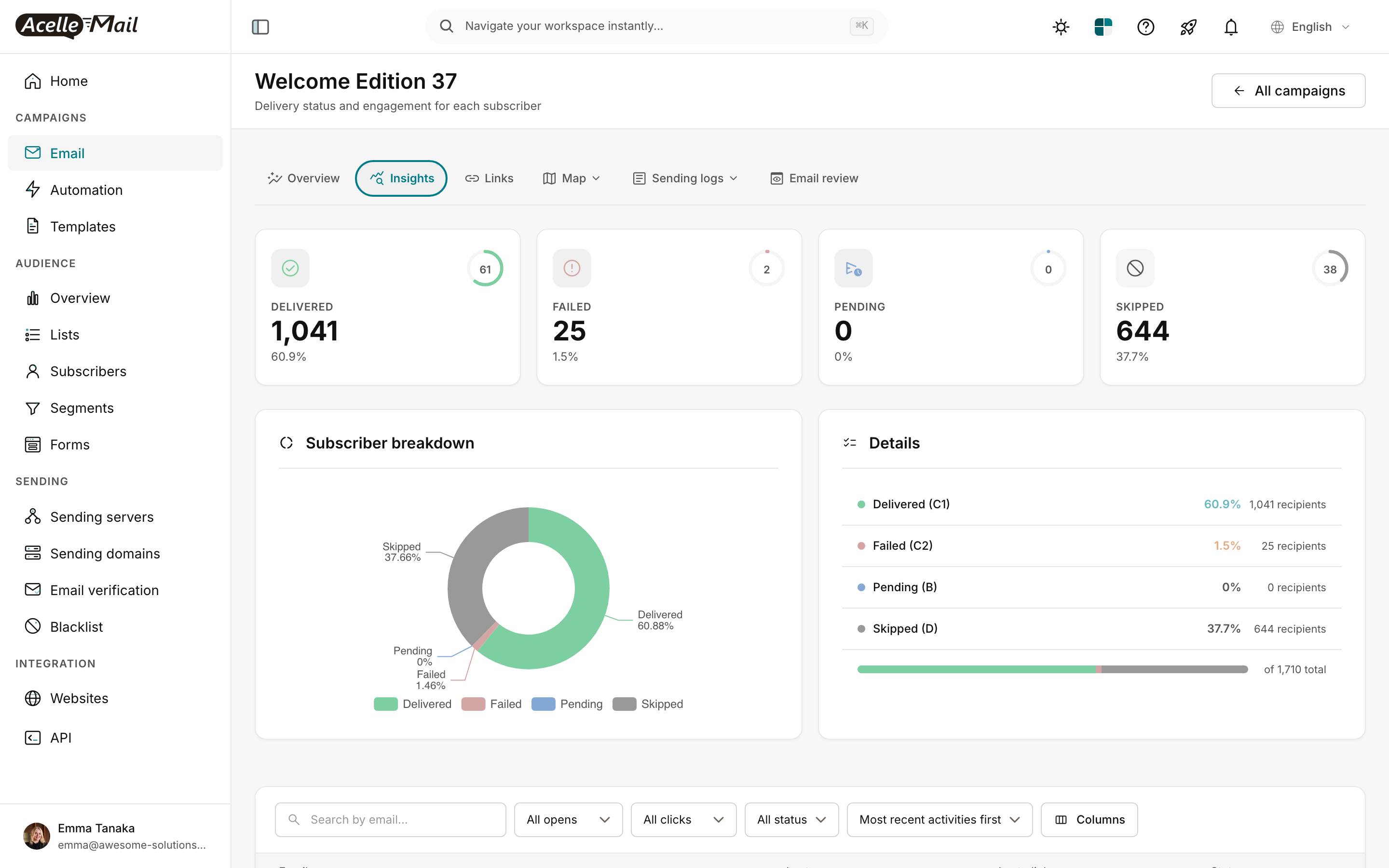
Below the headline numbers is a stack of clickable rate rows — Opened, Clicked, Unsubscribed, Bounced, and Spam reports — each showing the percentage and linking straight into the matching log. That row stack is your reputation cockpit. You don't go hunting; the numbers come to you, and one click drills into the detail.
Where the bounce signals live#
Click the Bounced rate row, or open the Sending logs dropdown in the campaign nav and pick Bounce log. Every failed delivery is listed with the recipient, a bounce-type chip, and the raw reason text the receiving server returned:

- Hard bounces are permanent — the address doesn't exist. A pile of these on a fresh import means the list is dirty.
- Soft bounces are temporary — mailbox full, server busy. A few are normal; a sudden wall of them on one ISP is worth watching.
The reason cell shows the receiving server's verbatim response; click it to read the full message. For decoding the machine codes (the 5.x.x / 4.x.x DSN classifications), see Decoding bounce messages.
The complaint signal — Feedback log#
From the same Sending logs dropdown, open Feedback log (or click the Spam reports rate row on Overview). Every complaint an ISP reports back — recipient, type, and reason — lands here:

Complaints are the most expensive signal you have. Receiving servers treat them as direct evidence that people don't want your mail, and the threshold before they react is much lower than for bounces. Read the log row-by-row when complaints climb — the pattern tells you the cause:
- All from one list or segment? Bad source. Pause sending to it and audit how those people signed up.
- All on the first send to a freshly imported list? Permission was probably unclear at signup. Audit before you send again.
- Spread evenly across the whole list? It's the content — a subject line that over-promised, or a body that didn't match what people expected.
Check the sending side too#
A reputation problem isn't always your list — sometimes your sending setup itself broke. Two quick checks:
Sending domain authentication. Open Sending → Sending Domains and click into your domain. Each DNS record (SPF, DKIM, DMARC) shows a green Verified chip when it's passing, and the header summarises it as an N/N DNS verified badge:
If a record that used to be verified flips to unverified, a DNS change broke your alignment — receiving servers will start downgrading or rejecting your mail until you fix it. Re-check the record and re-verify.
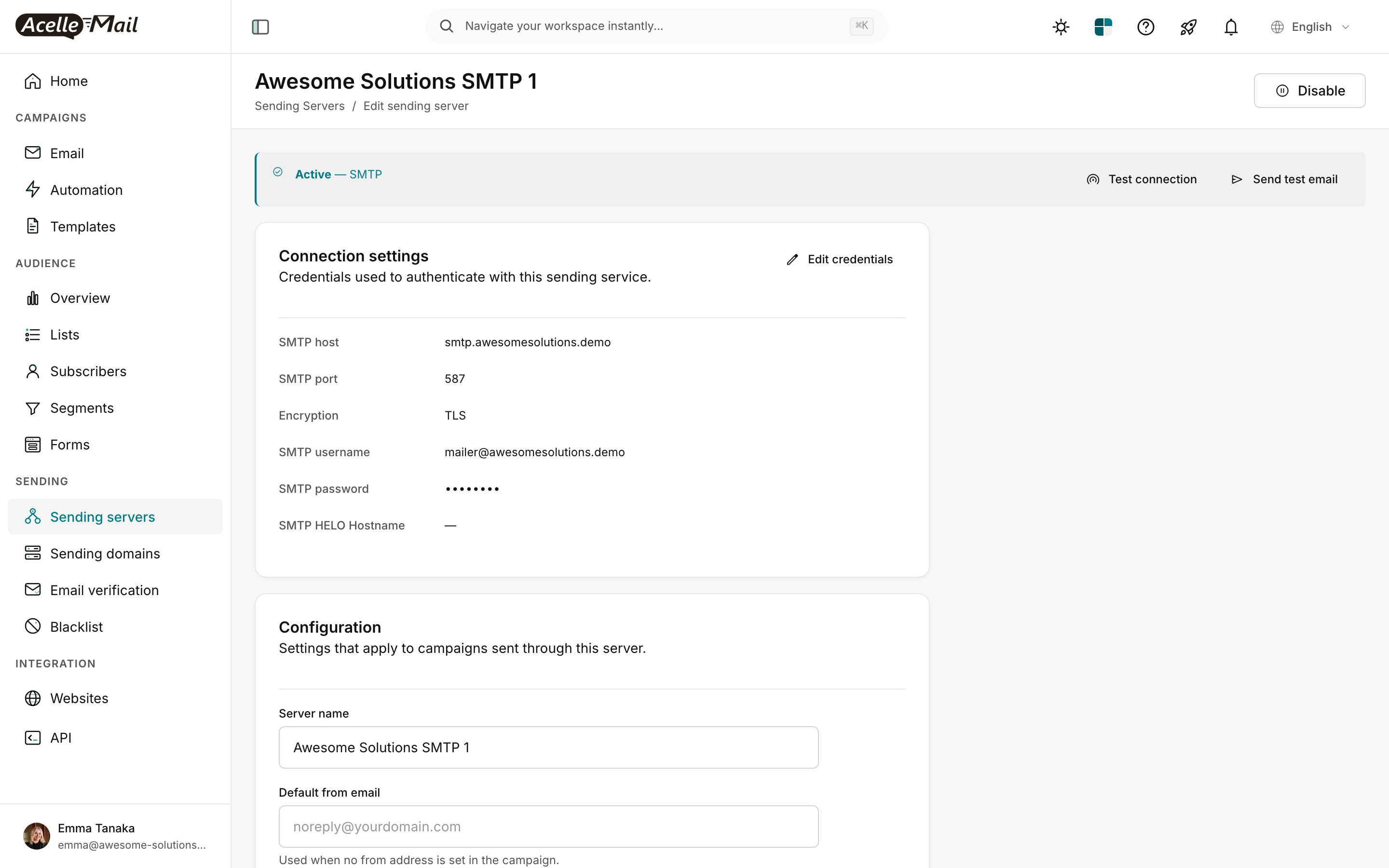
A live test send. When you suspect a problem and want a fast read, open Sending → Sending Servers, click into the server, and use Send test email. AcelleMail drops a real message through that server to whatever inbox you type in:

Send one to your own Gmail, Outlook, and Yahoo accounts and open each on the receiving side:
- All land in the inbox → transmission and authentication are fine; your original issue is content or list quality.
- Gmail spam, Outlook inbox → a Gmail-specific reputation hit. Time to check Google Postmaster Tools (see the collapsible below).
- All spam everywhere → a systemic authentication break. Recheck SPF / DKIM / DMARC alignment first.
Acting on each signal#
| What you see |
First action |
| Bounce rate jumps to several percent on one campaign |
List hygiene. Run email verification on the list and prune obviously-bad and role addresses before the next send. |
| Spam reports climbing in the Feedback log |
Pause the campaign. Audit consent for that list, and send a re-engagement message before you mail it at full volume again. |
| Opens sliding over several consecutive sends |
You're likely mailing too often. Cut your cadence for a couple of weeks — engagement usually recovers, and reputation follows it. |
| Test send: Gmail spam but Outlook inbox |
A Gmail-specific hit. Check Google Postmaster Tools — that's where Gmail tells you what it sees. |
| A DNS record that was Verified is now unverified |
A DNS change broke alignment. Fix the record and re-verify the domain. |
When to add a second sending server#
Once you cross any of these, running on two servers minimum is the sane default:
- You're sending more than tens of thousands of messages a day
- You're mixing marketing and transactional traffic on one identity
- You're in a regulated industry where an outage is genuinely costly
- A single vendor is getting expensive enough that a second, cheaper one pays for itself
See Configuring multiple sending servers for the setup walkthrough.
Going deeper: the per-ISP picture with external postmaster tools
AcelleMail's campaign report tells you the aggregate — your bounce, complaint, and engagement numbers across everyone you mailed. What it can't show you is what one specific ISP thinks of you, because Gmail and Microsoft only expose that to you directly, through their own free tools. If you send any real volume, set these up — they're where you catch a problem before it shows up as missing emails.
Google Postmaster Tools (for gmail.com / googlemail.com recipients):
- Add your authenticated sending domain at https://postmaster.google.com
- Verify ownership with the TXT record Google gives you
- Within about a day you get dashboards for spam rate (real Gmail complaints), IP and domain reputation, authentication pass rates, TLS adoption, and delivery errors
The number to watch daily is the spam rate. When Gmail's own complaint figure starts climbing, Gmail begins throttling you quietly — long before you'd notice from your own send. Pause and audit the list the moment it moves.
See Gmail postmaster tools walkthrough for the full setup.
Microsoft SNDS (for outlook.com / hotmail.com / live.com recipients):
- Sign up at https://sendersupport.olc.protection.outlook.com/snds/
- Register your sending IPs, one entry per IP
- You get a per-IP reputation colour (Red / Yellow / Green), filter results, and a complaint rate
See Microsoft SNDS walkthrough for the full setup.
Yahoo / AOL historically had postmaster tools too, but most have been retired. Your best signal for those domains is the bounce and complaint data already sitting in your AcelleMail Bounce log and Feedback log.
A simple recovery rhythm after a hit. When a reputation dip happens, the pattern that works is to shrink your sends back to your most engaged people and rebuild outward:
- Pause bulk sending. Mail only your most recently engaged recipients — the ones most likely to open.
- If those sends stay clean for a week or so, widen the audience a step.
- Keep widening, checking Postmaster Tools / SNDS as you go, until you're back to your normal segments.
Mild dips recover in a week or two. A serious complaint problem can take much longer — and occasionally the honest answer is a fresh sending domain. The cleaner you keep the three numbers at the top of this article, the less often you'll be here at all.
Related articles#
