What this is for#
This is the power-user reference for AcelleMail's automation system — the catalog you skim when designing a flow, not a how-to walkthrough. If you're just starting with automations, read Build a Welcome Email Series first; come back here when you need to know what trigger to pick for a specific scenario.
All 12 built-in triggers#
These are every trigger card on the Create Automation page:
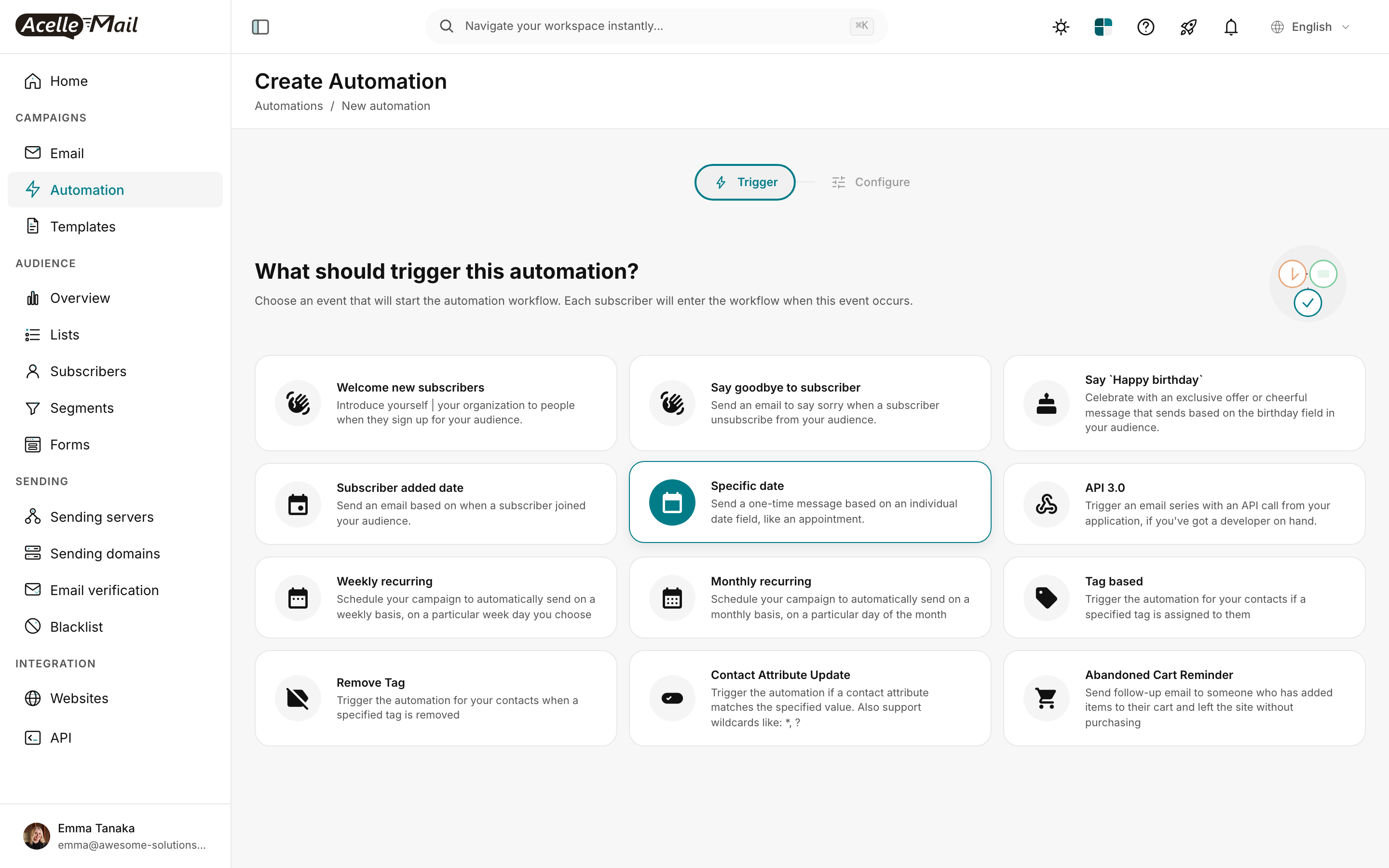
| # |
Trigger |
Fires when |
Most common use |
Deep-dive article |
| 1 |
Welcome new subscribers |
New subscriber added to the connected list |
Welcome series |
Welcome Series |
| 2 |
Say goodbye to subscriber |
Subscriber unsubscribes from the connected list |
Exit survey, win-back, internal alert |
— |
| 3 |
Say 'Happy birthday' |
Subscriber's Birthday date field matches today (year-agnostic) |
Birthday email |
Birthday + Anniversary |
| 4 |
Subscriber added date |
Yearly anniversary of subscribed_at |
Anniversary email |
Birthday + Anniversary |
| 5 |
Specific date |
One-time send on a fixed calendar date |
Event reminder, appointment |
— |
| 6 |
API 3.0 |
External webhook call to AcelleMail's API |
Custom server-side triggers |
API Triggers |
| 7 |
Weekly recurring |
Same day every week |
Weekly digest, weekly check-in |
— |
| 8 |
Monthly recurring |
Same day every month |
Monthly invoice, billing reminder |
— |
| 9 |
Tag based |
Subscriber receives a specified tag |
Post-purchase, re-engagement, lead scoring |
Post-Purchase, Re-engagement, Lead Scoring |
| 10 |
Remove Tag |
Subscriber loses a specified tag |
Exit-flow, bucket transitions |
— |
| 11 |
Contact Attribute Update |
Custom field value matches a specified condition (incl. wildcards) |
Lifecycle stage changes, score thresholds |
Lead Scoring |
| 12 |
Abandoned Cart Reminder |
WC cart abandonment via the sync plugin |
Cart recovery |
Abandoned Cart |
Trigger anatomy#
Every trigger you configure has the same three pieces:
| Piece |
What it does |
| Trigger event |
One of the 12 above. Determines WHAT starts the workflow. |
| Audience list |
Limits which subscribers are eligible. Only subscribers on this list enter the flow. |
| Filters (trigger-dependent) |
Tag-based / Contact Attribute Update / Specific date need additional config (which tag, which field+value, which date). |
Every trigger fires once per subscriber per qualifying event. AcelleMail prevents re-firing on the same subscriber while they're in the flow — to re-enter, they need to be removed from the active session first (via Contacts → Delete trigger on the automation's Contacts tab).
The CONDITION node — the branching workhorse#
The CONDITION node creates a YES/NO split in your flow. It's how you build "if engaged, do X; if not, do Y".
CONDITION evaluates against four kinds of facts#
| Fact |
Example |
Use |
| Tag presence |
"Has tag engagement-hot?" |
Bucket-based routing |
| Custom field value |
"Plan field equals enterprise?" |
Account-type-based content |
| Activity history |
"Opened campaign 'Welcome'?" |
Engagement-based pruning |
| Compound (AND/OR) |
"Tag X AND field Y > 50?" |
Complex multi-criteria checks |
For each fact, AcelleMail offers operators appropriate to the data type:
| Data type |
Operators |
| Tag |
has tag · doesn't have tag |
| Custom field (text) |
equals · not equals · contains · doesn't contain · starts with · ends with · is empty · is not empty |
| Custom field (number) |
equals · greater than · less than · between |
| Custom field (date) |
greater than (days) · less than (days) · is past · is future |
| Activity (email opened) |
opened · did not open |
| Activity (link clicked) |
clicked any link · clicked specific link · did not click |
Build a CONDITION node#
In the flow builder:
- Click + on the downstream arrow where you want the split
- Pick CONDITION from the node picker
- The side panel opens with three dropdowns: Field → Operator → Value
- Configure your check
- Two arrows appear from the new node: YES (top) and NO (bottom)
- Build the downstream flow on each branch
Multi-branch via chained CONDITIONs#
The YES/NO split is binary. For more than two outcomes, chain CONDITION nodes:
CONDITION → Has tag `vip`?
            ├─ YES → SEND EMAIL: VIP exclusive
            └─ NO  → CONDITION → Has tag `customer`?
                                  ├─ YES → SEND EMAIL: Customer offer
                                  └─ NO  → CONDITION → Engagement-warm?
                                                       ├─ YES → SEND EMAIL: Warm nurture
                                                       └─ NO  → SEND EMAIL: Cold-list welcome
4 branches built from 3 CONDITIONs. Each YES/NO is one decision; the chain reaches every outcome.
The OPERATION node — mutate the subscriber#
The OPERATION node is how a flow changes the subscriber's data, not just sends them email. Five operation types:
| Operation |
What it does |
Use |
| Add tag |
Adds a tag to the subscriber |
Mark progress (completed-onboarding), trigger downstream flows |
| Remove tag |
Removes a tag |
Reset state, exit a bucket |
| Update field |
Sets a custom field to a new value (literal or formula) |
Lead scoring, lifecycle stage |
| Move to blacklist |
Permanent block on all sends |
Sunset non-responders (Re-engagement) |
| Copy to list (in some installs) |
Add the subscriber to another mail list |
Multi-list segmentation |
The Update field operation can take a literal value (Plan = enterprise) OR a formula referencing the current value ({{subscriber.lead_score}} + 25). Formula support makes OPERATION the engine of any points-based scoring system.
The WAIT node — pause the flow#
WAIT pauses the subscriber's journey for a configurable duration before the next node fires.
| WAIT unit |
Practical range |
Use |
| Minutes |
5 min – 60 min |
Cart-recovery near-real-time |
| Hours |
1h – 48h |
Day-to-day welcome series |
| Days |
1d – 365d |
Multi-week nurture, anniversaries |
WAIT pauses persist across automation pauses — if you pause the automation, all WAIT nodes hold their place; un-pausing resumes from where each subscriber was. This is critical to know if you're iterating on a flow in production.
Designing multi-trigger flows#
Sometimes one automation isn't enough. Common patterns:
Pattern 1 — One canonical flow, multiple entries#
Build one "customer nurture" automation with a Tag based trigger on customer-new. Then build:
- Pre-purchase flow → adds
customer-new tag → enters nurture
- Post-purchase flow → adds
customer-new tag → enters nurture (via the same trigger)
The nurture flow doesn't care HOW the subscriber became a customer — it just sees the tag.
Pattern 2 — Coordinated trigger pairs#
For a 2-stage funnel:
Automation A — Welcome series
  TRIGGER: Welcome new subscribers
  …5-email flow…
  Final OPERATION: Add tag `nurture-eligible`

Automation B — Long-tail nurture
  TRIGGER: Tag based: nurture-eligible
  …monthly content + offers…
Two automations, one handoff. The first ends with a tag operation; the second triggers off that tag. Clean separation, easier to maintain than one giant flow.
Pattern 3 — Exit-on-tag-set#
Any automation can exit early if a sentinel tag appears. The pattern:
… (any path) …
CONDITION → Has tag `exit-now`?
            ├─ YES → END
            └─ NO  → continue
Place these checks before each SEND EMAIL. Useful for "stop sending if customer complained" or "stop sending if customer converted".
Anti-patterns#
| Pattern |
Problem |
Better |
| One giant flow with 30+ nodes |
Hard to debug, slow to evaluate, easy to break |
Split into multiple smaller automations linked via tags |
| CONDITION on every step |
Performance overhead; flow becomes unreadable |
Use ONE upstream CONDITION + segment-based filtering |
| Trigger on Contact Attribute Update with no filter |
Fires on every field change to any field — chaos |
Always specify the field + condition in the trigger config |
| WAIT 0 between nodes |
Pointless; just remove the WAIT |
Remove |
| Multiple automations triggering on the same event |
Subscribers receive duplicate emails |
Use one canonical automation + handoff via tags |
| Manual subscriber adds to "trigger" the flow |
Easy to forget, doesn't scale |
Use the actual trigger — Tag based with a bulk-tag action |
Performance notes#
- AcelleMail evaluates trigger conditions on a polling basis (typically every minute for tag/attribute changes, daily for date triggers). Don't expect sub-second responsiveness.
- A subscriber can be in multiple automations simultaneously — each automation tracks them independently. Watch for cross-automation send overlaps.
- The Contacts → Trigger all subscribers action on an automation fires the trigger for every subscriber on the list at once. Use sparingly on large lists (10k+).
Related articles#
