What this is for#
Brevo (formerly Sendinblue, rebranded May 2023) is one of the more operator-friendly SaaS email tools — its pricing model charges by emails sent, not subscribers. That's the right unit for transactional/event-driven sends. But past ~150k emails per month, the per-email cost stacks fast — and at marketing-campaign scale (single send to a list of 50k+), the math against self-hosted AcelleMail with your own SMTP shifts dramatically.
This guide is the operator-grade playbook for migrating from Brevo to AcelleMail. You pay one-time for the license, run on your own VPS, and pay your upstream SMTP provider's variable rate (typically $0.10-$1.00 per 1k emails — vs Brevo's $0.30-$0.65 per 1k at most tiers).
Companion reads: Migrating from Mailchimp to AcelleMail and Migrating from MailerLite to AcelleMail follow the same skeleton with platform-specific notes.
Cost comparison — realistic numbers#
Brevo's pricing is per-email, not per-subscriber. This matters because:
- For senders with a small active list and high cadence (newsletters 3-4x/week, transactional mixed in), Brevo's emails-sent model is often more expensive than per-subscriber competitors.
- For senders with a large list and low cadence (monthly digest to 100k), Brevo can be cheaper than per-subscriber platforms — but still loses to AcelleMail at scale.
Realistic year-1 numbers comparing Brevo Business plan to self-hosted AcelleMail:
| Monthly volume |
Brevo Business |
AcelleMail (license + VPS + SES) |
Year 1 saving |
| 20k emails/month |
$25/mo = $300/yr |
$39 license + $7/mo VPS + $2/mo SES ≈ $147 yr 1 |
$153 |
| 100k emails/month |
$65/mo = $780/yr |
$39 license + $20/mo VPS + $10/mo SES ≈ $399 yr 1 |
$381 |
| 250k emails/month |
$129/mo = $1,548/yr |
$39 license + $30/mo VPS + $25/mo SES ≈ $699 yr 1 |
$849 |
| 500k emails/month |
$239/mo = $2,868/yr |
$39 license + $50/mo VPS + $50/mo SES ≈ $1,239 yr 1 |
$1,629 |
| 1M emails/month |
$419/mo = $5,028/yr |
$39 license + $80/mo VPS + $100/mo SES ≈ $2,199 yr 1 |
$2,829 |
| 5M emails/month |
$1,329/mo = $15,948/yr |
$39 license + $200/mo VPS + $500/mo SES ≈ $8,439 yr 1 |
$7,509 |
Sources. Brevo Business plan pricing as of 2026-05 (brevo.com/pricing). AcelleMail license from codecanyon.net/item/acellemail. VPS pricing reflects DigitalOcean droplet sizing per tier. SMTP cost assumes Amazon SES post-sandbox at $0.10/1k emails. Numbers exclude your operations time.
The crossover is around 75k emails/month. Below that, Brevo's free + entry-tier is competitive on monthly cost (though you pay in feature limits). Above that, AcelleMail's flat infrastructure cost wins every tier — and the gap widens fast.
What Brevo gives you that AcelleMail does differently#
| Feature |
Brevo |
AcelleMail |
Migration note |
| Visual drag-and-drop editor |
Yes (good) |
Yes (BeeFree-integrated) |
Templates need manual port |
| Transactional API (Sendinblue legacy) |
Yes (best-in-class for transactional) |
Yes (REST API for both transactional + bulk) |
Re-wire API endpoints; payloads are similar but not identical |
| SMS marketing |
Yes (paid add-on) |
No (email only) |
Use a separate SMS provider (Twilio, MessageBird) post-migration |
| WhatsApp + Live chat |
Yes (Brevo Conversations) |
No |
Not part of the AcelleMail scope |
| Contacts vs Lists vs Folders |
3-level org |
2-level (Lists + Segments) |
Folder grouping → list-naming convention |
| Automations |
Yes (visual editor) |
Yes (Automation 2 visual editor) |
Re-build node-by-node; logic translates 1:1 |
| CRM (deals, pipelines) |
Yes (paid Sales add-on) |
No (Forms only, no deal tracking) |
Use separate CRM (HubSpot free, Pipedrive) |
| Forms / landing pages |
Yes |
Yes (Forms + Funnels) |
Re-create on AcelleMail side |
| Sender reputation |
Shared pool, opaque to operator |
You pick SMTP; reputation is yours |
Strategic upgrade |
| Dedicated IP add-on |
Available (paid extra) |
Configure freely on your SMTP provider |
One-time setup vs perpetual add-on charge |
| Multi-user/team accounts |
Yes (per seat) |
Yes (built-in, no per-seat cost) |
Big saving for marketing teams >3 people |
| SOC 2 / GDPR compliance |
Brevo's certified |
Yours (you control the data) |
Trade convenience for control |
| Time to "first send" after signup |
Minutes |
Hours (install + DNS + warmup) |
Acceptable trade for cost + sovereignty |
The mental-model shift from Brevo: you're not just changing platforms — you're moving from "managed multi-channel marketing suite" to "purpose-built email engine." If you use Brevo for SMS, WhatsApp, or CRM, plan parallel tools for those non-email features.
The 8-week timeline#
Same skeleton as Mailchimp and MailerLite guides. Brevo-specific bits noted per step.
| Week |
Phase |
What happens |
| Week 1 |
Install AcelleMail + DNS prep |
VPS, license, install wizard, sender DNS in shadow |
| Week 2 |
Export from Brevo + import to AcelleMail |
Contacts, lists, folders, transactional templates, automations |
| Week 3 |
Template rebuild + sending-server config |
BeeFree templates re-created; SMTP/SES/Postmark configured |
| Weeks 4-5 |
DNS migration |
SPF includes AcelleMail's sending IP; DKIM key for new sender; DMARC stays |
| Week 6 |
IP warmup if dedicated |
Ramp 50 → full over 14 days |
| Weeks 7-8 |
Parallel period |
Random split: 10 → 25 → 50 → 75% over 2 weeks |
| Week 9 |
Cutover + Brevo cleanup |
DNS final, downgrade Brevo to archive, cancel after 30 days |
Step 1 — Install AcelleMail (Week 1)#
Pick your host:
Brevo's bigger customers commonly send 250k-1M emails/month. At that scale, plan for $30-80/month VPS pricing. Above 1M emails/month, see Scaling for 100k Emails per Day for the multi-server pattern.
Post-install foundation:
Step 2 — Export from Brevo (Week 2)#
Brevo's exports are powerful but spread across several places. Work through the list:
Export contacts (all)#
In Brevo (app.brevo.com):
- Contacts → All contacts.
- Click Actions → Export contacts.
- Choose All contacts OR filter by list / folder / attribute.
- Select fields. Always include: Email, First name, Last name, Status, Date of creation, Source, Country, Last activity, Opt-in date, Opt-in IP, Opt-in source.
- Export → email with CSV download link (~2-10 min for large lists).
Sample CSV header:
EMAIL,FIRSTNAME,LASTNAME,STATUS,DATE_CREATION,SOURCE,COUNTRY,LAST_ACTIVITY,OPT_IN_DATE,OPT_IN_IP,OPT_IN_SOURCE,DOUBLE_OPT_IN
Note: Brevo's "STATUS" values#
Unlike most platforms, Brevo's contact status has unique meanings:
| Brevo STATUS |
What it means |
Import to AcelleMail? |
Active |
Opted-in, mailable |
Yes |
Unconfirmed |
Started double opt-in, not finished |
No (re-engage via re-confirmation flow if needed) |
Hard bounced |
Permanent fail |
No (add to AcelleMail suppression list) |
Soft bounced |
Recoverable but recent fails |
Maybe — only if last_activity within 30 days |
Unsubscribed |
Opted out |
No (add to AcelleMail suppression list) |
Spam |
Marked as spam by recipient |
No (add to suppression list — never re-send) |
Blacklisted |
Admin-blocked or auto-blacklisted |
No |
Filter your CSV to STATUS = Active for the main import; pull Unsubscribed + Hard bounced + Spam + Blacklisted into a separate suppression.csv.
# Active subscribers only
awk -F',' 'NR==1 || $4 == "Active"' brevo-export.csv > active-only.csv
# Suppression list
awk -F',' 'NR==1 || $4 ~ /^(Unsubscribed|Hard bounced|Spam|Blacklisted)$/' brevo-export.csv > suppression.csv
Export lists + folders structure#
Brevo organizes contacts in two dimensions:
- Lists — explicit grouping; a contact can be in multiple lists.
- Folders — visual groupings of lists; not a contact property.
The export above includes a LISTS column (comma-separated list IDs). To map list IDs to names:
- In Brevo: Contacts → Lists.
- Note each list's ID and name.
This becomes your AcelleMail List naming convention. Suggested approach:
- Brevo Folder + List → AcelleMail List named
Folder / List.
- Example: Brevo Folder "Newsletters", List "Weekly Digest" → AcelleMail List "Newsletters / Weekly Digest".
Export transactional templates#
Brevo distinguishes campaign templates from transactional templates. Both need to come over.
For campaign templates:
- Campaigns → Email templates.
- Click each template → More → Export HTML (or Preview → Show source).
- Save as
template-<name>.html.
For transactional templates (the ones triggered via API):
- Transactional → Email → Templates.
- Click each → Get HTML source.
- Save with the template's Brevo numeric ID in the filename (e.g.
txnl-42.html) — you'll need the numeric ID to update your API integration during Step 7.
Export automation workflow structure#
Brevo doesn't expose an "export automation" button. Document manually:
For each automation under Automations:
- Screenshot the workflow diagram (the whole canvas).
- Note the Entry point (the trigger). Common ones:
- "Contact was added to list X"
- "Contact has property X = Y"
- "Contact made a purchase via [Brevo Tracker]"
- "Date or anniversary X"
- "Webhook received"
- For each step:
- Send email → record which template
- Wait → record duration
- Condition → record the rule
- Update contact → record the field change
- Branch → record yes/no logic
- Save the email body for each Send step.
This becomes your AcelleMail rebuild recipe in Step 6.
Export sending statistics (optional, for QA)#
Before migrating, archive your last 6 months of Brevo deliverability stats:
- Statistics → Email.
- Set date range to last 180 days.
- Export → CSV.
You'll compare AcelleMail's first 3 months of stats to this baseline. Significant drops in open rate after migration → diagnose with Why Are My AcelleMail Emails Going to the Spam Folder.
Step 3 — Clean the CSV (Week 2)#
Same principles as MailerLite/Mailchimp migrations: filter to mailable, dedupe, validate.
Critical pre-import: deduplication across Brevo's multi-list contacts#
Brevo allows the same email on multiple lists. The same Active contact will appear once per list in the export, not once per address. Always dedupe by email before importing:
awk -F',' '!seen[$1]++' active-only.csv > deduped.csv
Then capture the list memberships separately — you'll re-assemble them in Step 5 by importing per-list rather than one master import.
DOI (double-opt-in) re-confirmation choice#
Brevo's DOUBLE_OPT_IN column tells you if the subscriber went through double opt-in. EU operators with GDPR-compliant lists should preserve this signal. Three options:
- Carry signal forward. Map the column to an AcelleMail custom field
DOI_VERIFIED and use it for reporting.
- Re-confirm everyone. Send a one-shot re-confirmation email after import. Lose the unresponsive ones; the survivors are guaranteed-engaged.
- Carry only verified. Filter the import to
DOUBLE_OPT_IN = Yes before importing. Loses any single-opt-in subscribers — most conservative.
Most EU-facing migrations choose option 2. US-facing migrations usually option 1.
Re-validate with external service#
For >25k contacts: NeverBounce, Kickbox, or ZeroBounce. ~$0.01/address. Catches spam traps, role addresses, disposables that crept through Brevo's own validation.
Step 4 — Field mapping (Week 2)#
Brevo field → AcelleMail List field:
| Brevo CSV column |
AcelleMail List Field |
Notes |
EMAIL |
EMAIL (system) |
Required, unique |
FIRSTNAME |
FIRST_NAME |
|
LASTNAME |
LAST_NAME |
|
SMS |
PHONE (custom — create) |
If you'll use phone for SMS via a separate provider |
OPT_IN_DATE |
OPT_IN_TIME (system) |
Preserves consent timestamp |
OPT_IN_IP |
OPT_IN_IP (custom — create) |
Critical for GDPR audit trail |
OPT_IN_SOURCE |
SOURCE (custom — create) |
|
DOUBLE_OPT_IN |
DOI_VERIFIED (custom — create) |
If preserving the signal |
COUNTRY |
COUNTRY (custom — create) |
|
LAST_ACTIVITY |
(skip — repopulates after first AcelleMail open/click) |
|
STATUS |
(drop — filtered to Active only) |
|
LISTS |
(drop — used in per-list import strategy, not as field) |
|
| any custom attribute |
(create custom field) |
One per Brevo attribute |
Step 5 — Import to AcelleMail (Week 2)#
The wizard is identical for any CSV source. Reuse the List Hygiene checks before importing.
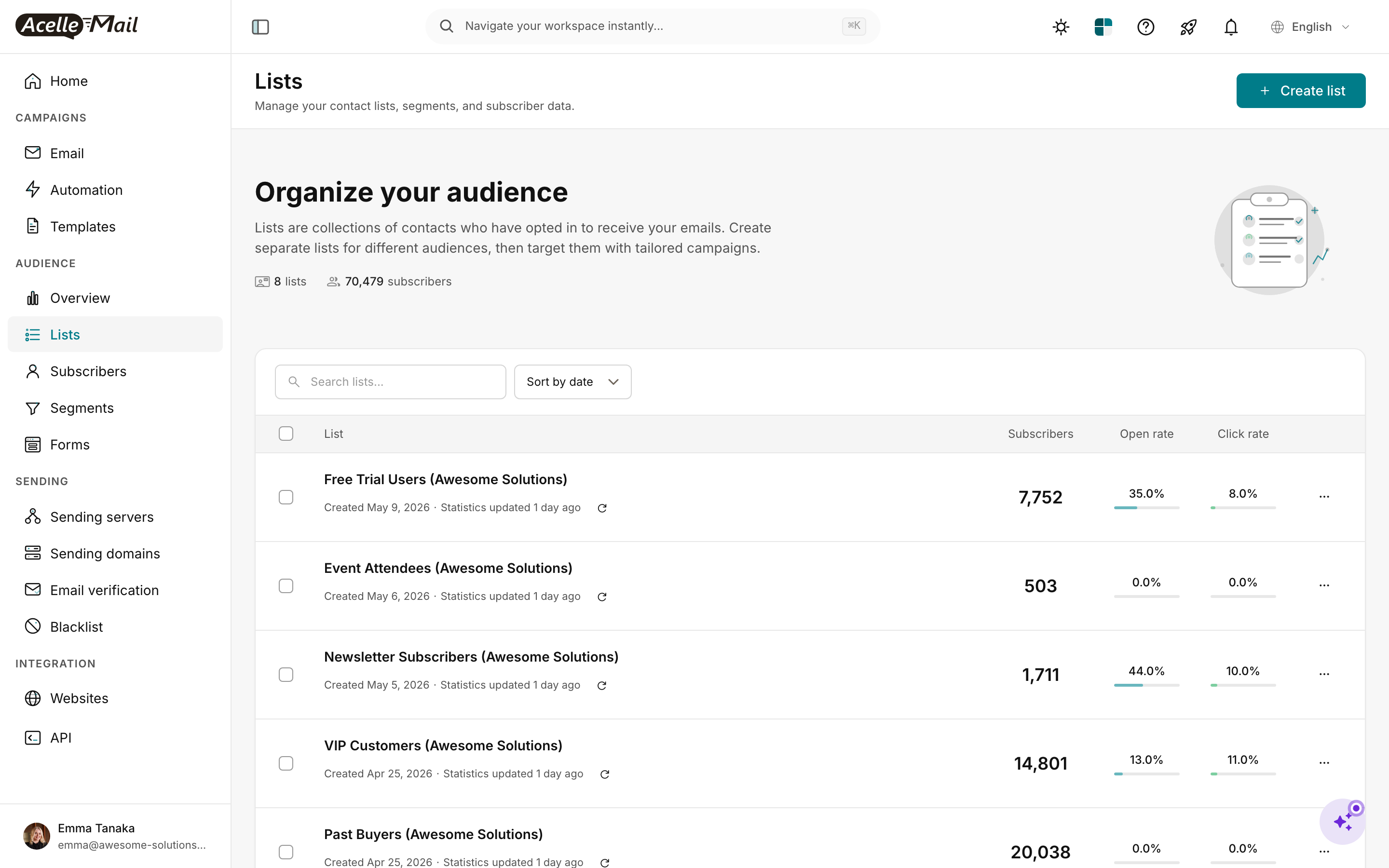
For each Brevo list:
- Lists → New list. Name it
<Folder> / <List>.
- Fill From email / Reply-to / Physical address.
- Save.
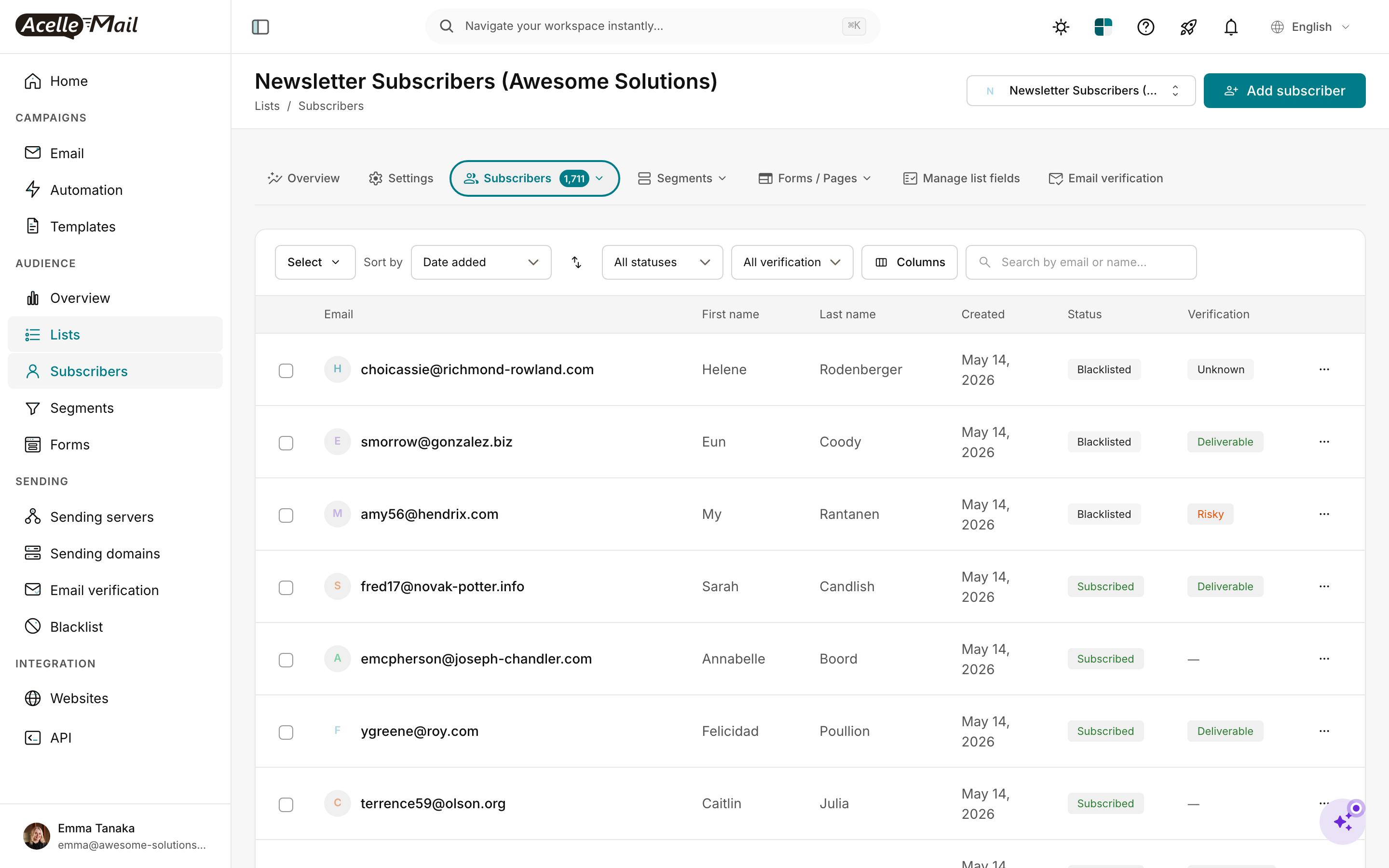
Create custom fields per Step 4 mapping.
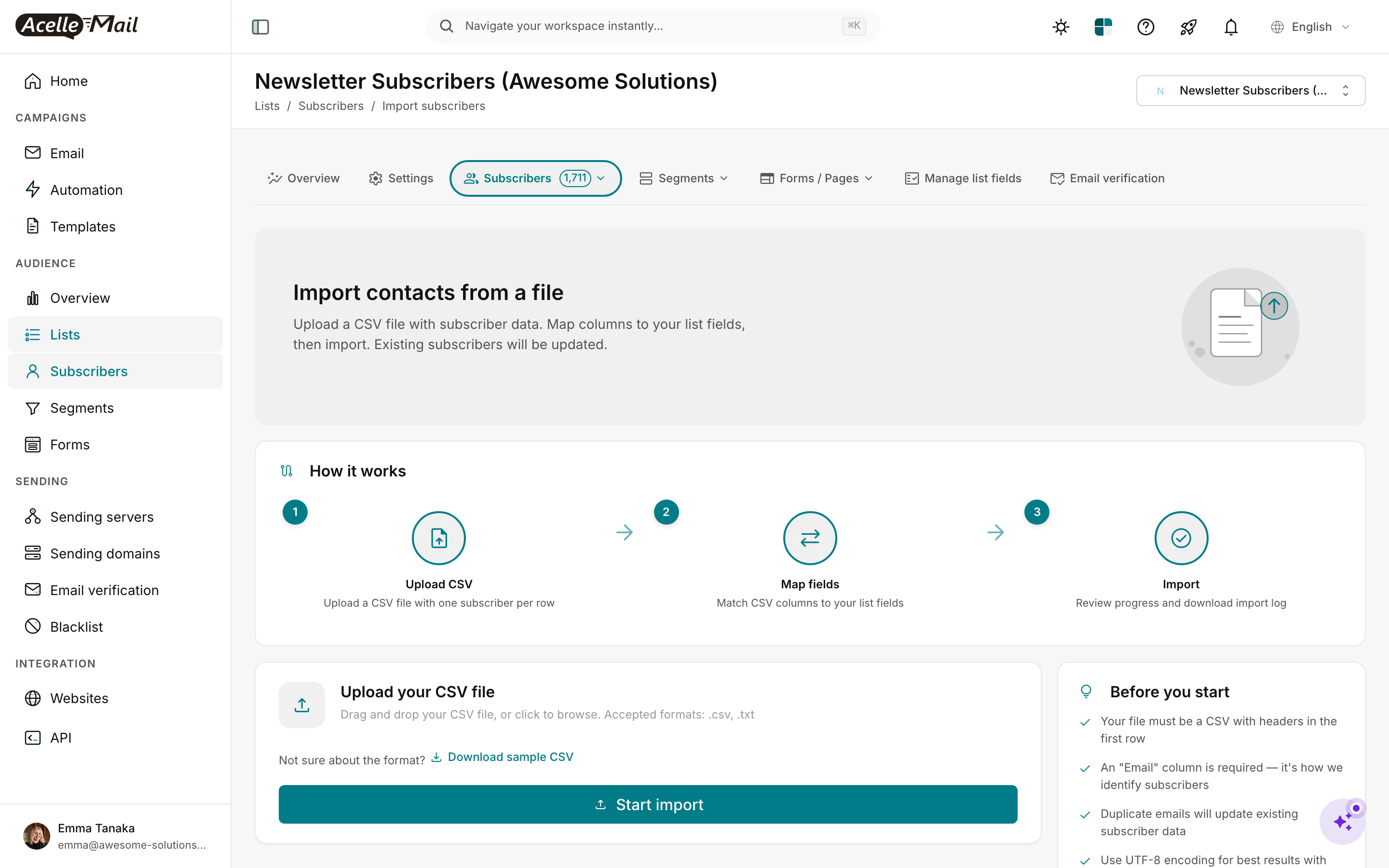
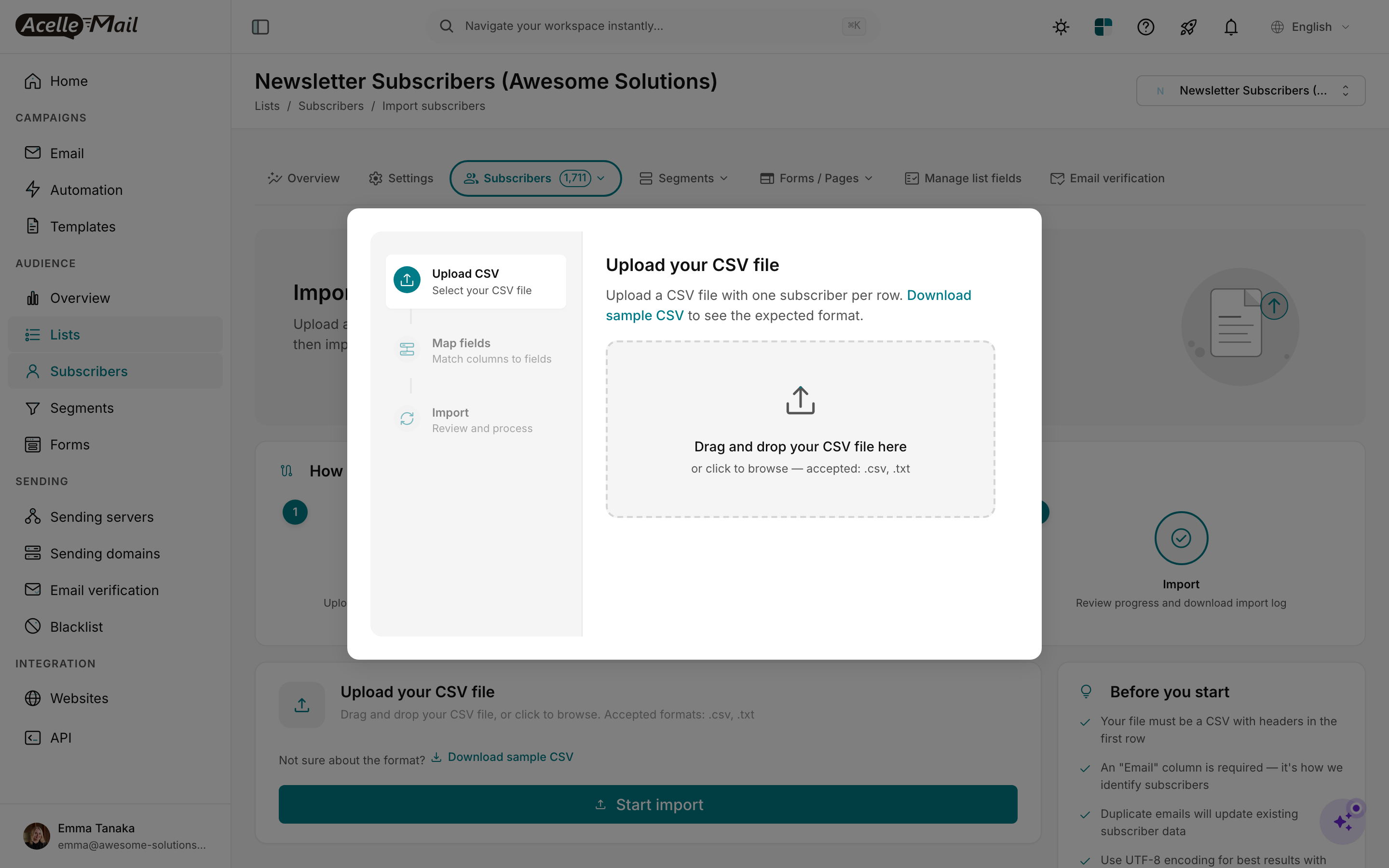
Upload the per-list filtered CSV (deduped Active contacts who appear in this Brevo list).
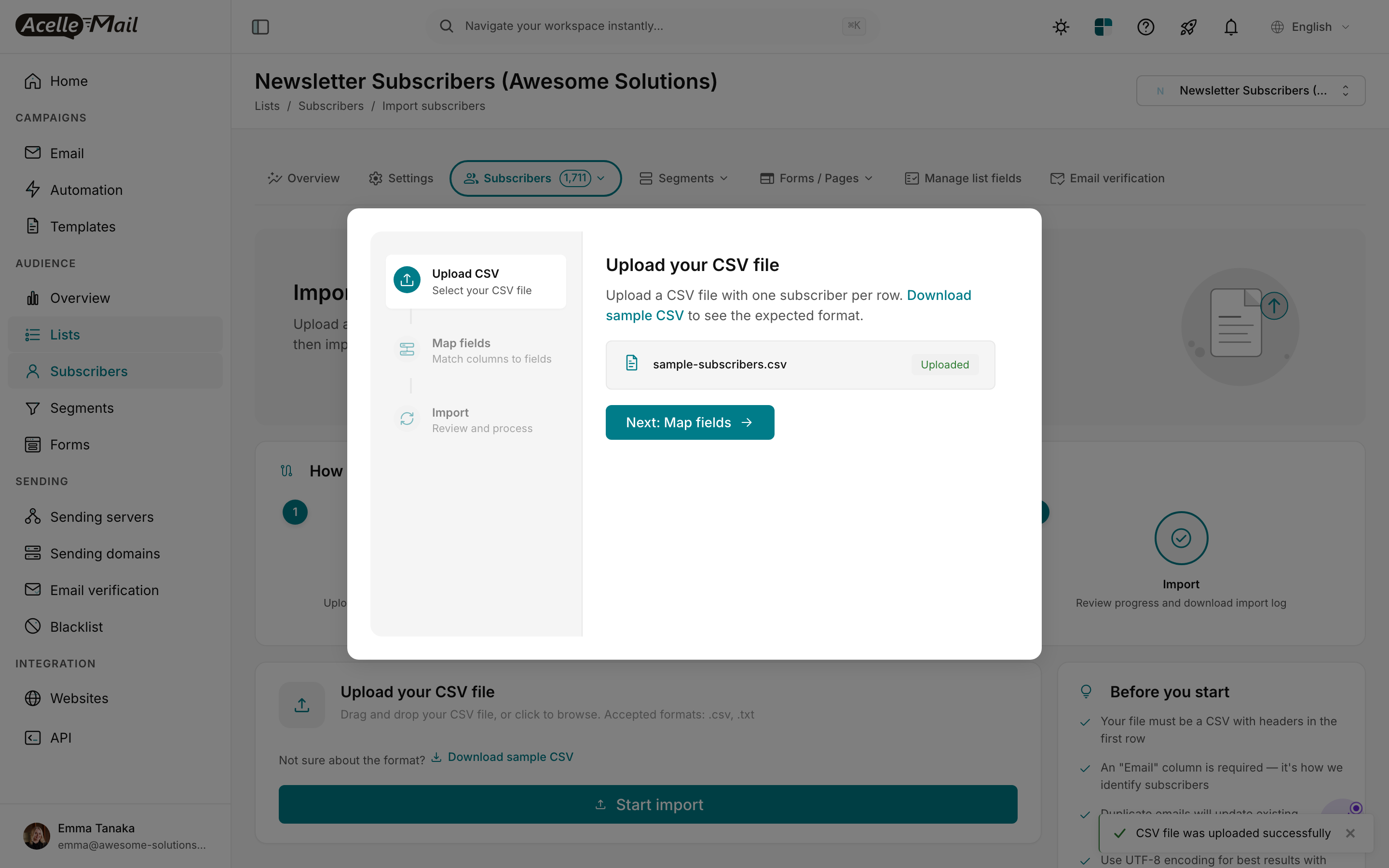
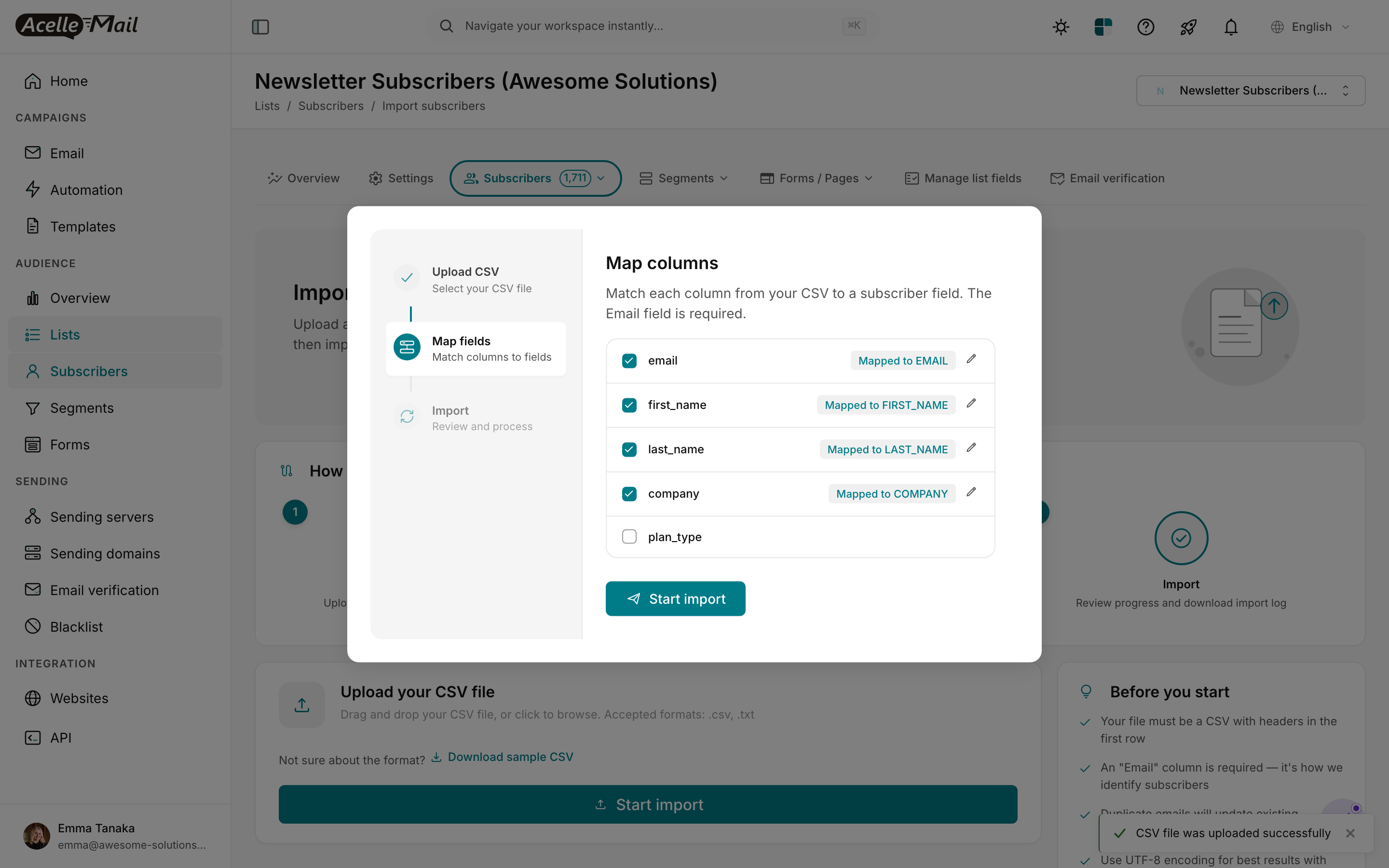
Map columns to fields per Step 4 table. Drop unmapped columns (they're not relevant). The EMAIL column must map to EMAIL.
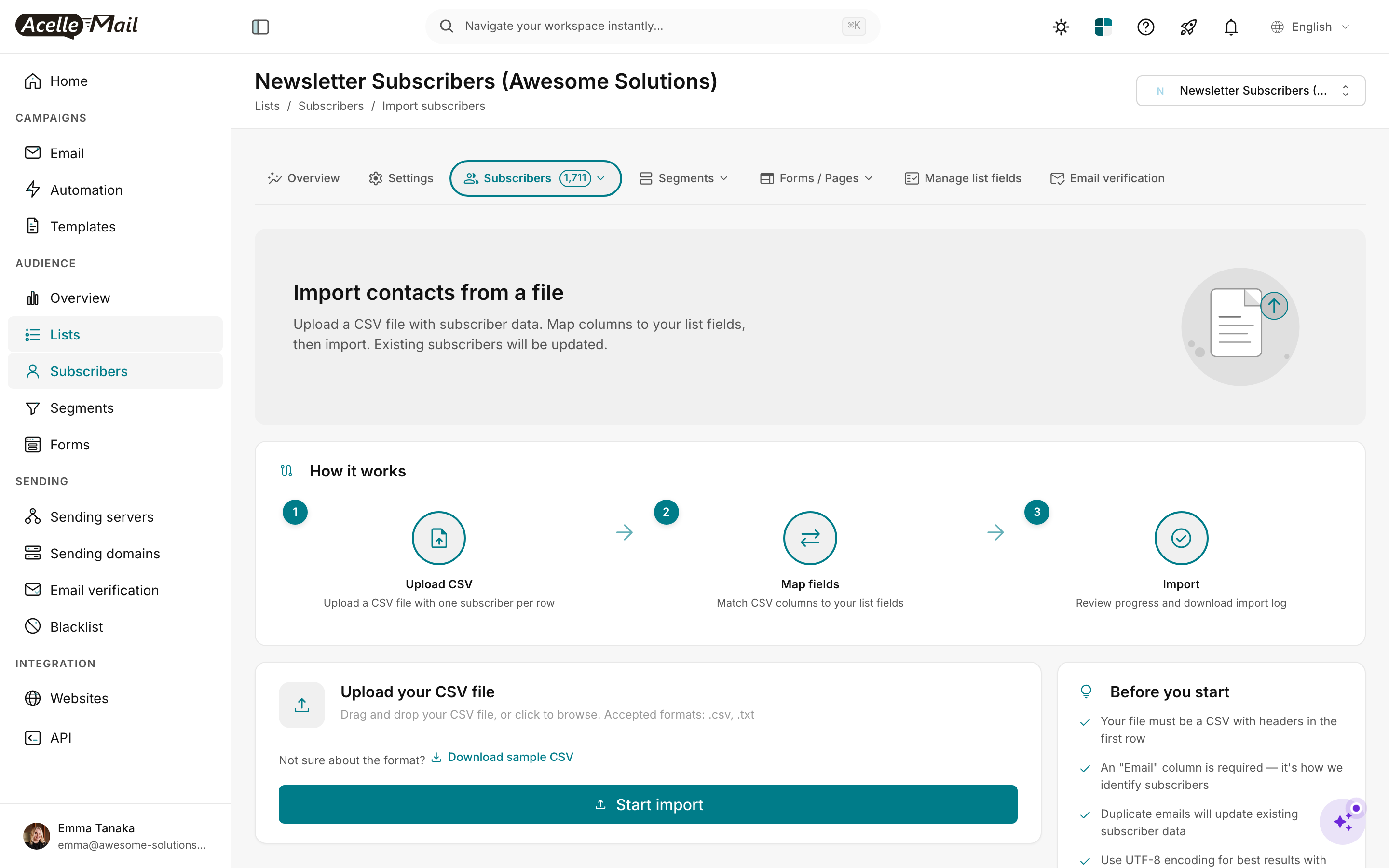
Verify subscriber count and field population on 3-5 random samples.
Import the suppression list#
Critical step:
- Settings → Suppression list.
- Import.
- Upload
suppression.csv (Unsubscribed + Hard bounced + Spam + Blacklisted from Brevo).
AcelleMail will refuse to send to these addresses across all lists. Without this step, future imports could re-add them and damage reputation.
Step 6 — Port templates + rebuild automations (Week 3)#
Templates (campaigns)#
For each campaign template HTML file:
- AcelleMail: Templates → New template → Custom HTML.
- Paste HTML.
- Search-replace Brevo merge tags:
| Brevo tag |
AcelleMail tag |
{{ contact.EMAIL }} |
{EMAIL} |
{{ contact.FIRSTNAME }} |
{FIRST_NAME} |
{{ contact.LASTNAME }} |
{LAST_NAME} |
{{ contact.<CUSTOM> }} |
{<CUSTOM>} |
{{ params.<NAME> }} |
{<NAME>} (transactional payload) |
{{ unsubscribe }} |
{UNSUBSCRIBE_URL} |
{{ mirror }} |
{VIEW_AS_WEBPAGE_URL} |
- Send test to your own inbox; verify merge tags expand and links work.
Transactional templates (API-triggered)#
Brevo transactional templates are referenced by numeric ID in your API calls. AcelleMail templates use UID strings.
- Create each transactional template in AcelleMail (same process as campaign templates).
- Note the new AcelleMail template UID (visible in URL after save).
- Update your application code that calls Brevo's
POST /smtp/email:
- Brevo:
{"templateId": 42, "to": [...], "params": {...}}
- AcelleMail (REST API):
POST /api/v1/campaigns (or transactional-specific endpoint if your version supports it) referencing the AcelleMail template UID.
- Test with one address per template before flipping production traffic.
Automations rebuild#
For each automation you documented:
- AcelleMail: Automation → New automation.
- Set trigger to the AcelleMail equivalent of the Brevo entry point:
| Brevo entry point |
AcelleMail trigger |
| Contact added to list |
Subscriber added to list |
| Contact property changed |
Subscriber field changed |
| Made a purchase (Brevo Tracker) |
Webhook received (custom trigger) |
| Date anniversary |
Date-based trigger |
| API-triggered |
"Trigger via API" |
-
Add nodes per your documented flow. Brevo "Wait 3 days" → AcelleMail "delay 3 days." Brevo "If contact has property X = Y" → AcelleMail Condition node with segment filter.
-
Test with one fresh test subscriber per automation. Watch the test go through every node end-to-end.
For complex API-driven automation patterns (e.g. you used Brevo's purchase webhook to trigger a post-purchase sequence), see Using API Triggers for Custom Automation Workflows.
Step 7 — Configure sending server (Week 3)#
Brevo's "we run the SMTP" abstraction goes away. You pick your upstream:
| Provider |
Cost @ 250k/month |
Notes |
| Amazon SES |
~$25/month |
Best cost; requires production-access request |
| SendGrid |
~$50/month |
Easier signup |
| Postmark |
~$75/month |
Premium transactional reputation |
| Mailgun |
~$35/month |
Generous trial |
| Postal/own SMTP |
VPS cost only |
Most ops-intensive |
For Brevo migrants doing 100-500k/month, SES is the easy winner on cost. Above 500k/month, consider a dedicated IP — see Dedicated vs Shared IP Address.
Configure: Sending Servers → New → pick type → paste creds → Test connection → Send test email. Verify the test arrives in inbox, not spam.
Step 8 — DNS migration (Weeks 4-5)#
| DNS record |
Brevo value |
AcelleMail addition |
Approach |
| SPF |
v=spf1 include:spf.sendinblue.com ?all |
Append: include:amazonses.com (or your provider) |
Add new include during parallel; remove Brevo include at cutover |
| DKIM |
mail._domainkey.<your-domain> (CNAME → Brevo) |
Add new DKIM selector for AcelleMail |
Both can coexist (different selectors) |
| DMARC |
v=DMARC1; p=quarantine |
(unchanged) |
Stay on existing policy |
| Brand Indicators (BIMI) |
(if configured) |
(unchanged) |
Continues to work post-migration if VMC/MARK still valid |
Reference: Complete DNS Setup for Email Sending, How to Set Up SPF, DKIM, and DMARC Records, DMARC Enforcement Migration.
Verify:
dig +short txt yourdomain.com | grep spf1
dig +short txt _dmarc.yourdomain.com
dig +short txt mail._domainkey.yourdomain.com       # Brevo's DKIM
dig +short txt acelle._domainkey.yourdomain.com     # new AcelleMail DKIM
After 24-48h propagation, send a test campaign from AcelleMail and check headers in Gmail (Show original) for dkim=pass spf=pass dmarc=pass.
Step 9 — IP warmup (Week 6)#
If using shared SMTP pool (SES default, Mailgun shared, SendGrid Essentials), skip this step.
If configured a dedicated IP — full warmup schedule at IP Warmup Schedule for New Sending Servers.
Brevo-specific note: Brevo customers often run dedicated IPs as a paid add-on. When migrating off Brevo's dedicated IP, the new IP starts at zero reputation. The migration is itself a warmup. Don't bring full volume on day 1.
Step 10 — Parallel period (Weeks 7-8)#
Both Brevo and AcelleMail send during this 2-week window. Random recipient split:
| Phase |
Brevo share |
AcelleMail share |
| Day 1-3 |
90% |
10% |
| Day 4-7 |
75% |
25% |
| Day 8-10 |
50% |
50% |
| Day 11-14 |
25% |
75% |
| Day 15 (cutover) |
0% |
100% |
Watch daily:
For ISP-side spam complaint signal, set up Feedback Loops (FBL) Setup before the parallel period.
Step 11 — Cutover + Brevo cleanup (Week 9)#
- Update SPF — remove the Brevo include (
include:spf.sendinblue.com).
- Verify a fresh send still has
spf=pass (AcelleMail's include keeps it passing).
- Update any application code still calling Brevo's transactional API to call AcelleMail's API instead. This is the easy step to forget — your shopping cart, account-email triggers, password resets, etc.
- Downgrade Brevo to free tier (don't cancel) — keep account for archive access.
- 30 days later: confirm AcelleMail is steady-state, then cancel Brevo entirely.
Common pitfalls#
Forgetting Brevo's transactional API integration. This is the single biggest Brevo-specific migration miss. Most Brevo customers use both bulk + transactional. Map every transactional template to its AcelleMail equivalent and update your application's API calls. Audit your logs for ANY remaining api.brevo.com or api.sendinblue.com calls before cancelling.
Forgetting Brevo's purchase/event tracking. If you use Brevo Tracker on your website, it sends purchase events to Brevo to power post-purchase automations. After migration, those events have nowhere to land. Either remove the Tracker snippet or re-wire it to AcelleMail's webhook endpoint.
SMS/WhatsApp orphans. If you used Brevo for SMS or WhatsApp campaigns, those go away. Plan replacements (Twilio, MessageBird, Vonage) before cutover, not after.
Underestimating template-rebuild time. Brevo's drag-drop editor outputs proprietary HTML that doesn't import cleanly. Plan 30-60 min per template; complex multi-section templates more.
Skipping DOI re-confirmation in EU. GDPR requires demonstrable consent. If you can't show that Brevo's DOI signal carried forward, EU regulators may consider your import an unsolicited bulk mail.
Sending too aggressively in the parallel period. "I'll start at 50% on day 1 to save time" is how you get filtered. Trust the ramp.
FAQ#
How long does a Brevo migration really take?
Realistic: 6-9 weeks for a 100k-list with 2-3 automations and transactional API integration. Faster (3-4 weeks) if you have only bulk campaigns and no transactional API. Longer (12+ weeks) if you have complex automations + a busy transactional API + multiple sending domains.
What about Brevo's CRM (Deals + Sales Pipelines)?
Doesn't migrate. AcelleMail is email-focused. Plan a separate CRM (HubSpot free, Pipedrive, Salesforce) and migrate that data on its own track.
Does Brevo offer a migration export tool?
The contact CSV export is comprehensive. The template export is per-template manual. The automation export doesn't exist — manual documentation only. Plan accordingly.
What about Brevo's free tier (300 emails/day)?
Hobbyist senders on the free tier rarely benefit from migration — the operations overhead of self-hosted AcelleMail outweighs the cost gain. Migrate when you're paying Brevo $25+/month consistently.
Can I keep Brevo for transactional and move only campaigns?
Technically yes. Not recommended — you'd pay both platforms and split your sender reputation across two providers (worse deliverability for both). The all-or-nothing approach is cleaner.
Will my email open / click history carry over?
No. Engagement history is per-platform. AcelleMail starts at zero engagement; your real engagement repopulates within the first 2-4 campaigns.
Related articles#
