What this is for#
MailerLite is a popular SaaS email-marketing tool with clean UX and aggressive entry pricing. Past the free tier, though, the curve is steep — $10/month for 1k subscribers grows to $69/month at 10k and $359/month at 50k, indefinitely. Add automation, A/B testing, custom HTML, or sender reputation isolation and the upcharge stacks.
This guide is the operator-grade playbook for migrating from MailerLite to self-hosted AcelleMail. You pay a one-time license, run on your own VPS, and only pay your upstream SMTP provider's variable rate (typically $0.10-$1.00 per 1k emails — not subscribers).
Companion read: Migrating from Mailchimp to AcelleMail follows the same skeleton with Mailchimp-specific bits.
Cost comparison — realistic numbers#
The deciding factor for most teams is the math, not the features. MailerLite and AcelleMail compete on different cost bases:
| Volume tier |
MailerLite Advanced plan |
AcelleMail one-time + monthly running cost |
Year 1 saving |
| 1,000 subs / 10k emails/month |
$20/mo = $240/yr |
$39 license + $7/mo VPS + ~$2/mo SES ≈ $147 yr 1 |
$93 |
| 5,000 subs / 50k emails/month |
$39/mo = $468/yr |
$39 license + $12/mo VPS + ~$5/mo SES ≈ $243 yr 1 |
$225 |
| 10,000 subs / 100k emails/month |
$89/mo = $1,068/yr |
$39 license + $20/mo VPS + ~$10/mo SES ≈ $399 yr 1 |
$669 |
| 25,000 subs / 250k emails/month |
$169/mo = $2,028/yr |
$39 license + $30/mo VPS + ~$25/mo SES ≈ $699 yr 1 |
$1,329 |
| 50,000 subs / 500k emails/month |
$359/mo = $4,308/yr |
$39 license + $50/mo VPS + ~$50/mo SES ≈ $1,239 yr 1 |
$3,069 |
| 100,000 subs / 1M emails/month |
$529/mo = $6,348/yr |
$39 license + $80/mo VPS + ~$100/mo SES ≈ $2,199 yr 1 |
$4,149 |
Sources. MailerLite Advanced plan pricing as of 2026-05 (mailerlite.com/pricing). AcelleMail license is one-time at codecanyon.net/item/acellemail. VPS pricing reflects DigitalOcean droplet sizing typical for each tier. SMTP cost assumes Amazon SES post-sandbox at $0.10/1k emails. Numbers exclude your time. Year 2+ savings are larger because the license is paid off.
The bigger your list, the more obvious the math. Teams sitting at 50k+ subscribers usually see a 5-8 month payback on the migration effort.
What MailerLite gives you that AcelleMail does differently#
| Feature |
MailerLite |
AcelleMail |
Migration note |
| Visual drag-and-drop editor |
Yes (good) |
Yes (BeeFree-integrated; comparable) |
Templates need manual recreation |
| Forms / landing pages |
Yes (limited free tier) |
Yes (built-in Forms + Funnels) |
Re-create on AcelleMail side; not exportable as HTML |
| Automations (workflows) |
Yes (visual editor) |
Yes (Automation 2 visual editor) |
Re-build node-by-node; logic translates 1:1 |
| Subscriber groups / tags |
Yes |
"Lists" (equivalent to MailerLite Groups), "Segments" (dynamic) |
1 group → 1 list, OR 1 segment with tags contains "X" rule |
| A/B testing |
Yes (subject lines, paid tier) |
Yes (subject, body, sender, all tiers) |
Reset A/B tests on first AcelleMail campaign |
| RSS-to-email |
Yes |
Yes |
See Setting Up RSS-to-Email Campaigns |
| Surveys / quizzes |
Yes (paid) |
Forms can capture, no native quiz |
Use a third-party tool + import responses |
| WooCommerce / Shopify integration |
Native MailerLite plugin |
REST API + webhooks; native plugins for major commerce platforms |
Re-wire on AcelleMail side; data shape comparable |
| Spam-score predictor |
No |
Yes (SpamAssassin integration, optional) |
Operator-side; install spamc + Acelle config |
| Sender reputation control |
Shared pool, you can't see it |
You pick the SMTP; reputation is yours |
Strategic gain, not just cost |
| Mobile app |
Yes |
No (responsive web instead) |
Roadmap item; not yet shipped |
| Time to "first send" after signup |
Minutes |
Hours (install + DNS + warmup) |
The trade you accept for cost+control |
The single biggest mental-model shift: in MailerLite, subscribers is the billing unit. In AcelleMail, emails sent is the billing unit (because your upstream provider charges per email). A 10k subscriber list mailing twice a month costs you the same as a 20k subscriber list mailing once a month. MailerLite would charge you 2× for the larger list either way.
The 8-week timeline#
Same skeleton as the Mailchimp migration; MailerLite-specific notes in each step.
| Week |
Phase |
What happens |
| Week 1 |
Install AcelleMail + DNS prep |
VPS, license, install wizard, sender DNS in shadow |
| Week 2 |
Export from MailerLite + import to AcelleMail |
Subscribers, groups, templates, automation map |
| Week 3 |
Template rebuild + sending-server config |
BeeFree templates re-created; SMTP/SES/Postmark configured |
| Weeks 4-5 |
DNS migration |
SPF includes AcelleMail's sending IP; DKIM key for new sender; DMARC stays put |
| Week 6 |
IP warmup |
If using fresh IP, ramp daily volume from 50 → full |
| Weeks 7-8 |
Parallel period |
Both platforms live; gradual % cutover; daily delivery audit |
| Week 9 |
Cutover + MailerLite cleanup |
DNS final, cancel MailerLite subscription |
You can compress this — small lists with no automations can be done in a long weekend. But the 8-week shape exists because reputation needs time and DNS propagation is real. Rushing risks landing in spam on day 1 on AcelleMail.
Step 1 — Install AcelleMail (Week 1)#
Pick your VPS host and OS. AcelleMail runs on:
For 5-50k subscribers, a $12-30/month droplet is plenty. Above 100k subscribers or 1M emails/month, see Scaling for 100k Emails per Day for the sharded-DB pattern.
After install, run the post-install checklist:
Don't send any production campaigns from the new install yet — just verify the install responds at the login page and the test wizard email reaches your inbox.
Step 2 — Export from MailerLite (Week 2)#
MailerLite's export is good — better than Mailchimp's. You can pull subscribers, groups, automations summary, and templates.
Export subscribers#
In MailerLite (account.mailerlite.com):
- Go to Subscribers → All subscribers.
- Click the Export button (top right of the table).
- Choose Export all or filter by group, status, last opened, etc.
- Pick fields: at minimum Email, First name, Last name, Status, Created at, Source, Country, Last opened date.
- Click Export. You'll get an email with a download link, usually within 1-5 minutes for lists under 100k.
The CSV looks like:
email,name,last_name,status,fields.company,signup_source,signup_ip,subscribed_at,last_opened_at
amy@example.com,Amy,Smith,active,Acme Corp,landing-form-2026-q1,1.2.3.4,2026-03-01,2026-04-22
Export groups + tags#
MailerLite "Groups" map onto AcelleMail "Lists." MailerLite "Subscribers fields" (custom attributes) map onto AcelleMail List Fields. Tags are AcelleMail dynamic Segments (filter by tag contains "X").
To document the group memberships before export:
- Subscribers → Groups — note each group name and member count.
- For each group, Subscribers → All → Filter → Group: X → Export with the same field set. Now you have a per-group CSV.
This per-group approach is cleaner than one big CSV with a "groups" column, because AcelleMail imports list-by-list.
Export templates#
MailerLite doesn't have a "template export" button. Workaround:
- Templates → Saved templates → click each template.
- More → Export HTML (if MailerLite shows the option) → save the .html file.
- If the option is missing, Send a test → to your own email → View source → save HTML as a fallback.
Plan to recreate templates in AcelleMail rather than blindly importing HTML — MailerLite-specific shortcodes (*|FIRST_NAME|*, *|UNSUBSCRIBE|*, *|GROUPS|*) won't render. You'll swap them for AcelleMail merge tags during template rebuild in Step 6.
Document automations#
Automations don't export at all from MailerLite. Document each one manually:
For each automation in Automations:
- Screenshot the workflow diagram.
- Note the trigger (e.g. "joined group: Newsletter").
- Note each step (Email A → Wait 3 days → Email B → Wait until link click → Email C).
- Save the email body for each step (Export HTML per template).
This becomes the recipe you use to rebuild automations in AcelleMail in Step 6.
Step 3 — Clean the CSV (Week 2)#
Before you import anything into AcelleMail, clean the data. Skipping this step is the single biggest reason migrations damage sender reputation in the first weeks.
Remove unsubscribed + bounced + spam-complained#
MailerLite's CSV has a status column. Filter the file:
# Remove anything except 'active' subscribers
awk -F',' 'NR==1 || $4 == "active"' mailerlite-export.csv > active-only.csv
Or open in Excel/Sheets, filter, and save. The relevant statuses to keep are usually active only. unsubscribed, bounced, spam, unconfirmed should NOT be imported — moving them to AcelleMail re-opens the chance you mail them, which damages reputation.
Re-validate addresses#
Even "active" subscribers can have stale addresses. For the first migration, run the cleaned CSV through a validation service:
- NeverBounce, Kickbox, or ZeroBounce — all ~$0.01 per address.
- Or run it through MailerLite's own built-in cleanup if available before exporting.
The output is the same CSV plus a valid|invalid|risky|unknown column. Keep only valid for the first import.
Deduplicate#
# Keep only first occurrence of each email
awk -F',' '!seen[$1]++' active-only.csv > deduped.csv
A typical MailerLite export has 1-3% duplicates from import paths over time. Deduplicating up front saves you the AcelleMail "skipped: duplicate" count later.
Save unsubscribes as a separate file#
Pull the rows where status is unsubscribed and save as unsubscribes.csv. You'll import these to AcelleMail's Suppression list (not as subscribers) so AcelleMail will refuse to send to them even if they appear in a future import.
Step 4 — Field mapping (Week 2)#
MailerLite fields → AcelleMail list field names:
| MailerLite CSV column |
AcelleMail List Field |
Notes |
email |
EMAIL (system) |
Required, unique |
name |
FIRST_NAME |
|
last_name |
LAST_NAME |
|
fields.company |
COMPANY (custom — create) |
Create in List → Fields before import |
fields.<any custom> |
<any> (custom — create) |
One per MailerLite field |
subscribed_at |
OPT_IN_TIME (system) |
Carries history forward |
signup_source |
SOURCE (custom — create) |
Useful for segmentation later |
country |
COUNTRY (custom — create) |
|
last_opened_at |
(skip — will repopulate on first AcelleMail send) |
|
status |
(drop — already filtered to active only) |
|
For each custom field in MailerLite, you need to create the equivalent List Field in AcelleMail first (before importing), then map the CSV column to it during import. The import wizard will warn you if a CSV column doesn't have a target — you can drop unwanted columns at the mapping step.
Step 5 — Import to AcelleMail (Week 2)#
Now do the actual import in AcelleMail. The wizard is identical for any source CSV.
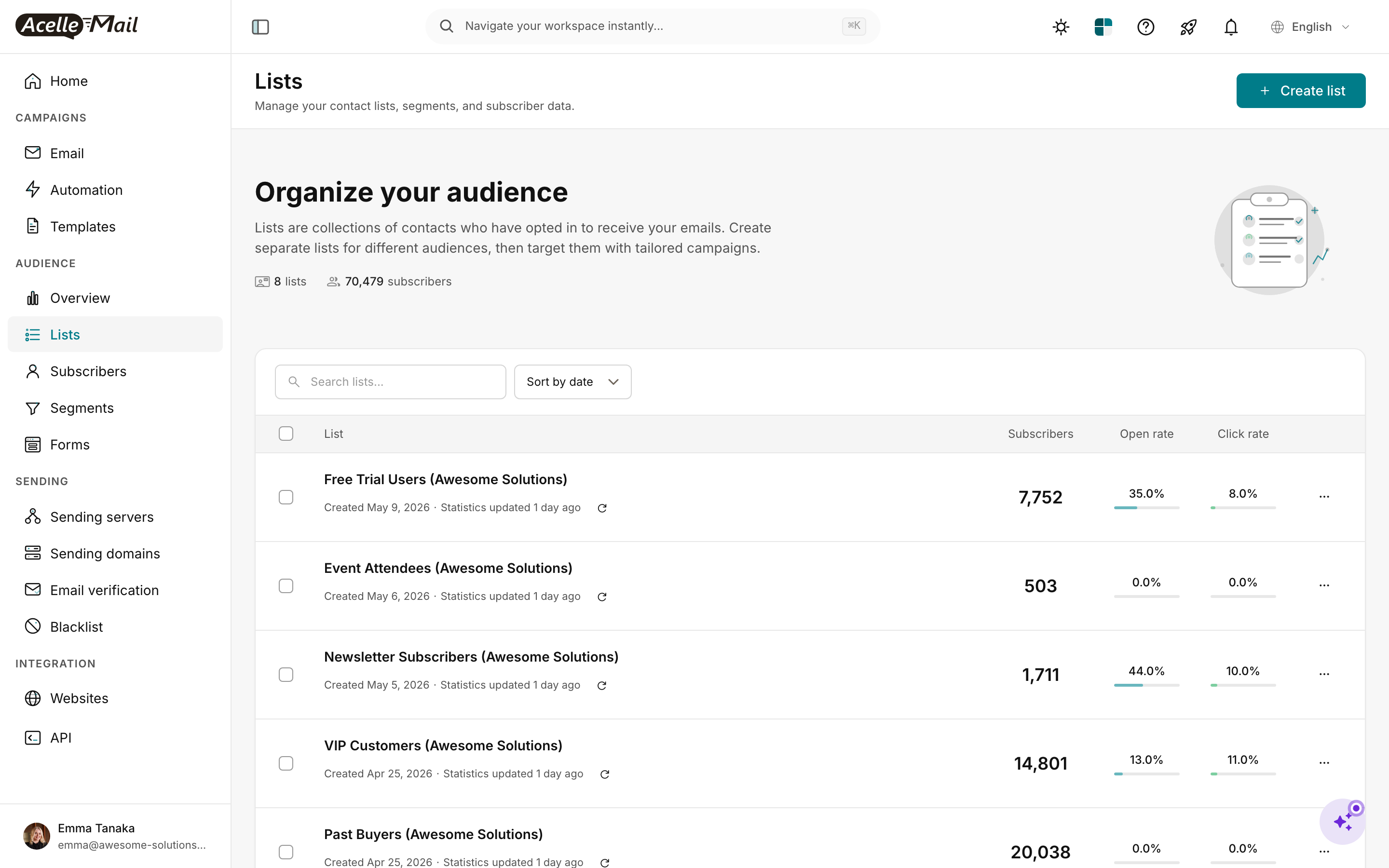
Start by creating a destination list (one per MailerLite group):
- Lists → New list. Name it the same as the MailerLite group (e.g. "Newsletter Subscribers — migrated from MailerLite").
- Fill in From email, From name, Reply-to, Physical address — required for CAN-SPAM/CASL.
- Save.
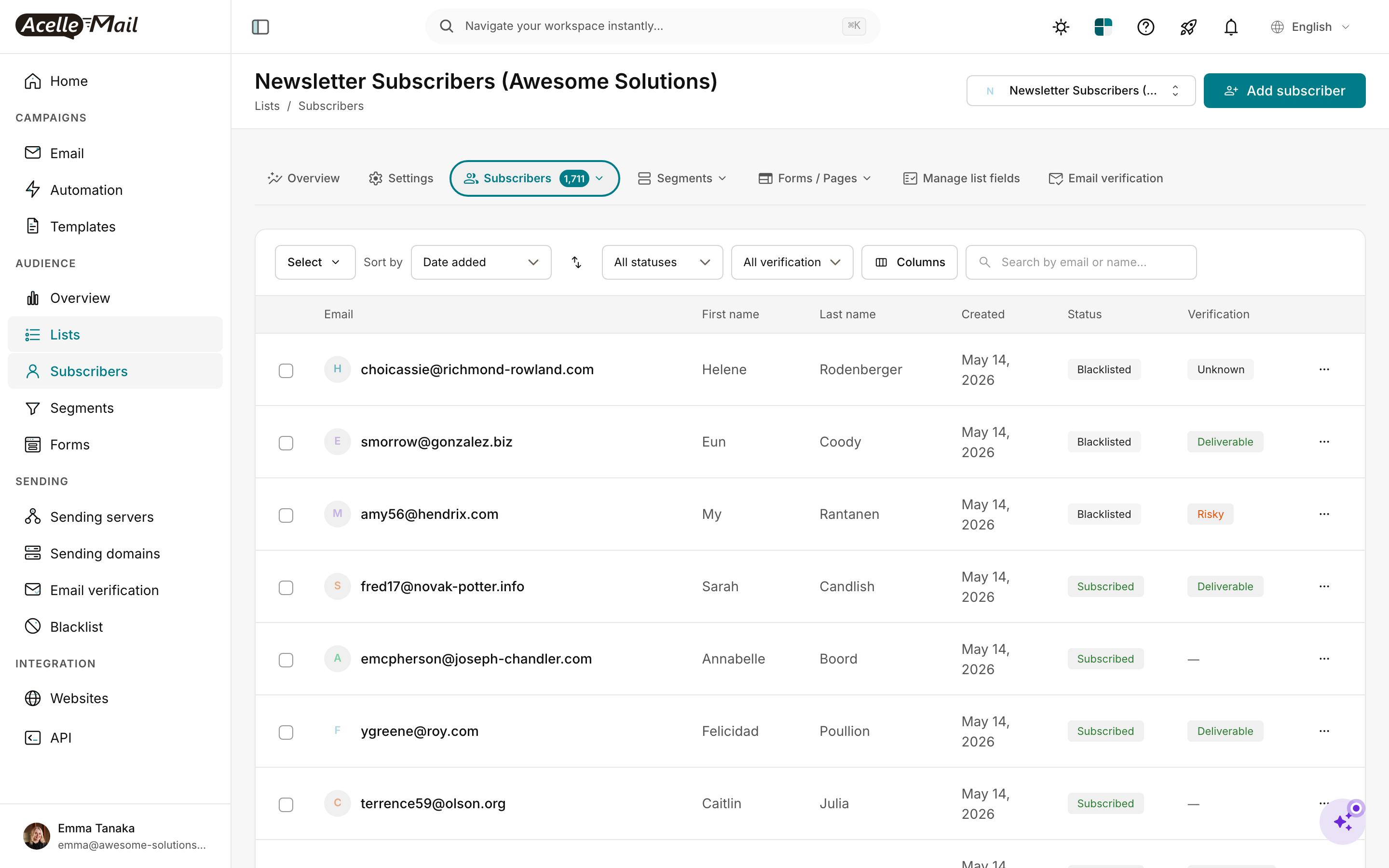
Inside the new list, create any custom List Fields that match MailerLite's custom fields (Step 4 mapping table).
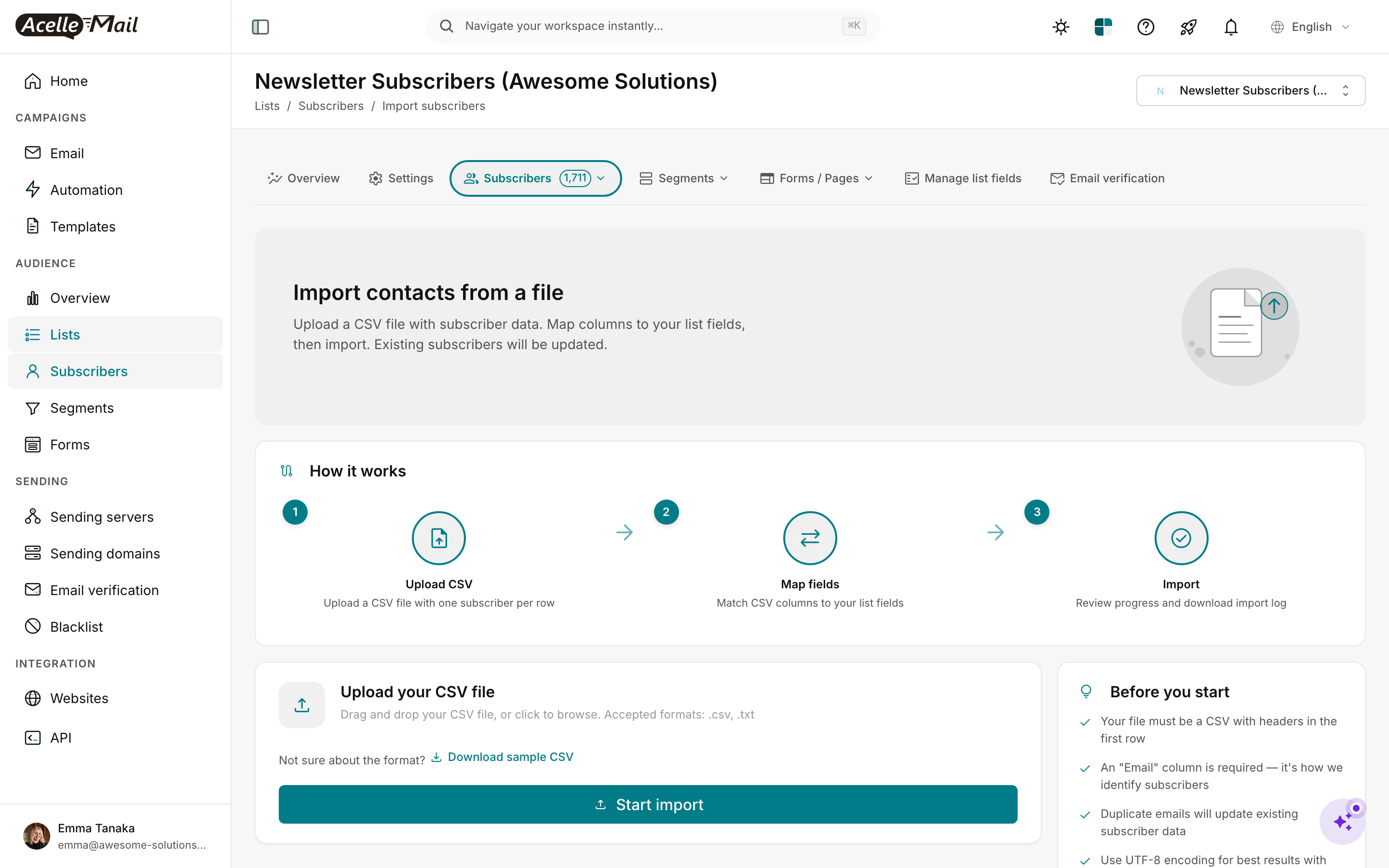
Then click Subscribers → Import to start the wizard.
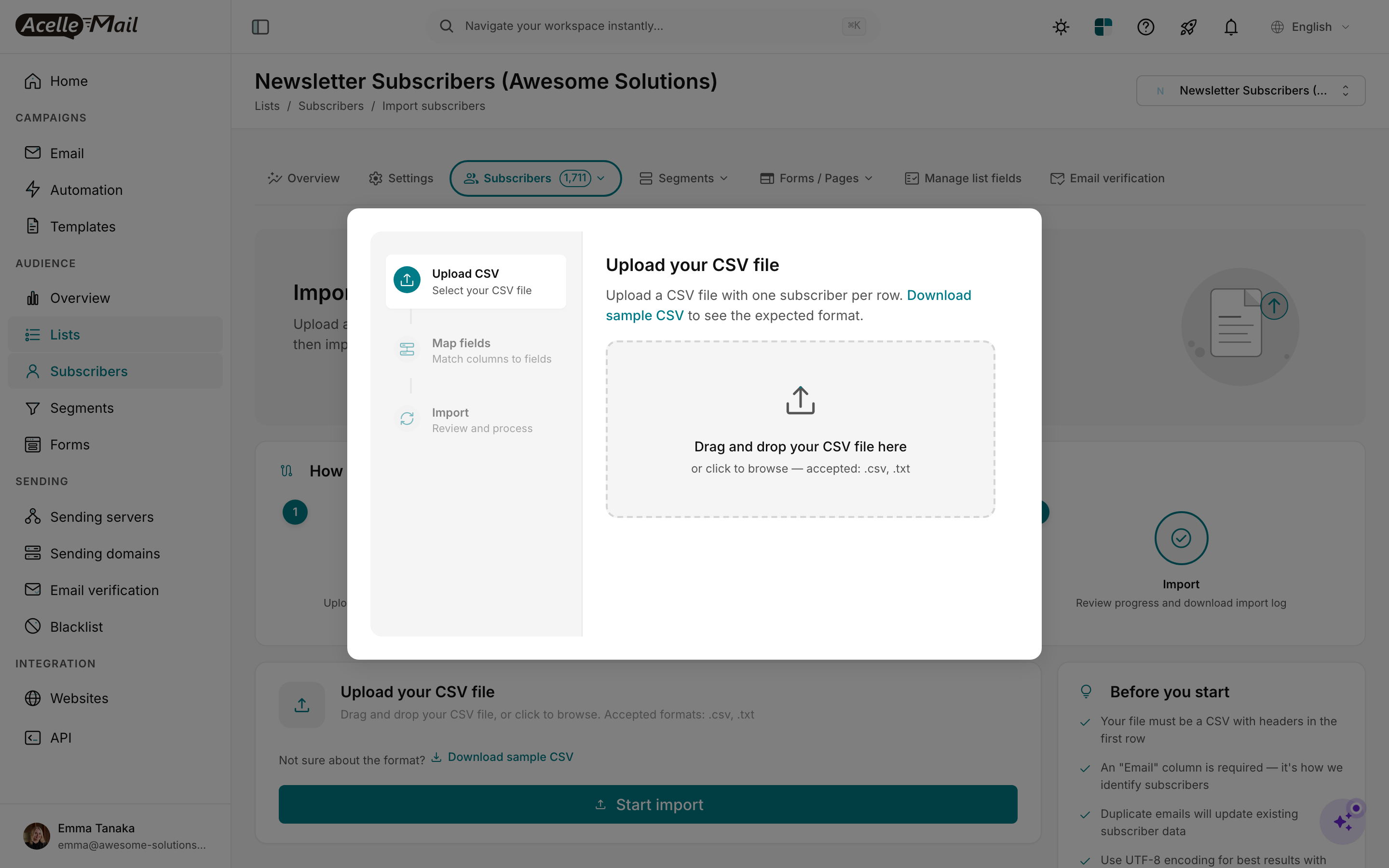
Upload the cleaned CSV from Step 3 (filtered to active, deduplicated, validated).
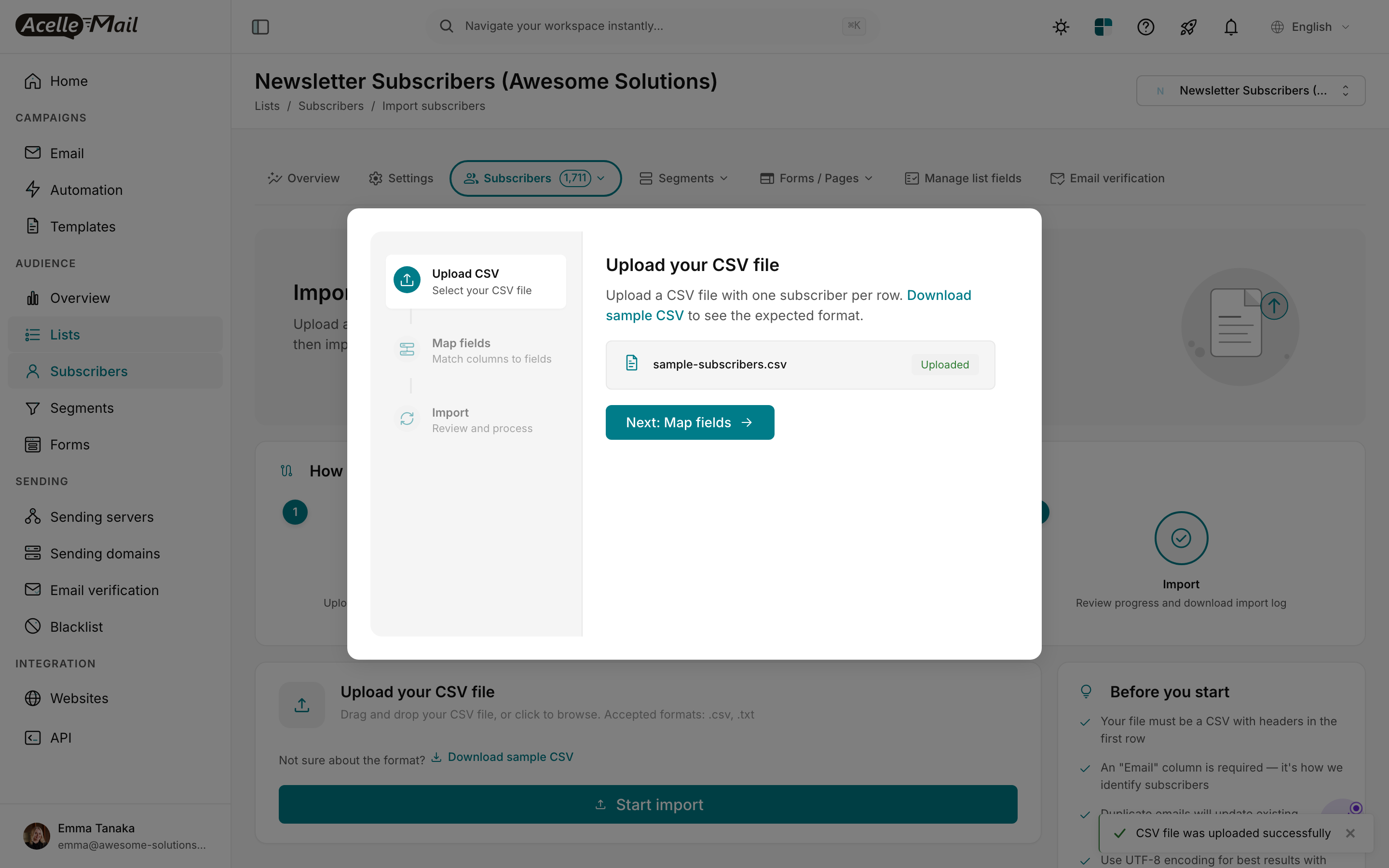
AcelleMail parses the file and shows the row count. Verify it matches what you expected (filtered active count from MailerLite).
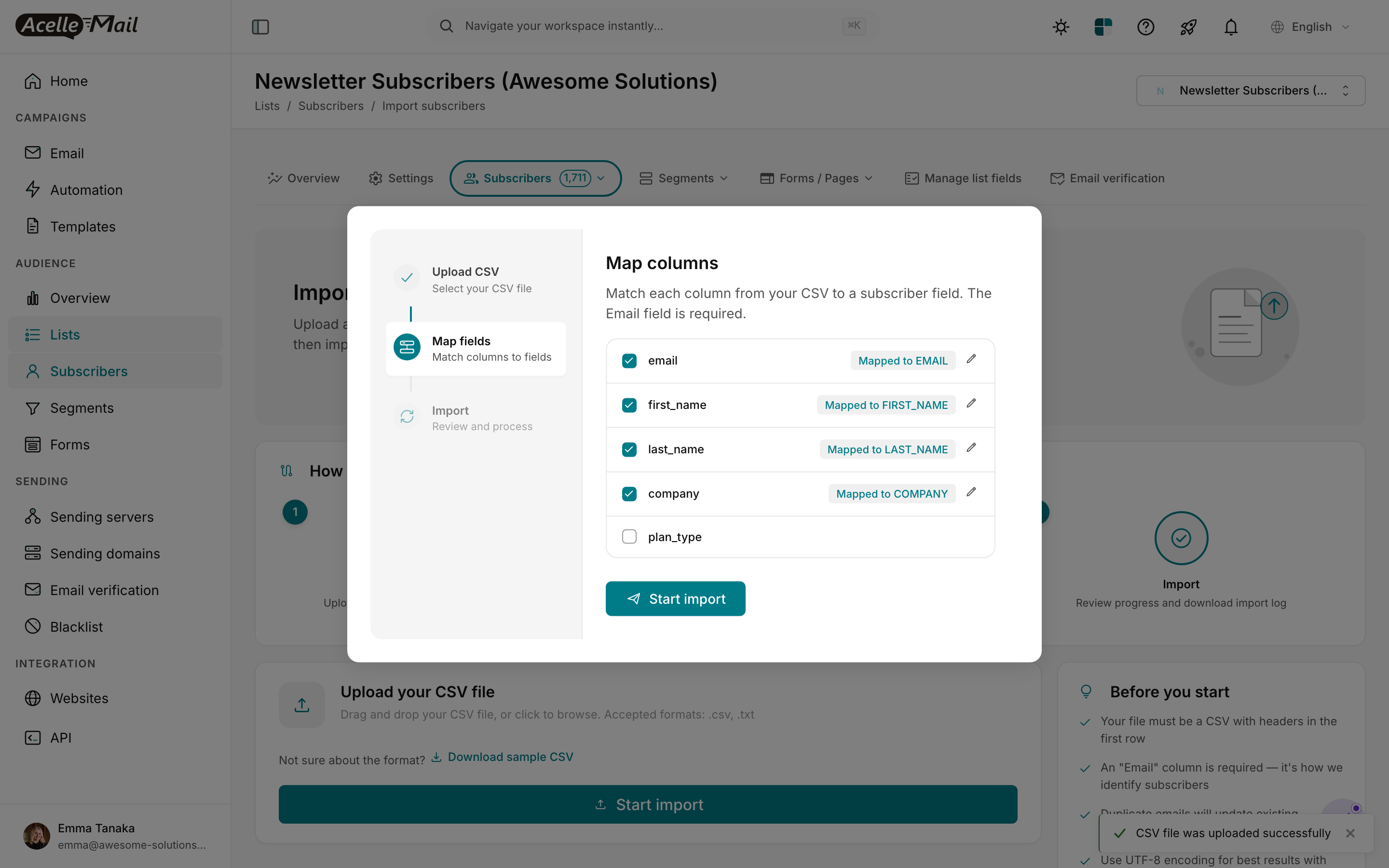
In the mapping step, match each CSV column to the right AcelleMail List Field (using Step 4 table). Unmapped columns are dropped. The email column must map to EMAIL.
Click Import. The job runs in the background. For 10k rows, expect ~30 seconds; for 100k rows, expect a few minutes.
After import:
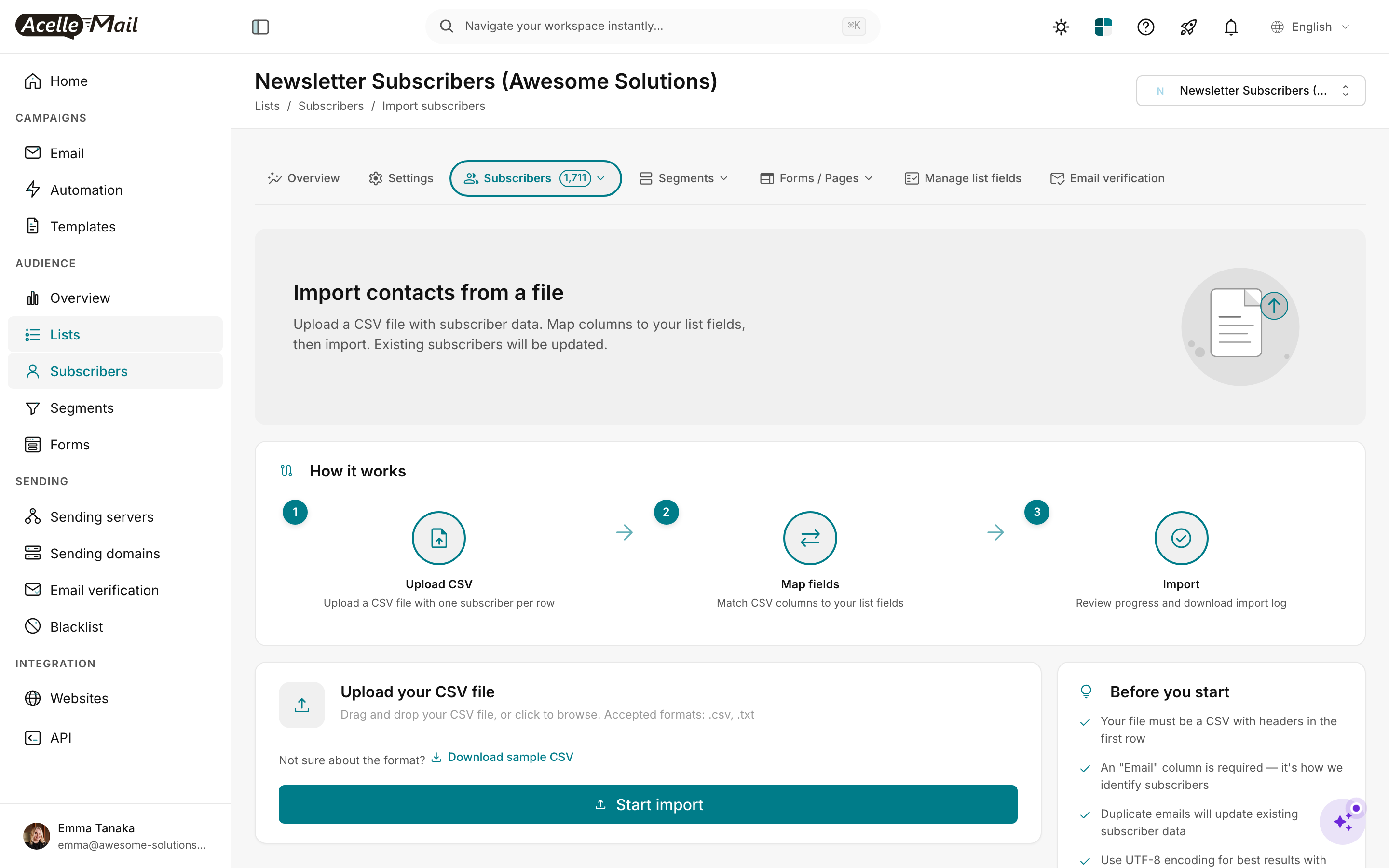
- Verify the subscriber count matches the cleaned CSV.
- Spot-check 3-5 random subscribers to confirm custom fields populated correctly.
- Check the Failed count — if MailerLite addresses that look valid show as Failed, they may have been in AcelleMail's global suppression list already (e.g. from a previous test import).
Import the unsubscribes file separately#
Now switch to Settings → Suppression list (account-level, not list-specific) and import unsubscribes.csv. AcelleMail will refuse to send to these addresses across all lists.
Without this step, any future re-import (e.g. someone re-syncs a CRM that still has the unsubscribed contacts) would silently re-add them to your mailing list.
For broader list-hygiene practice, see Email List Hygiene: Clean Your List for Better Deliverability.
Step 6 — Port templates + rebuild automations (Week 3)#
Templates#
For each MailerLite template you exported as HTML in Step 2:
- In AcelleMail: Templates → New template.
- Choose Custom HTML (not the drag-drop editor).
- Paste the HTML.
- Search-and-replace MailerLite merge tags:
| MailerLite tag |
AcelleMail tag |
*|FIRST_NAME|* |
{FIRST_NAME} |
*|LAST_NAME|* |
{LAST_NAME} |
*|EMAIL|* |
{EMAIL} |
*|COMPANY|* |
{COMPANY} (if you created the field) |
*|UNSUBSCRIBE|* |
{UNSUBSCRIBE_URL} or {UNSUBSCRIBE_LINK} |
*|WEBVIEW|* |
{VIEW_AS_WEBPAGE_URL} |
*|CURRENT_YEAR|* |
{CURRENT_YEAR} |
*|COMPANY_NAME|* |
hardcode it or use a custom field |
- Save and Send test to your own inbox. Verify merge tags expand, layout renders, links work.
For better template patterns, see Email Template Design Best Practices (linked at the bottom).
Automations#
For each MailerLite automation you documented:
- In AcelleMail: Automation → New automation.
- Set the trigger node:
- "Joined group" → "Subscriber added to list"
- "Field changed" → "Subscriber field changed"
- "Webhook" → "Webhook received" (AcelleMail webhook URL goes into your CRM)
- "Date matches" → "Date-based trigger"
- Add each step node from your screenshot/notes.
- For each Email node, pick the template you ported in the previous step.
- Set delays (MailerLite "wait 3 days" → AcelleMail "delay 3 days").
- Test with your own email before activating.
Plan ~30-60 minutes per moderately complex automation. Welcome series (3-5 emails, fixed delays) are fastest; conditional branching automations take longer.
Step 7 — Configure sending server (Week 3)#
This is where AcelleMail's flexibility starts paying off — and where MailerLite's "we run the SMTP for you" abstraction ends.
Pick your upstream SMTP. Common choices and trade-offs:
| Provider |
Cost |
Quality |
Notes |
| Amazon SES |
$0.10/1k after free tier |
Excellent |
Requires production-access request (24-48h). Best for cost-sensitive >10k subs |
| SendGrid |
$14.95/40k/mo (Essentials) |
Very good |
Easier signup than SES |
| Postmark |
$15/10k/mo |
Excellent for transactional |
Per-email more expensive but premium reputation |
| Mailgun |
$35/50k/mo (Foundation) |
Good |
Generous trial |
| Brevo (ex-Sendinblue) |
$25/20k/mo |
Good |
Pay-as-you-go option |
| Own VPS Postfix |
VPS cost only |
Variable |
Most ops-intensive; only economic >500k/mo |
For 10-50k subscribers, Amazon SES is the obvious winner on cost. For 50k+, consider a dedicated IP — see Dedicated vs Shared IP Address for the threshold logic.
Add the sending server in AcelleMail: Sending Servers → New → pick type → paste credentials → Test connection → Send test email to yourself. Verify the test email arrives in inbox, not spam.
Step 8 — DNS migration (Weeks 4-5)#
This is the most critical step for reputation transfer. Do it gradually — never flip all DNS at once.
What to migrate#
| DNS record |
MailerLite value |
AcelleMail value |
Migration approach |
| SPF |
v=spf1 include:_spf.mlsend.com ~all |
Append: include:amazonses.com (or your provider) |
Add AcelleMail include WITHOUT removing MailerLite include during parallel period |
| DKIM |
mlsendkey1._domainkey |
New selector (e.g. acelle._domainkey) |
Add new DKIM record alongside MailerLite's (both valid simultaneously) |
| DMARC |
v=DMARC1; p=quarantine; rua=... |
(stays the same) |
No change needed |
| MX |
(only if you receive bounces via MX) |
(only if you use AcelleMail's bounce handler) |
Most operators keep their existing MX; AcelleMail uses VERP for bounce identification |
For the full DNS reference, see Complete DNS Setup for Email Sending and How to Set Up SPF, DKIM, and DMARC Records.
Verify#
# Check SPF has both providers during parallel period
dig +short txt yourdomain.com | grep spf1
# Should show: v=spf1 include:_spf.mlsend.com include:amazonses.com ~all

# Check both DKIM keys
dig +short txt mlsendkey1._domainkey.yourdomain.com
dig +short txt acelle._domainkey.yourdomain.com
After 24-48 hours of DNS propagation, send a test campaign from AcelleMail and check headers in Gmail (Show original) for dkim=pass and spf=pass.
Step 9 — IP warmup (Week 6)#
Skip this step if your AcelleMail SMTP provider gives you a shared pool (SES default, Mailgun, SendGrid).
If you've configured a dedicated IP (most cost-effective at >50k subscribers but reputation-from-zero), you must warm it up:
| Day |
Daily volume cap |
| 1 |
50 |
| 2 |
100 |
| 3 |
200 |
| 4 |
500 |
| 5 |
1,000 |
| 6-7 |
2,500 |
| 8-14 |
Double every 2 days until full |
Full schedule + monitoring at IP Warmup Schedule for New Sending Servers.
Step 10 — Parallel period (Weeks 7-8)#
Both MailerLite and AcelleMail send during this window. The point is to:
- Catch any quality issues on AcelleMail before they affect 100% of your audience.
- Build initial reputation on the new sending IP / DKIM key gradually.
A common parallel ramp:
| Week |
AcelleMail share |
MailerLite share |
| Week 7 day 1-3 |
10% |
90% |
| Week 7 day 4-7 |
25% |
75% |
| Week 8 day 1-3 |
50% |
50% |
| Week 8 day 4-7 |
75% |
25% |
| Week 9 day 1 |
100% |
0% (cut over) |
Pick AcelleMail recipients randomly (not "all subscribers in group X"). Random sampling means filtering decisions average out evenly across your list.
Watch daily during parallel:
- Open rate on AcelleMail sends vs MailerLite sends. ~10% drop is normal during warmup; >30% is a problem.
- Bounce rate. Should be < 2% if list cleanup was thorough.
- Spam complaints. < 0.1% threshold. Anything above demands investigation.
For reputation visibility, sign up at Google Postmaster Tools — the data lags 24-48h but is the most reliable inbox-placement signal you'll have.
If any metric flags, pause the AcelleMail share, debug, fix, then resume — don't push through. See Why Are My AcelleMail Emails Going to the Spam Folder for the diagnostic flow.
Step 11 — Cutover + MailerLite cleanup (Week 9)#
Once Week 8 is green:
- Update the SPF record to remove the MailerLite include (
include:_spf.mlsend.com).
- Verify a fresh send still has
spf=pass (it will — AcelleMail's include is still there).
- In MailerLite, set the account to a low-tier free plan (don't cancel yet — you may need to access historical data).
- 30 days later, after verifying AcelleMail is steady-state, cancel MailerLite entirely.
Don't skip the 30-day buffer. If anything in your migration broke and you don't notice until later, you want the MailerLite account still alive for diff/restore.
Common pitfalls#
Skipping list cleanup. The fastest way to torch sender reputation is to import an unfiltered MailerLite list. Status filtering is mandatory, not optional.
Re-importing unsubscribed users. The MailerLite CSV includes unsubscribed users unless you filter them out. AcelleMail's suppression list will save you eventually — but only if you load it from unsubscribes.csv in Step 5.
Forgetting DKIM alignment. If your AcelleMail SMTP provider DKIM-signs with their own domain (e.g. amazonses.com), DMARC won't pass for yourdomain.com. You need to configure custom DKIM on the provider side OR use AcelleMail's "Sending domain" feature to sign with your own selector. See How to Set Up SPF, DKIM, and DMARC Records.
Trying to import templates as-is. MailerLite's HTML has its own merge tags and inline-styled blocks that look messy in other editors. Plan for rebuild, not 1:1 port.
Skipping the parallel period. "I'll just cut over and see" is how reputation gets destroyed. Each week of parallel is an insurance policy.
Cancelling MailerLite immediately. You lose the ability to diff, restore, or fall back. The 30-day buffer pays for itself the first time something subtle breaks.
FAQ#
How long does this really take?
Realistic: 6-9 weeks for a 10-50k list with a couple of automations. Faster if you accept worse deliverability the first month; longer if you have complex automations or multiple sending domains.
Can I keep my MailerLite landing pages?
Yes — they keep working as long as MailerLite is active. After full cutover, you'll need to either re-host the page (you can export the HTML and serve it yourself) or rebuild in AcelleMail's Funnels feature.
What about MailerLite automation reports / historical analytics?
MailerLite retains data for the life of the account. Plan to either keep a free-tier account active for archive, or export analytics CSVs before cancellation. AcelleMail's analytics starts fresh from day 1 on the new platform — historical data does not migrate.
Does AcelleMail support MailerLite's "Smart Sending" (don't send if user is in another automation)?
AcelleMail's Automation 2 supports conditional branching and segment-based exclusions. Rebuild the equivalent logic; the exact node names differ.
What if I'm on MailerLite Classic (the older platform)?
The export flow is similar but the column names differ slightly. Most of this guide still applies — substitute field names from your specific MailerLite Classic export.
Will my open/click history carry over?
No. Engagement history is per-platform and doesn't export. You start at zero — but the subscribers are the same, so your real engagement will reappear quickly.
Related articles#
